
Analysis Calculations
Calculations are a powerful tool in SENAITE to define Analysis Services that take no manual input, but are calculated out of either user-defined parameters (Interim fields) or Results of other Analyses.
During this guide we created an Analysis Service for Total Hardness.
However, we did not specify a calculation so far, but would like to be it a sum
of the Results from the Calcium and Magnesium Analyses.
Add Calculations
Navigate to the LIMS Setup by clicking the ⚙️ button in the upper right corner and then on the Calculations tile.
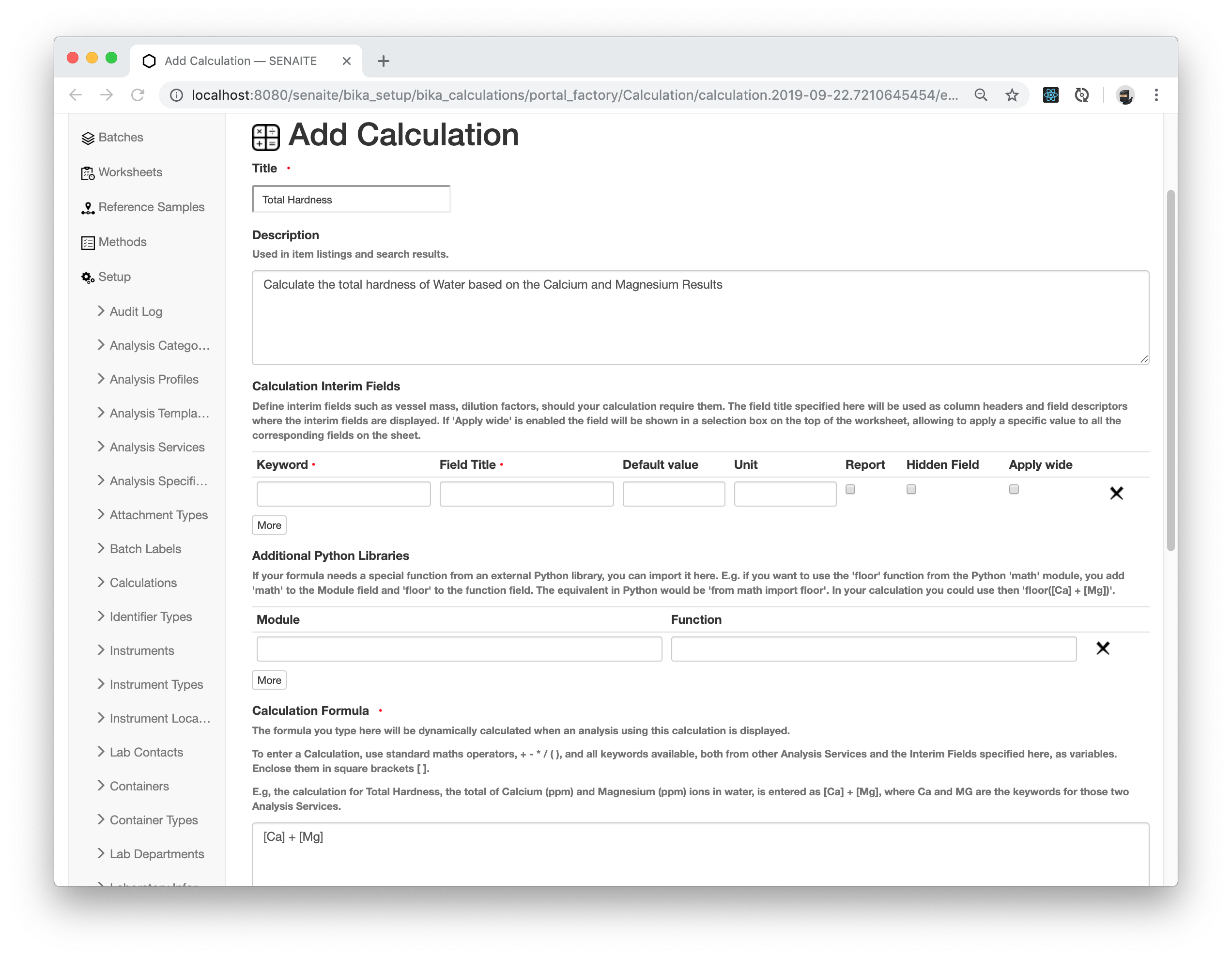
Enter the following values in the add form:
- Title:
Total Hardness - Description:
Calculate the total hardness of Water based on the Calcium and Magnesium Results - Calculation Formula
[Ca] + [Mg]
☝️Note: You can use any valid Python Expression in the Calculation Formula
Click the Save button when you are done.
☝️Note: The calculation formula references the Keywords of the Analysis Services we defined in the Quickstart section earlier. Selecting a meaningful Analysis Service Keyword is therefore from absolute importance, since changing it later will break existing Calculations!
🤓 Pro-Tip:
Calculations also understand a selected set of Python Builtins
like min, max, round, pow etc.
Using the calculation in an Analysis Service
Next we need to hook the calculation to the Analysis Service. Navigate to the
LIMS Setup and chose the Analysis Services tile. Select the Total Hardness
service from the listing and click on the Edit tab.
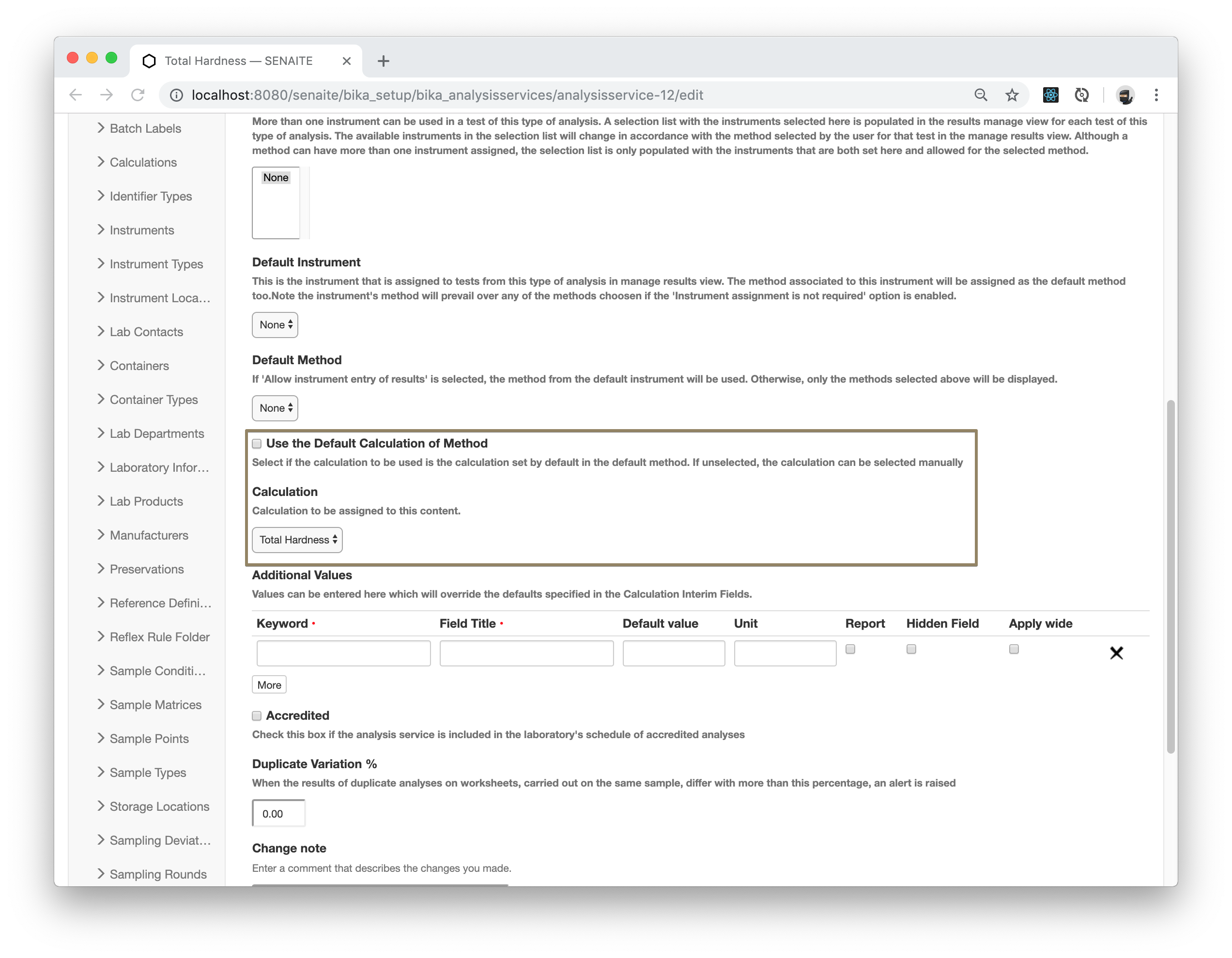
Navigate to the Method tab and deselect the option Use the Default Calculation of Method. The Calculation selection should then be automatically filled with our new created calculation. Press the Save button when you are done.
Applying an Analysis with a Calculation to a Sample
As already mentioned in the Sample Analyses section, our
change in the Analysis Service for Total Hardness does not affect any
existing Analyses in our Samples.
Consequently, we must either create a new Sample with the Total Hardness
Analysis, e.g. by copying an existing one, or remove and re-add this Analysis
from an existing Sample .
Here we are going to create a new Sample by copying an existing one and save the copied values without any changes and receive it afterwards.
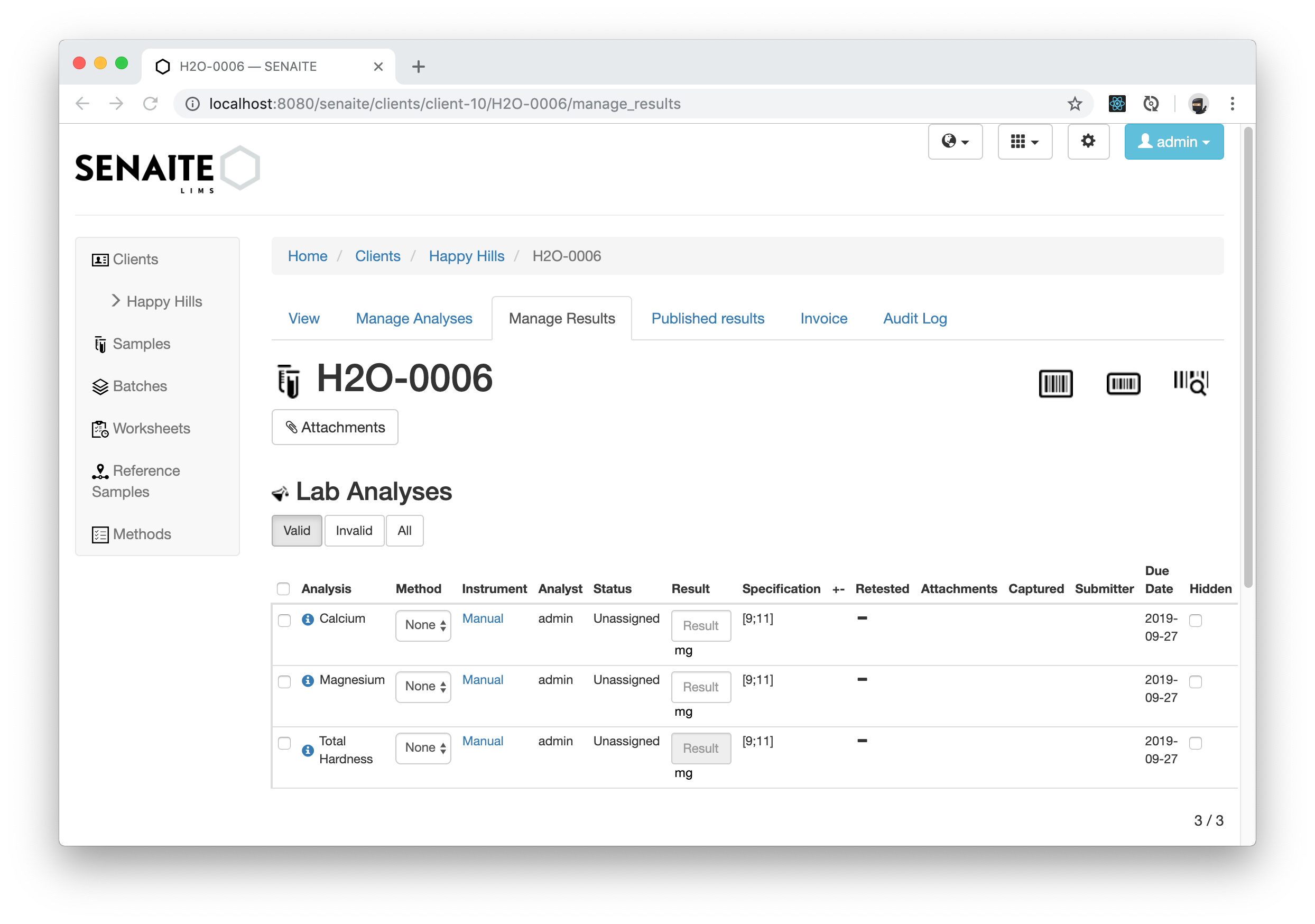
The Manage Results listing looks almost similar to the previous ones, but has
the Results field of the Total Hardness Analysis greyed out, so that you can
not introduce their a manual result anymore.
However, the Calcium and Magnesium Analyses still take manual Results and we
can test our Calculation by entering the following values for them:
- Calcium:
9.1 - Magnesium:
9.5
Since we defined the formula as [Ca] + [Mg], we expect for the Total Hardness a Result of 18.6.
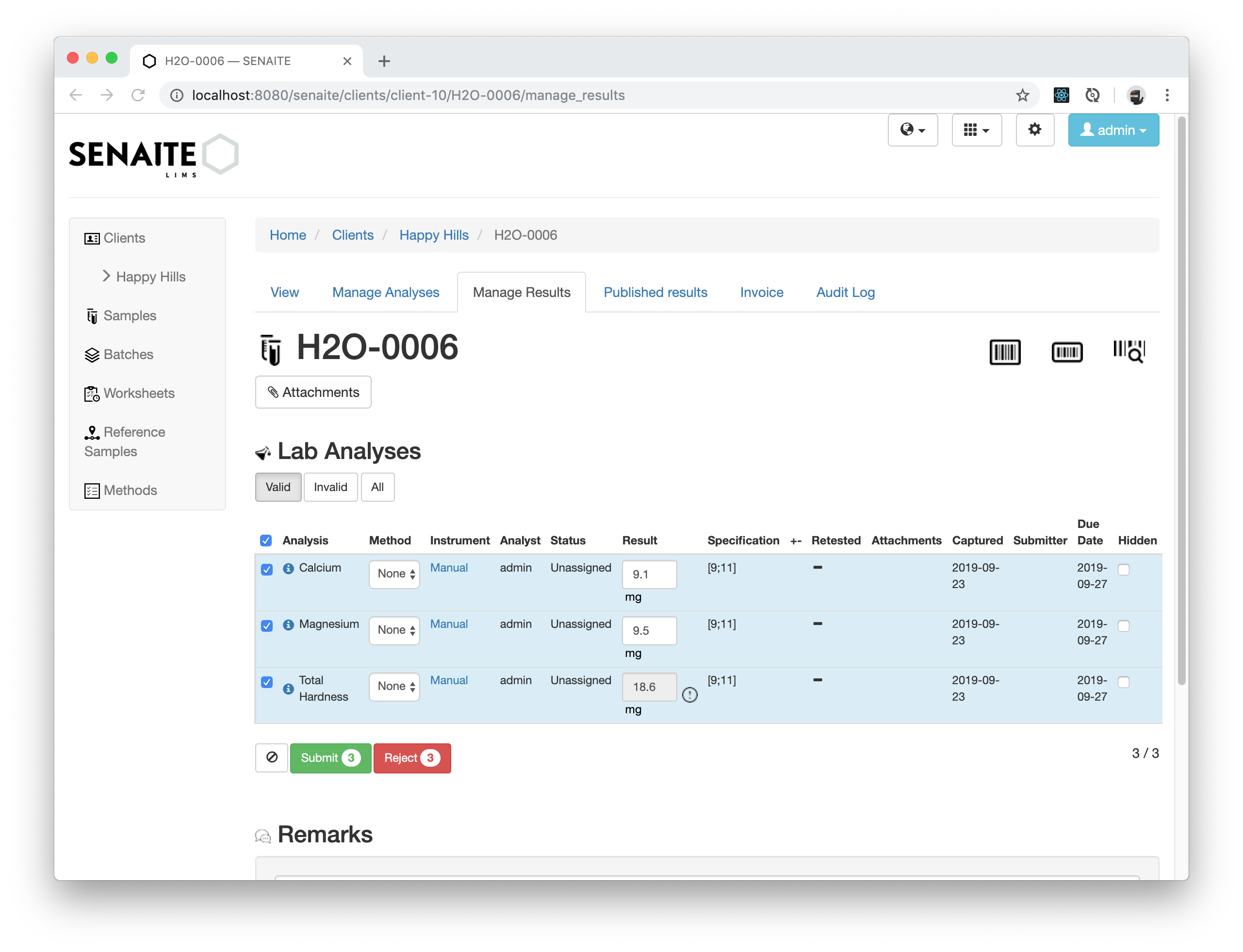
The Calculation for Total Hardness got executed after both dependent
Analyses were saved and the final Result was marked for submission
automatically.
Calculation Versioning
The same behavior like for Analysis Services applies also for Calculations, so that changes in the Calculation does not affect any of the Analysis created with prior versions of the Calculation.
To demonstrate this, we are going to change the Formula of our Total Hardness
Calculation and introduce a new parameter (Interim) to our formula:
Navigate to the LIMS Setup and edit the prior created Calculation to enter the following values:
- Calculation Interim Fields:
- Keyword:
factor - Title:
Factor - Default value:
1
- Keyword:
- Calculation Formula:
([Ca] + [Mg]) * [factor]
Press the Save button when you are done.
☝️Note: User-defined parameters (Interim fields) also introduce Keywords that can be referenced in Calculation Formulas like the keywords of Analysis Services. Thus, they are checked for uniqueness in the system.
Navigate back to the prior created Sample and click on the blue 🛈 Button next to
the Total Hardness Analysis to view the details of the Analysis.
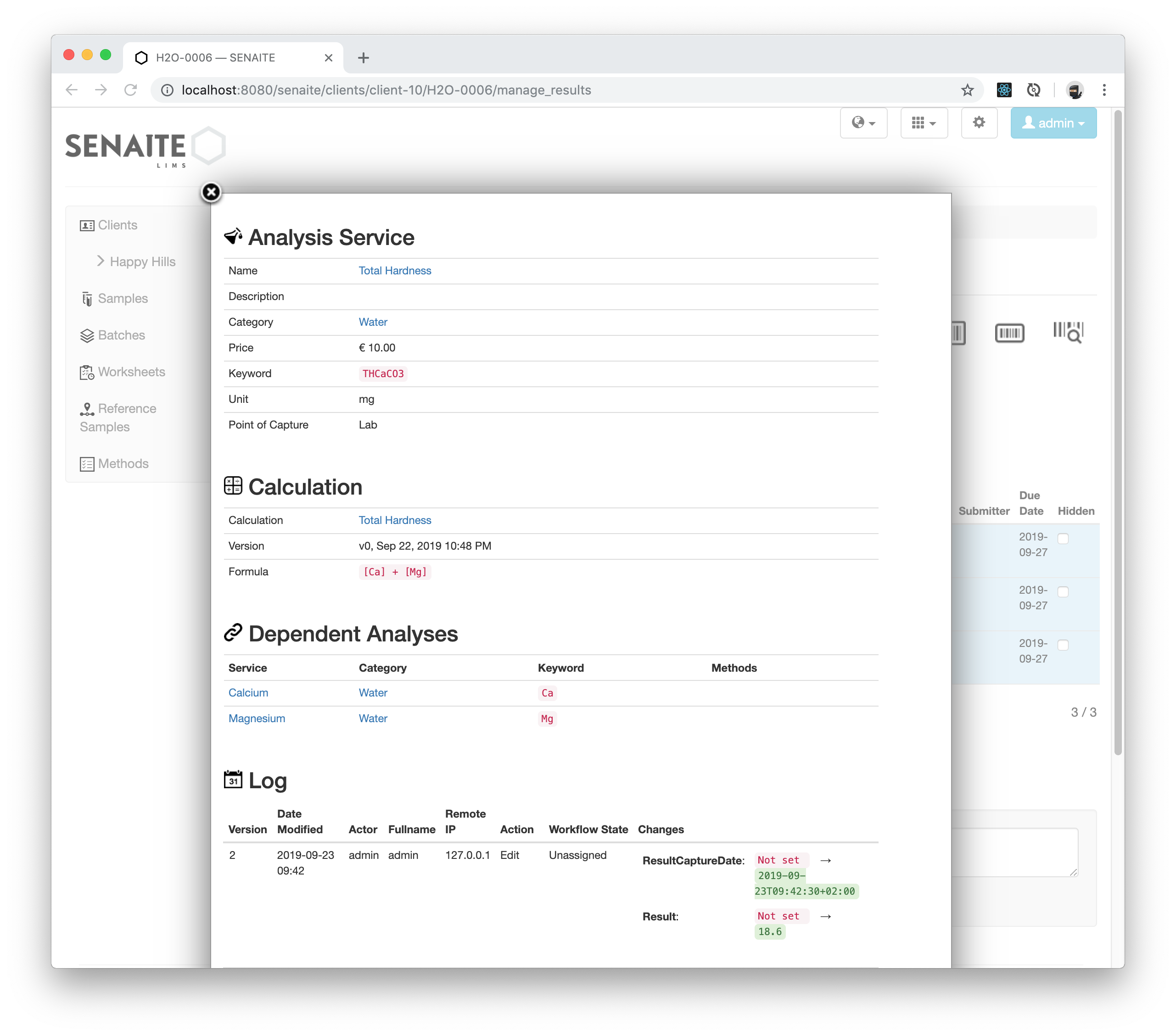
As you can see in the Calculation section of the displayed popup, the formula
still references the initial version ([Ca] + [Mg]) and it has not been changed
for this Sample. This mechanism ensures pre-existing tests won't change, even
after modifying the electronic records they are based on. Therefore, this
guarantees the integrity of the data, that is required for compliance with
ISO 17025.
However, creating a copy of this Sample uses the new Formula.
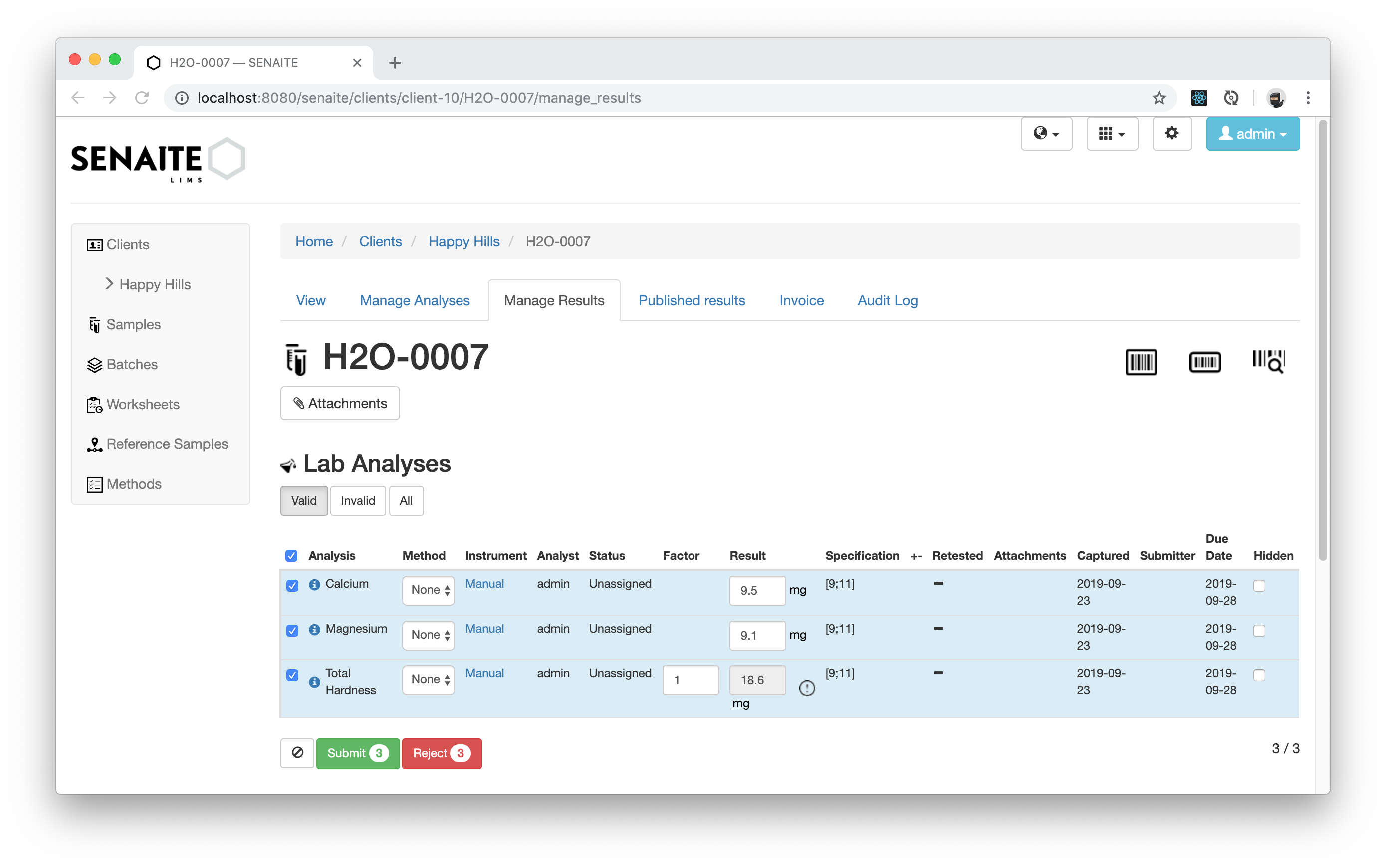
The new created Sample displays now also the calculation parameter (Interim
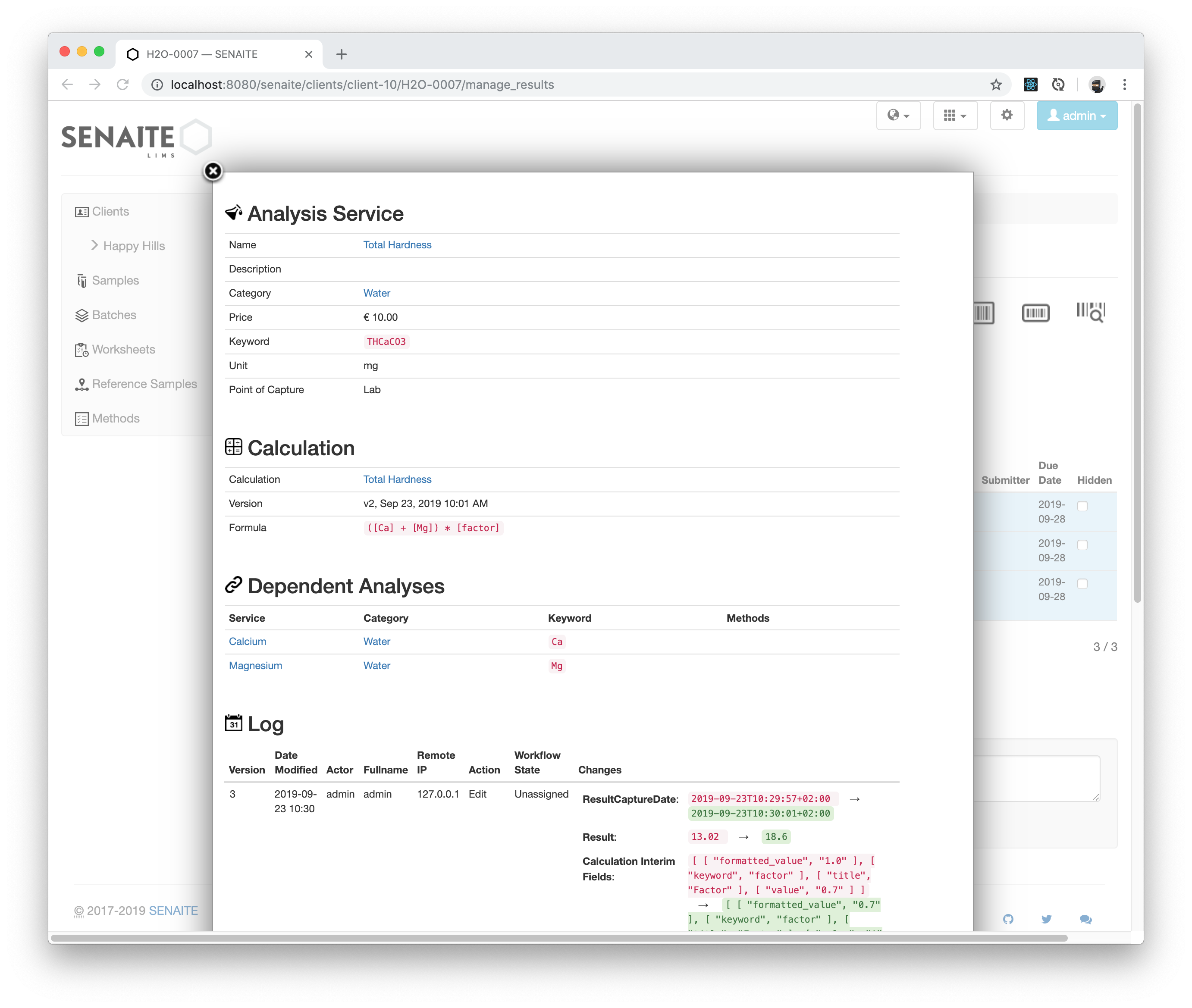
field) we introduced earlier. Clicking again on the blue 🛈 Button next to the
Total Hardness Analysis reveals the new version of the Calculation with the
new Formula ([Ca] + [Mg] * [factor].
External Calculations
Using Python Expressions and Python Builtins inside might be sometimes not enough for your Calculation and you need to do more complex numeric computations.
The SENAITE Calculation machinery let you therefore import your own modules with external functions to even use external libraries like SciPy or NumPy.
Create a file called calculations.py and put it somewhere in the PYTHONPATH
on your SENAITE Server. For simplicity, we simply put it directly into the
site-packages directory of the used Python interpreter.
Use this command to find out where the site-packages directory is located on
your server: python -c "import site; print(site.getsitepackages())"
Add the following contents into calculations.py:
def total_hardness(a, b, factor=1):
   return float(a + b) * factor
☝️Note: You need to restart your SENAITE instances for this new module to be imported!
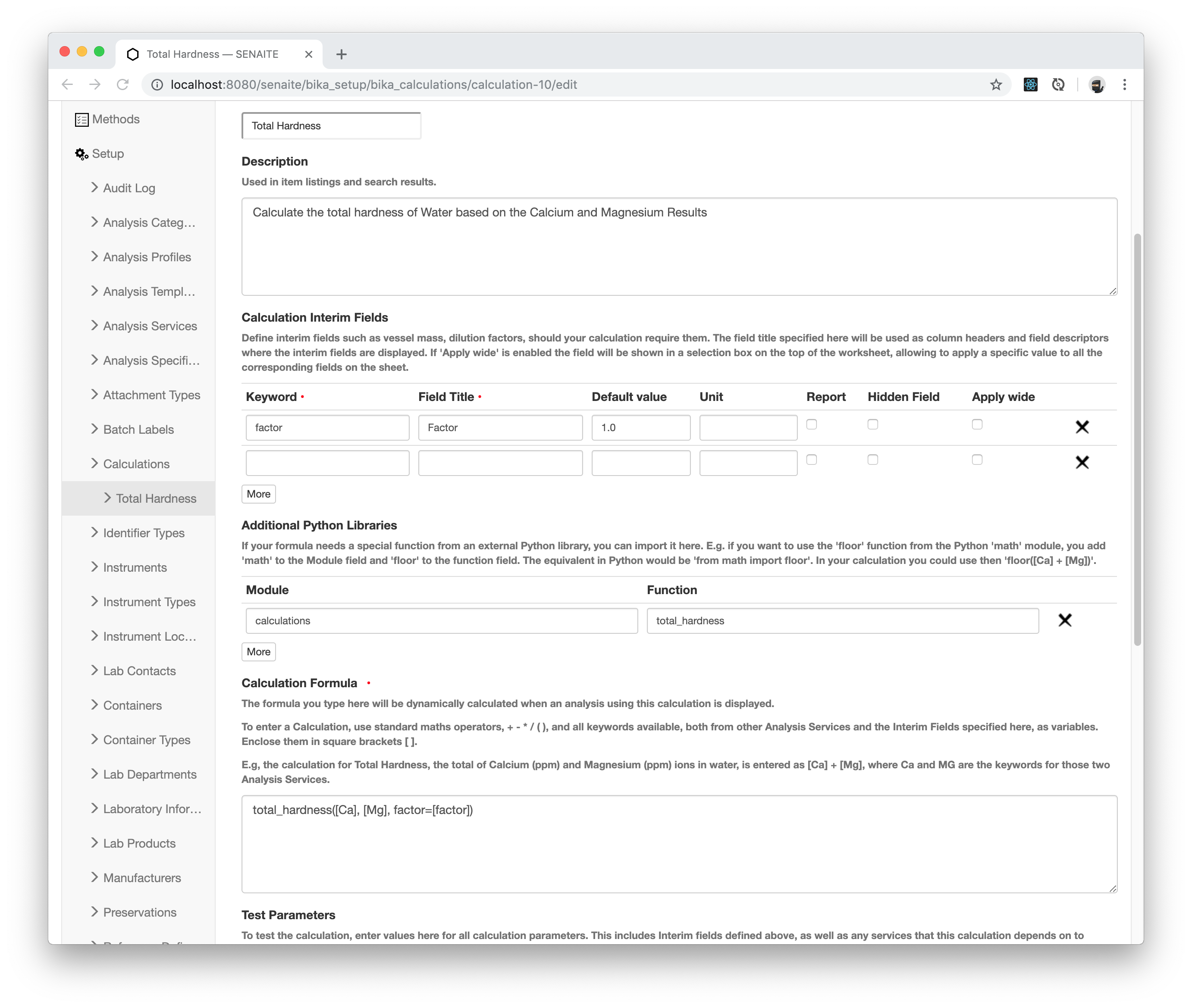
Navigate to the prior created calculation and enter the following values:
- Additional Python Libraries:
- Module:
calculations - Function:
total_hardness
- Module:
- Calculation Formula
total_hardness([Ca], [Mg], factor=[factor])
Copy now one of the previous Samples to a new one to use the new Calculation Formula. Also receive the Sample to be able to introduce new Results.
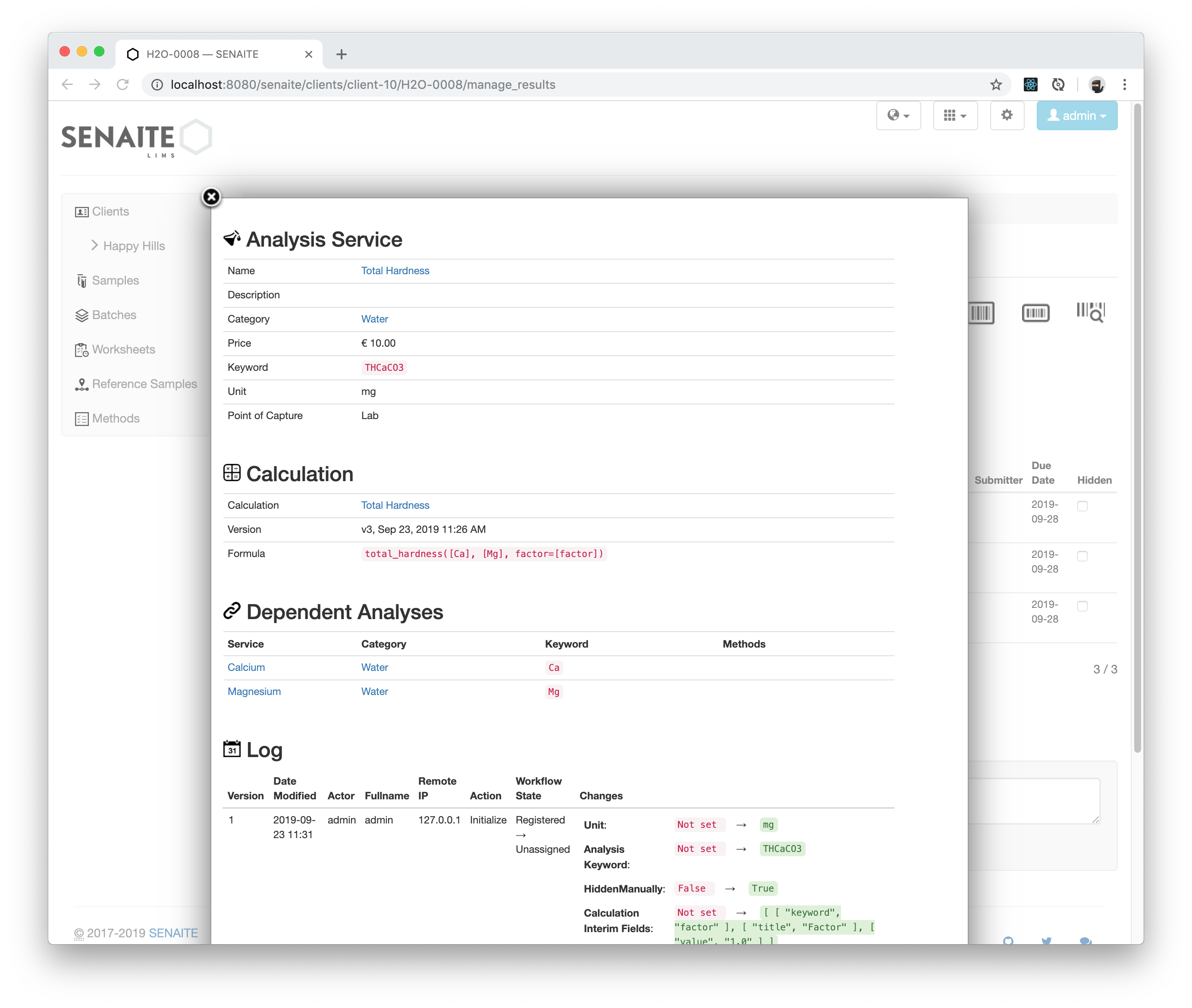
Click again on the blue 🛈 Button next to the Total Hardness Analysis to verify
that the new Formula is set to total_hardness([Ca], [Mg], factor=[factor]).
Introduce now some Results for Calcium, Magnesium and the Factor parameter.
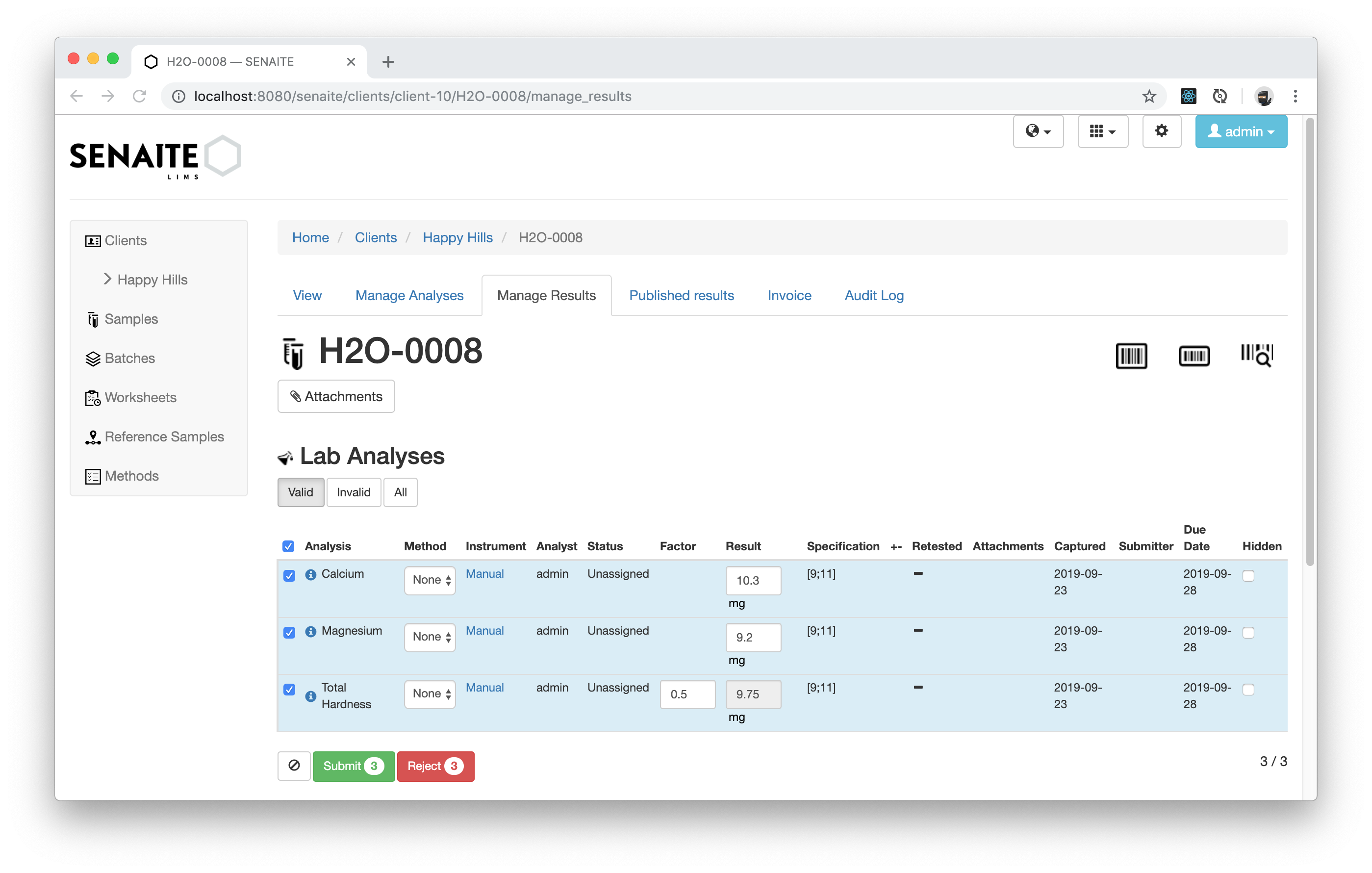
Congratulations 🙌 you successfully created your first Calculation in SENAITE and learned how to import external modules for complex computations.