
Sample Basics
In the previous guide you created your first sample in SENAITE. Next we are going to learn the basics about the standard sample workflow, how to process a sample through the states of the sample workflow and how to publish a sample report and send it to the Client Contact.
Sample Workflow
Each entity in SENAITE follows a workflow which defines Transitions and States. You can think of a workflow like a directed graph with nodes and edges, where a node represents a State and the connecting edge reflects a Transition.
The basic workflow of a sample can thus be displayed as follows:
Registered -> Sample Due -> Received -> To be verified -> Verified -> Published
          \  /          \  /        \  /              \  /        \  /
       initialze      receive      submit            verify      publish
☝️Note: This is graph omits some additional Sample states/transitions for the sake of simplicity. Permissions, visibility constraints and available actions for a given sample will depend on its workflow state.
Receive the Sample
You have already seen the first State of the prior created Sample, which was
Sample due. In this state it is not possible to enter any results, because the
sample has not been received yet by the lab.
The reception of the sample is usually done by a laboratory clerk and involves a full review of the sample conditions to ensure its validity (the support is not broken, suitability of the preservation, the sample type fits with the requirements of the requested analyses, the elapsed time since the sample was collected is in range, etc.). Therefore, the process of sample reception is a critical step in contract-analyses labs. For non-contract-analysis labs (those that create and consume their own samples), this process can be performed automatically by turning on the setting "Auto-receive samples" in LIMS Setup.
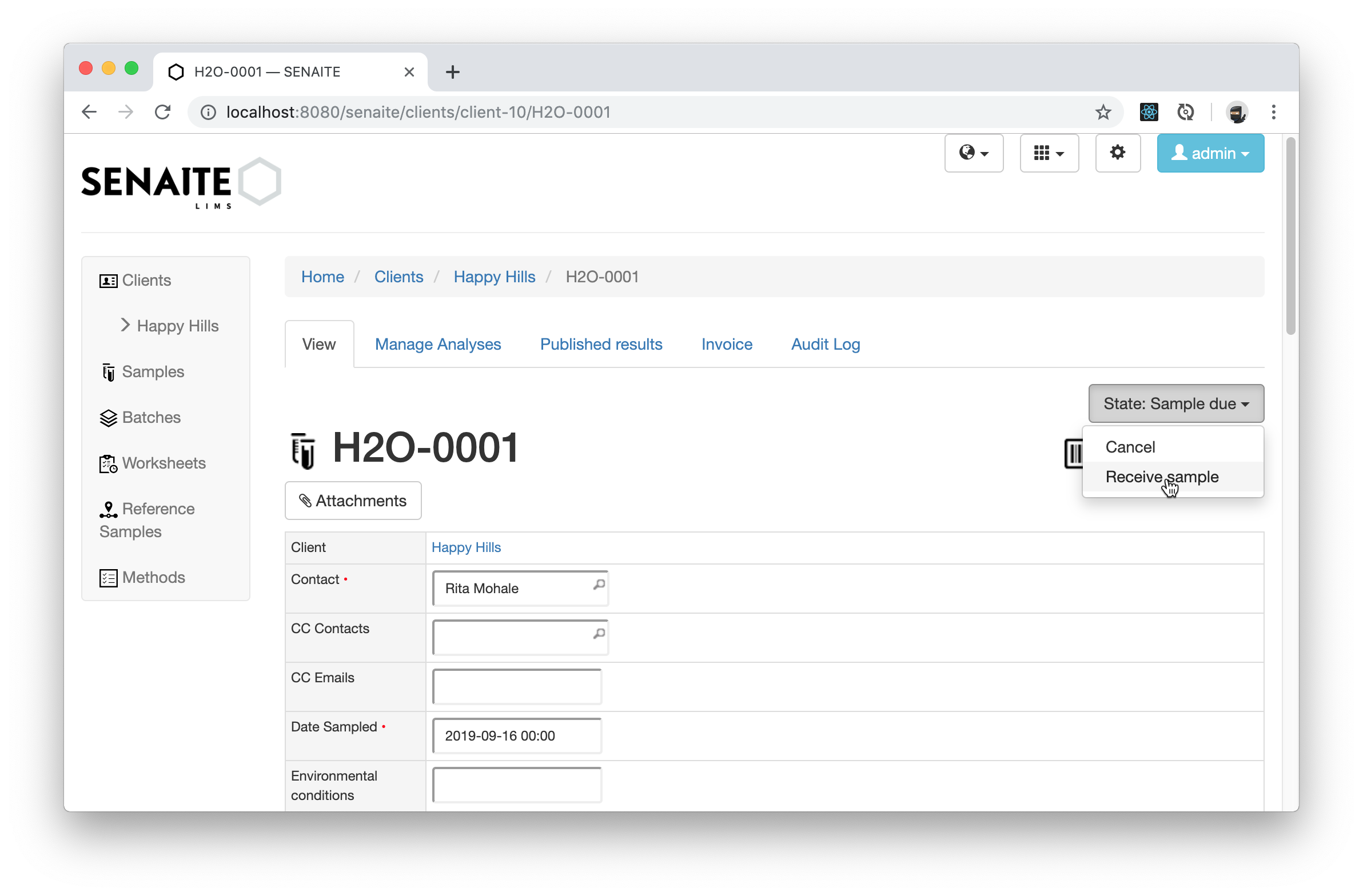
To receive a sample, you can select the Receive transition from the dropdown menu within the Sample.
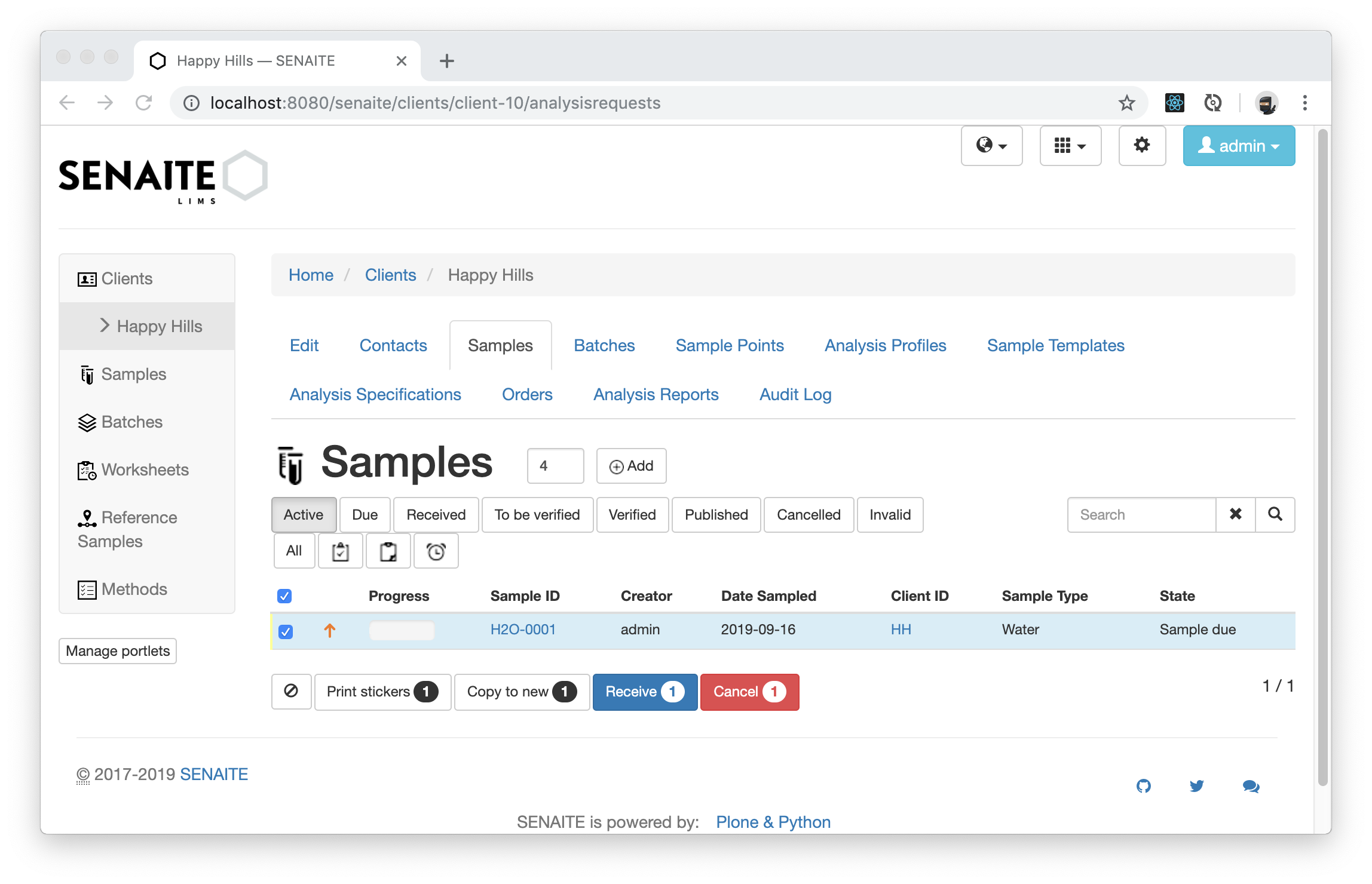
Alternatively, it is also possible to select the Sample from the Samples Listing view and click on the Receive button at the bottom.
After you executed one of the two possibilities, the Sample is in the state Received.
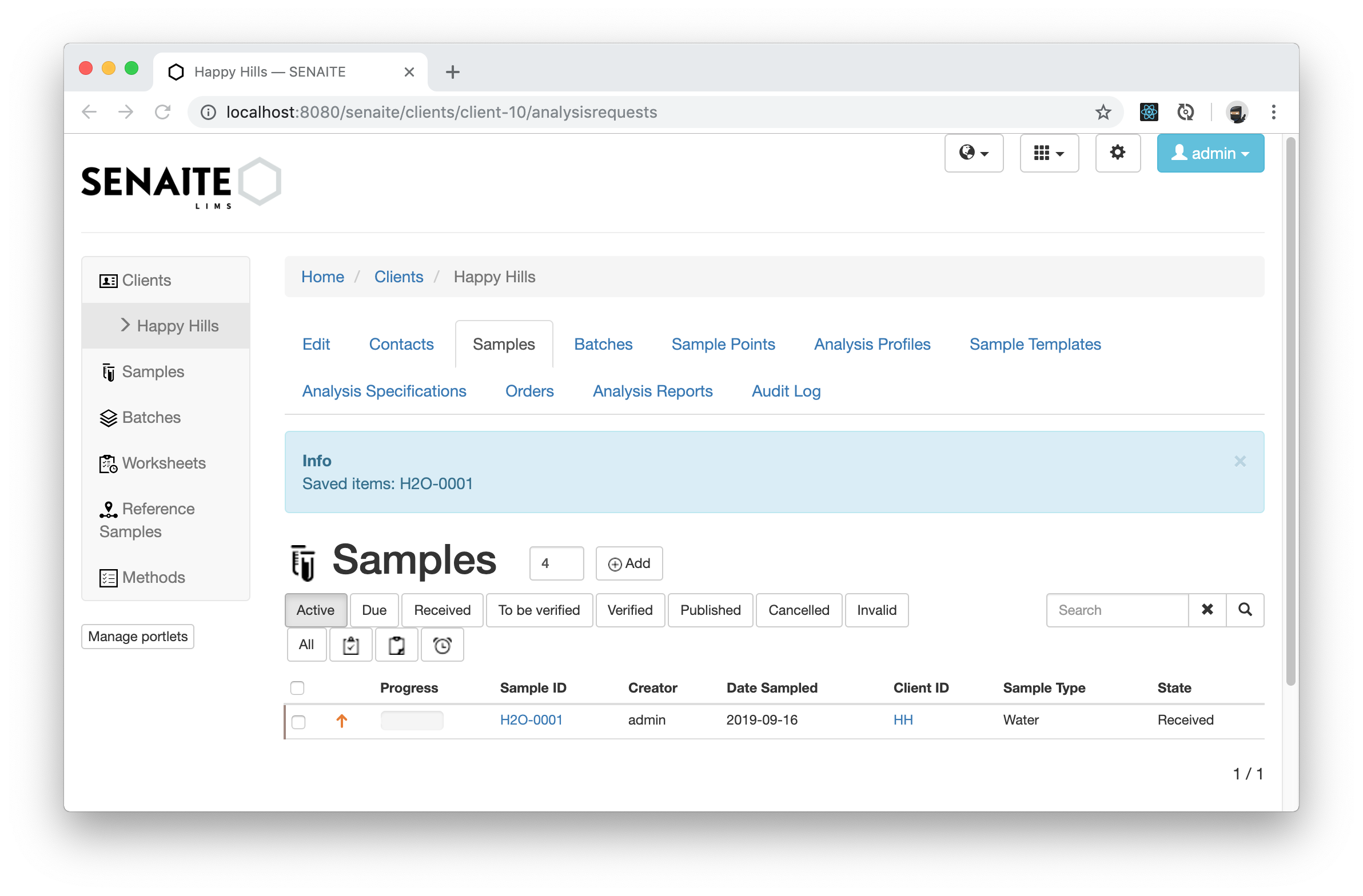
☝️Note:
The colored borders in the listings also encode the state of the items,
where yellow stands for Sample due, brown for Sample received, turquoise for
To be verified, blue for Verified and green for Published.
Enter Results
Only in the Received state a user with the Analyst role can introduce the
measured results for the Analyses of the Sample.
Logout from the system by clicking the Log out button displayed in the blue dropdown list at top-right with title Lab Manager. Login with the credentials for the user with Analyst role you created in the section Add a Laboratory Analyst from the previous guide:
- User Name:
analyst - Password:
analyst
Once logged in, note that Lab Analyst is displayed now in the blue box at top-right corner.
Open the previously created sample by clicking on the generated link in the samples listing, which automatically opens the Manage Results tab for you.
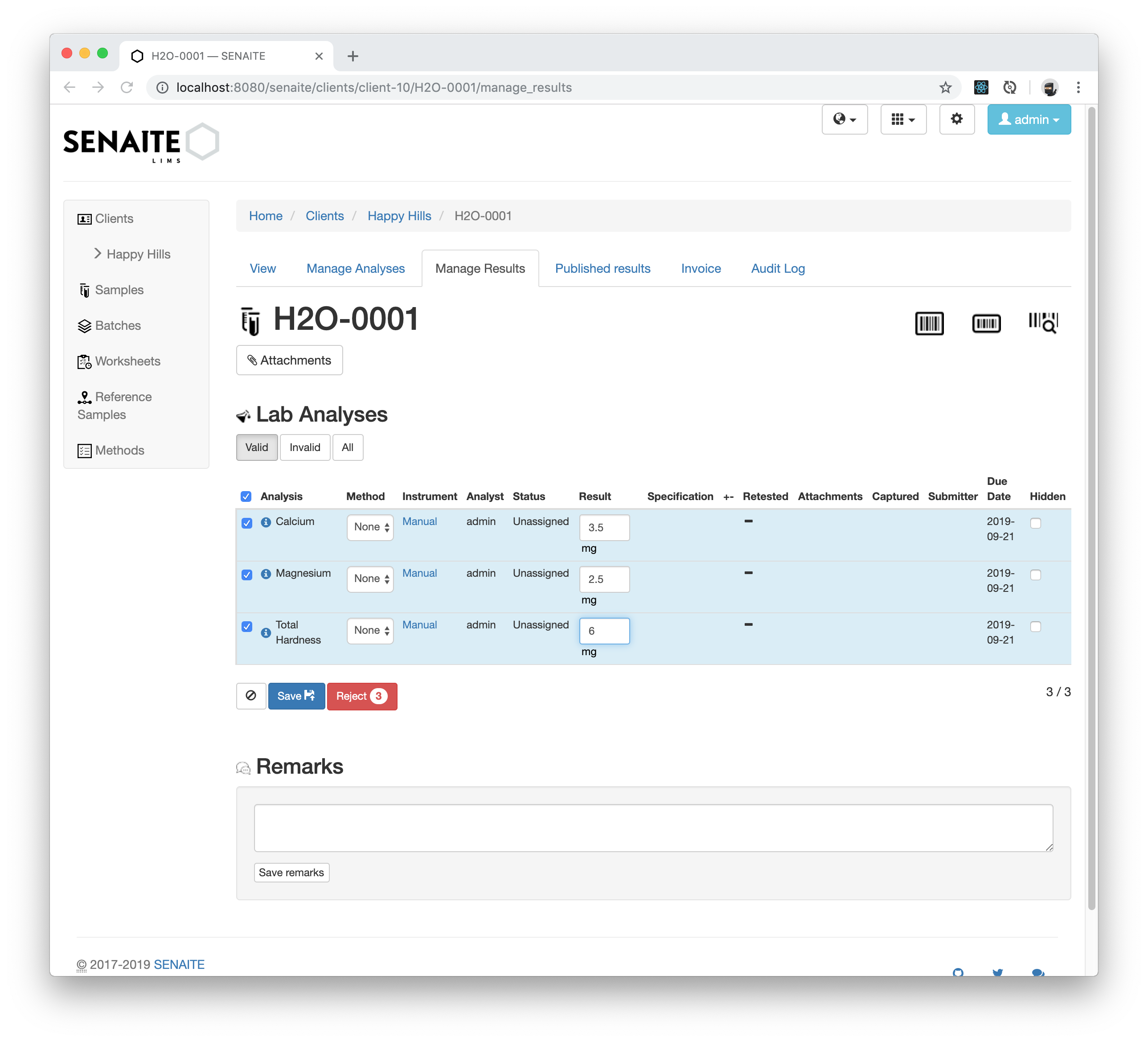
You can now enter the results for each Analysis in the Lab Analyses listing.
Press the Save button when you are done to introduce the numbers to the server.
After the results were saved, they can be submitted.
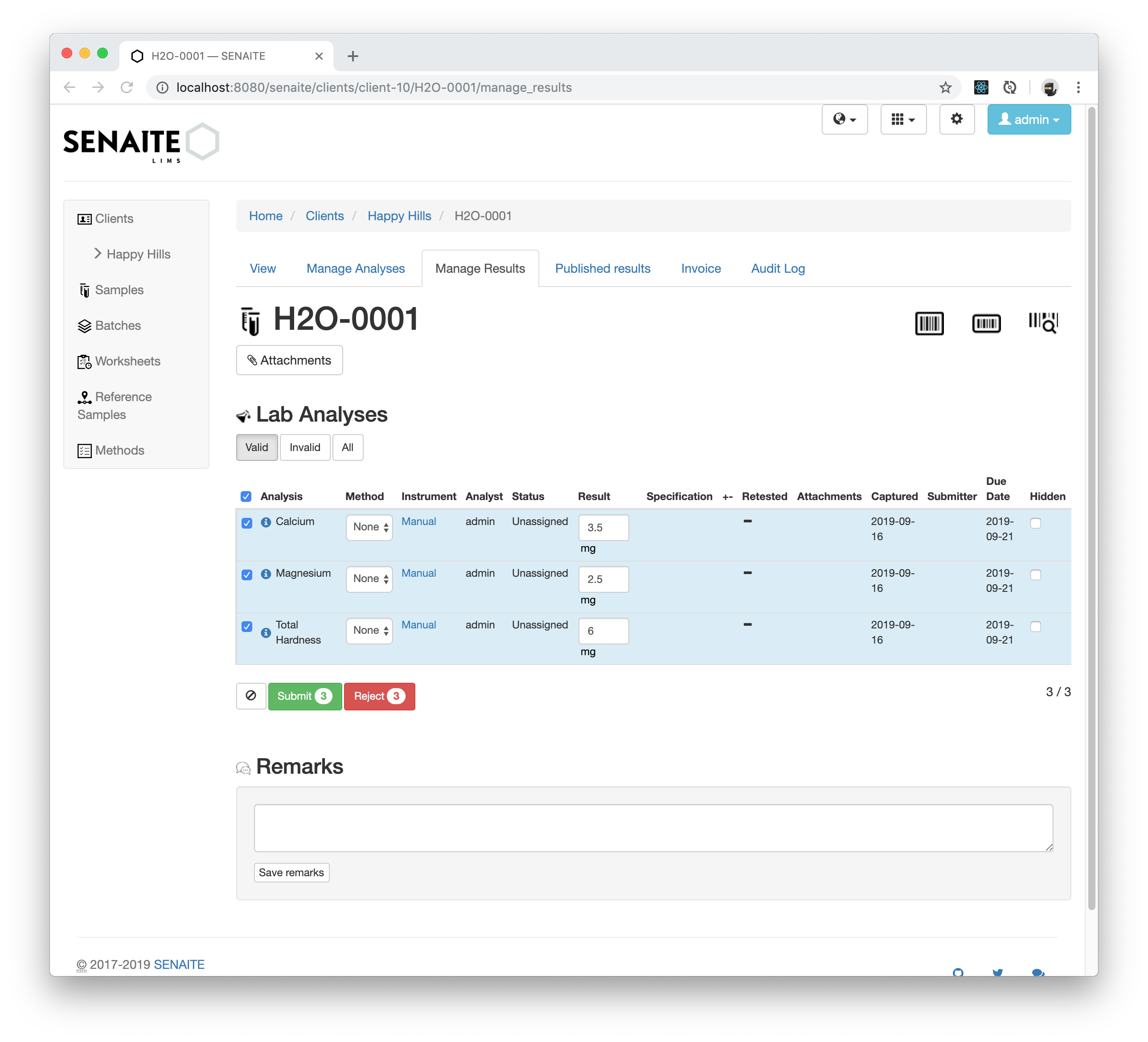
☝️Note: The intermediate Save step does not submit the results for verification yet, but is used to trigger server side logic like e.g. calculations or range specifications. As soon as the results are submitted, the Analyst can not change the values anymore and the State of the Sample is To be verified
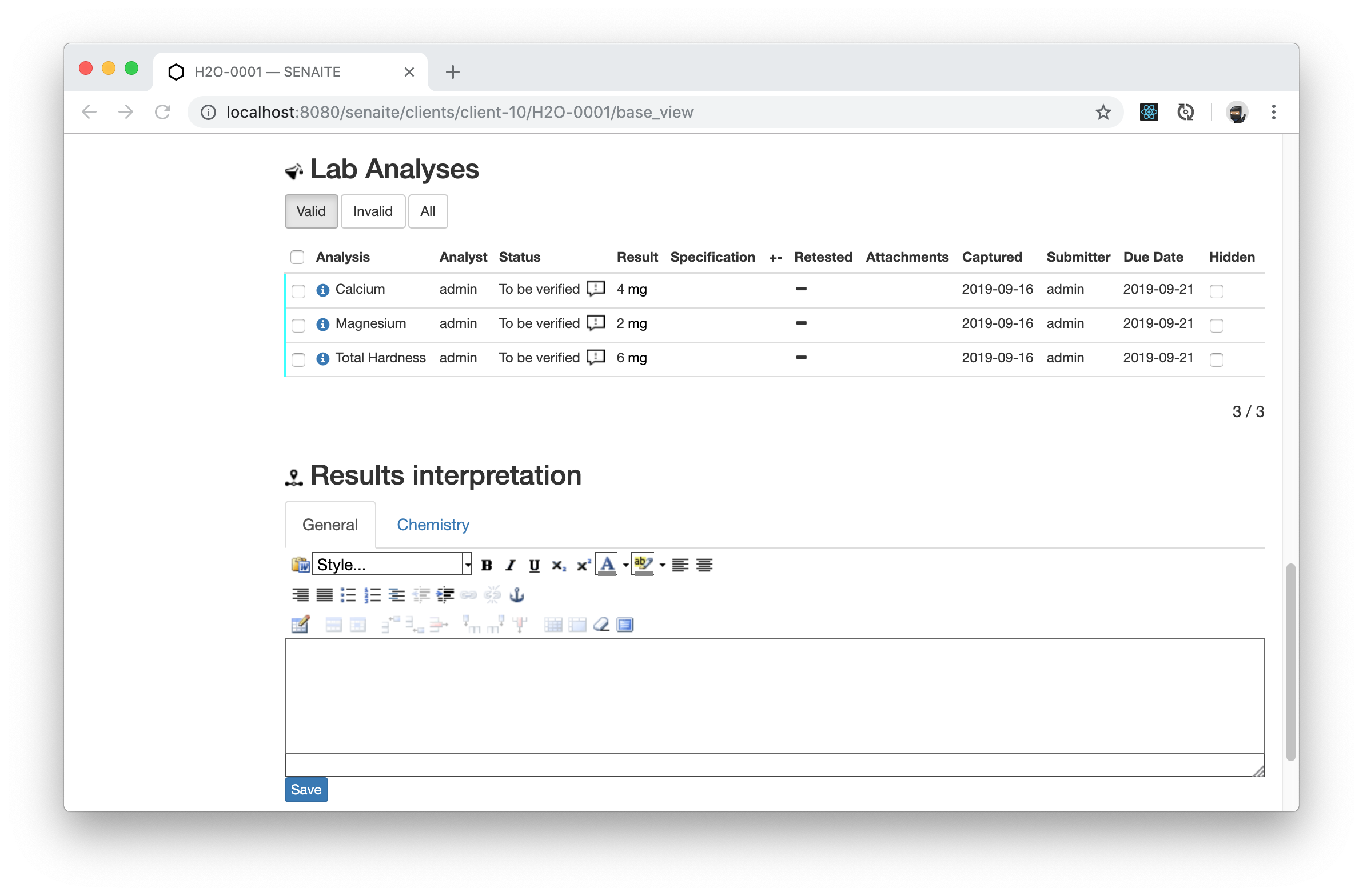
☝️Note: Here we've entered the results directly in the Sample view, but, as we will see in Working with Worksheets guide, the management and distribution of the work to be done within laboratory analysts, along with the results entry, will mostly be performed by using Worksheets.
Verify the submitted Results
Only users with the role of a Lab Manager or Verifier are allowed to
Verify the results of a Sample by selecting the Analyses and click on the
Verify button.
The verification of results is maybe the most important step within the whole process. This step involves the review of both the sample information and the results submitted by the analyst. Once an analysis is verified, the client contact with access granted to the system will be able to see the result, even if is not yet published. There is no step-back option once an analysis has been verified by a qualified user other than invalidating the whole sample.
Logout from the system and login again with the credentials for the user you created in the previous guide that belongs to the "Lab Manager" role:
- User Name:
labman - Password:
labman
Once logged in, go back to the created Sample and select all submitted Analyses. The button to verify the results appears now.
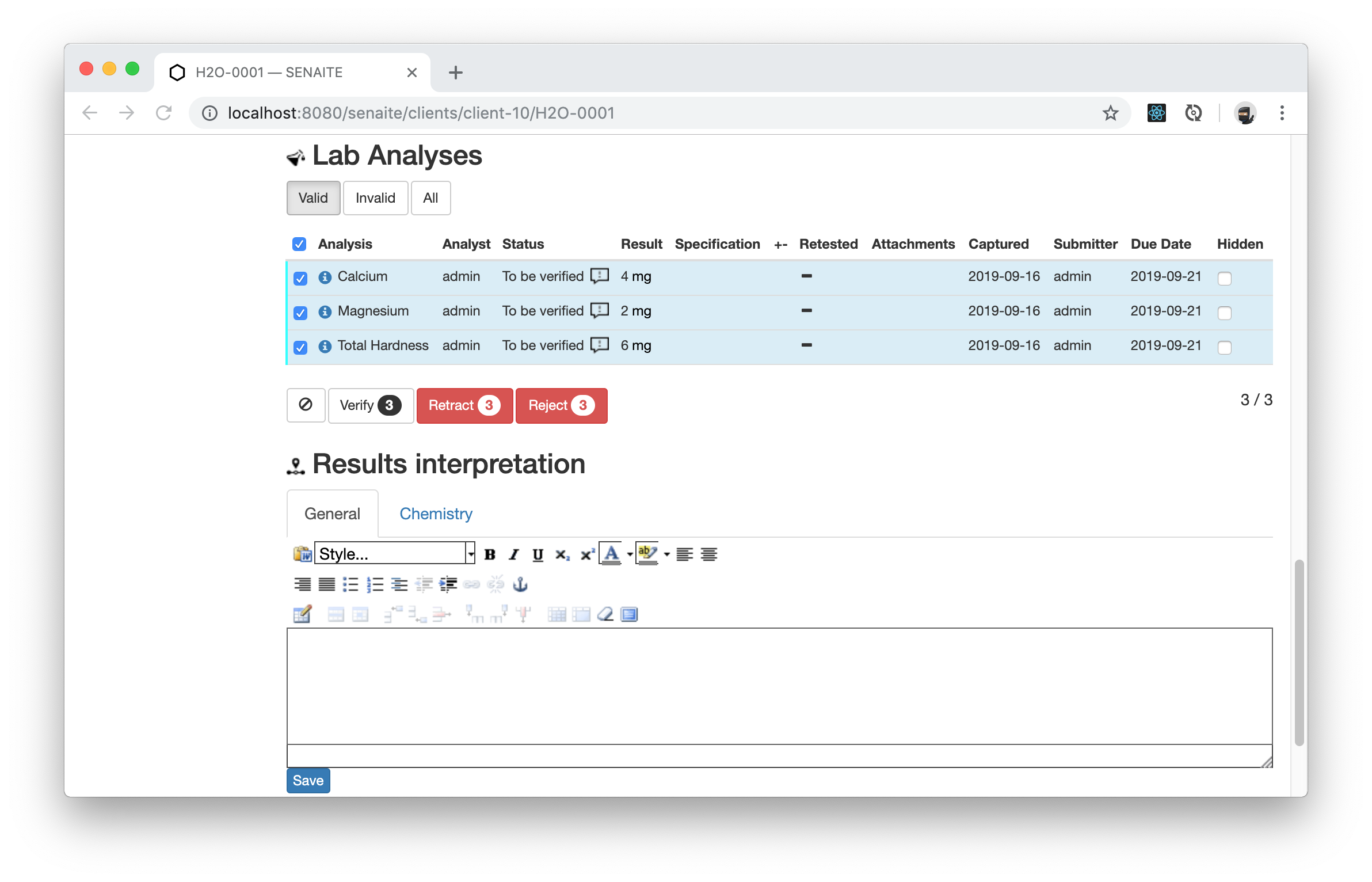
Clicking on the Verify button verifies the results.
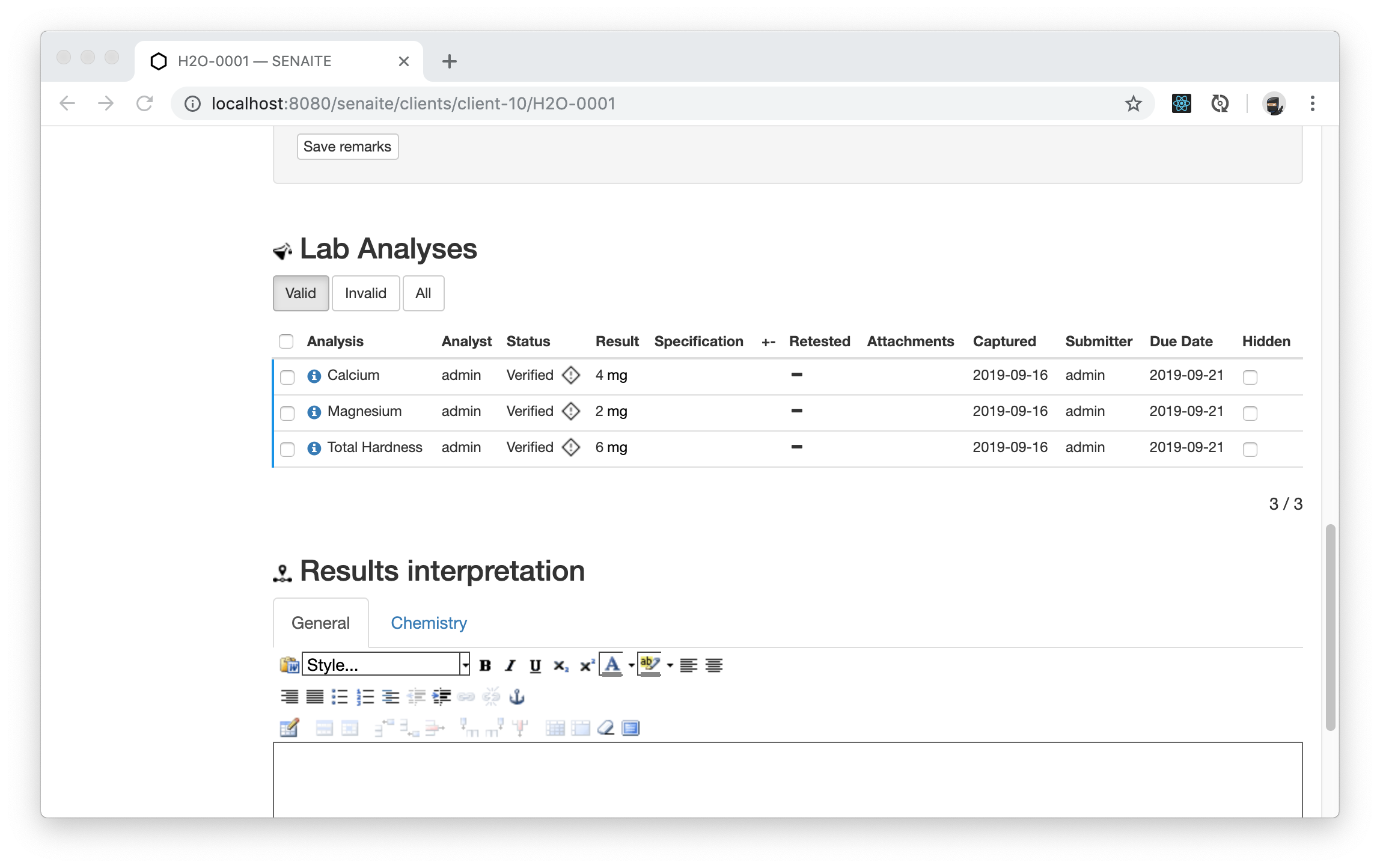
☝️Note: In this guide we are verifying the results directly in Sample's manage analyses view. As we will see later in Working with Worksheets guide, the addition of QC analyses (controls, blanks and duplicates) to ensure the quality of the tests and provide useful insights for the verification process can be done with Worksheets.
Publish the Results
To finalize the Sample, it needs to be transitioned to the Published state (or
another end-state). Only users with the role of a Lab Manager or a Publisher
are allowed to publish the sample.
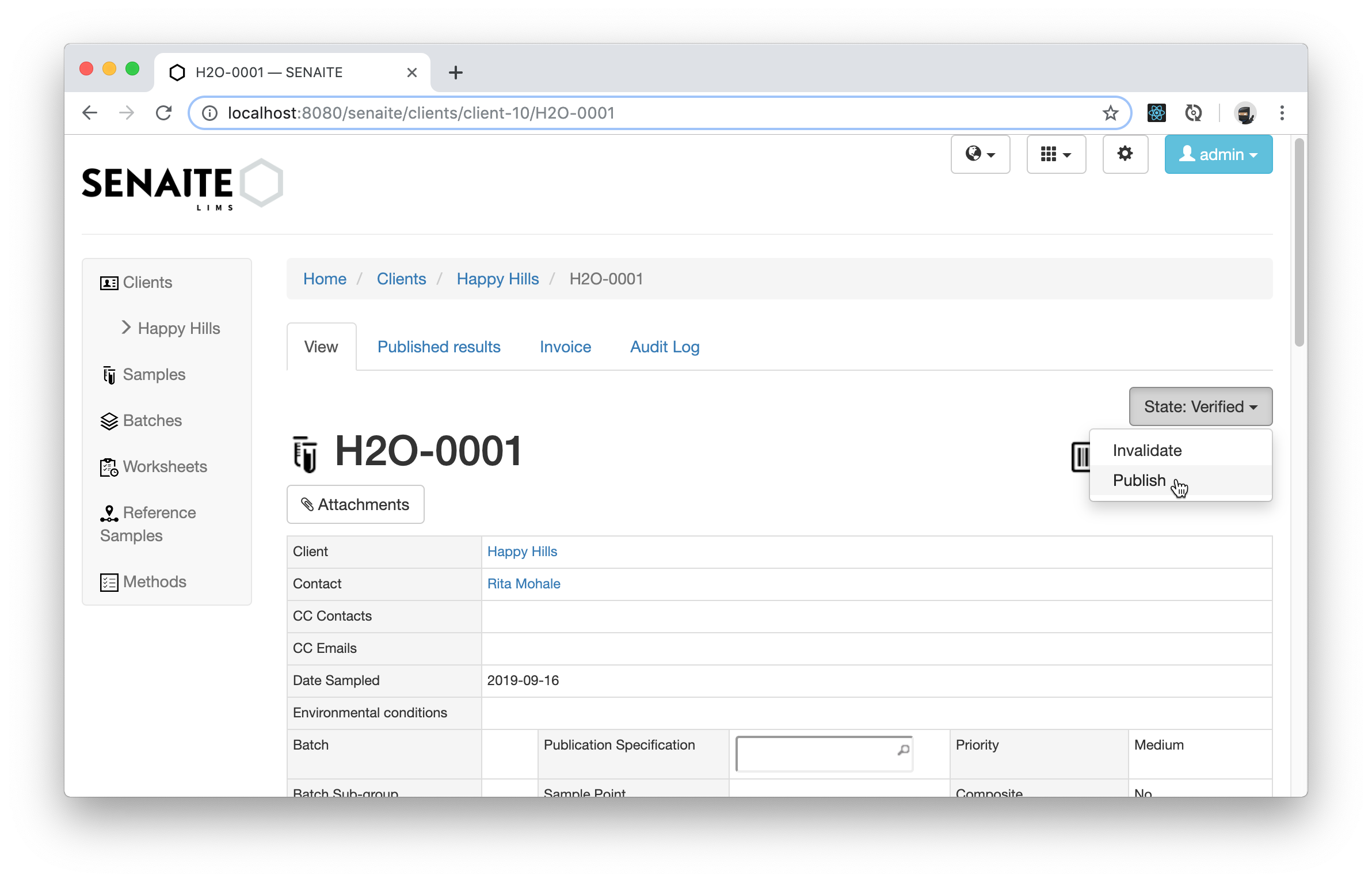
Navigate to the sample view and select the Publish transition from the upper right workflow dropdown.
This opens the PDF printing preview of SENAITE Impress, where the report template, paper format, orientation and custom report options can be selected.
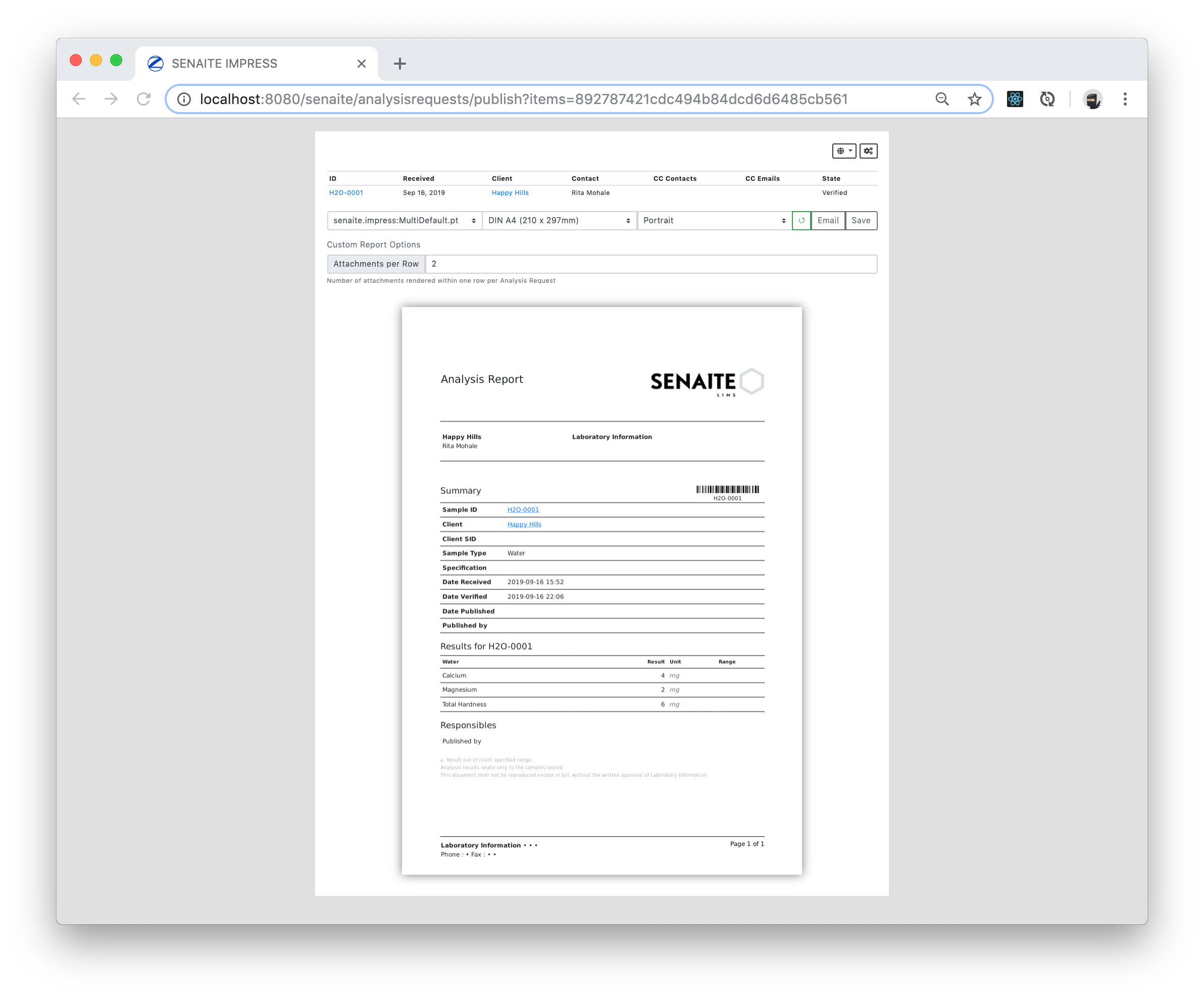
Click now on the Save button to generate the PDF for the result report. After the report was created, the system redirects you to the analysis reports listing of the client.
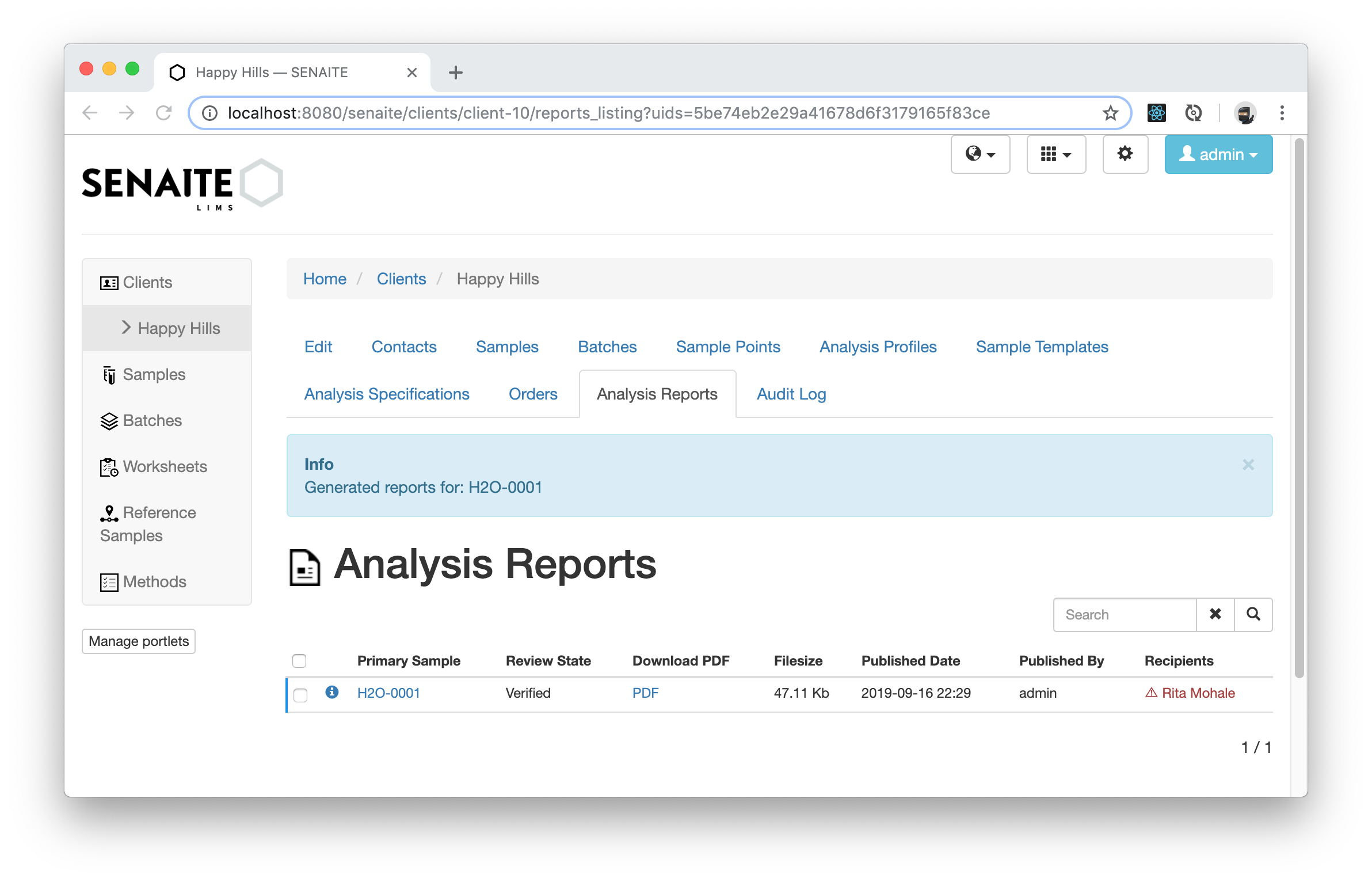
However, this step was not sufficient to transition the Sample to the final
Published state (note the blue border of the referenced sample). To achieve
this, the report needs to get either send via email to the noted Contacts of the
Sample or it need to get force published by a user with the Lab Manager role.
Selecting the report will therefore display these two options to proceed.
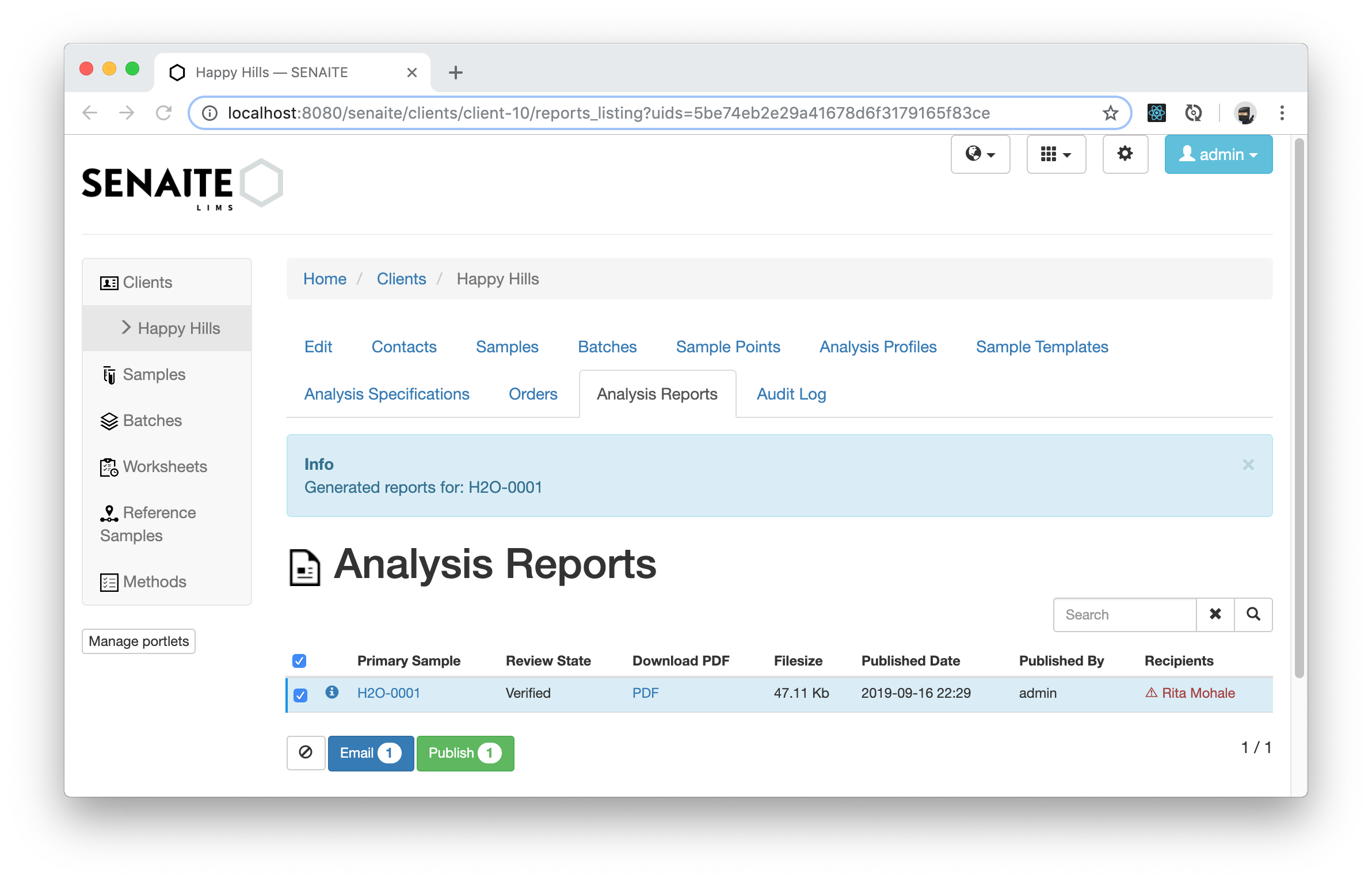
Please click on the Email button to open the Email form for this analysis report.
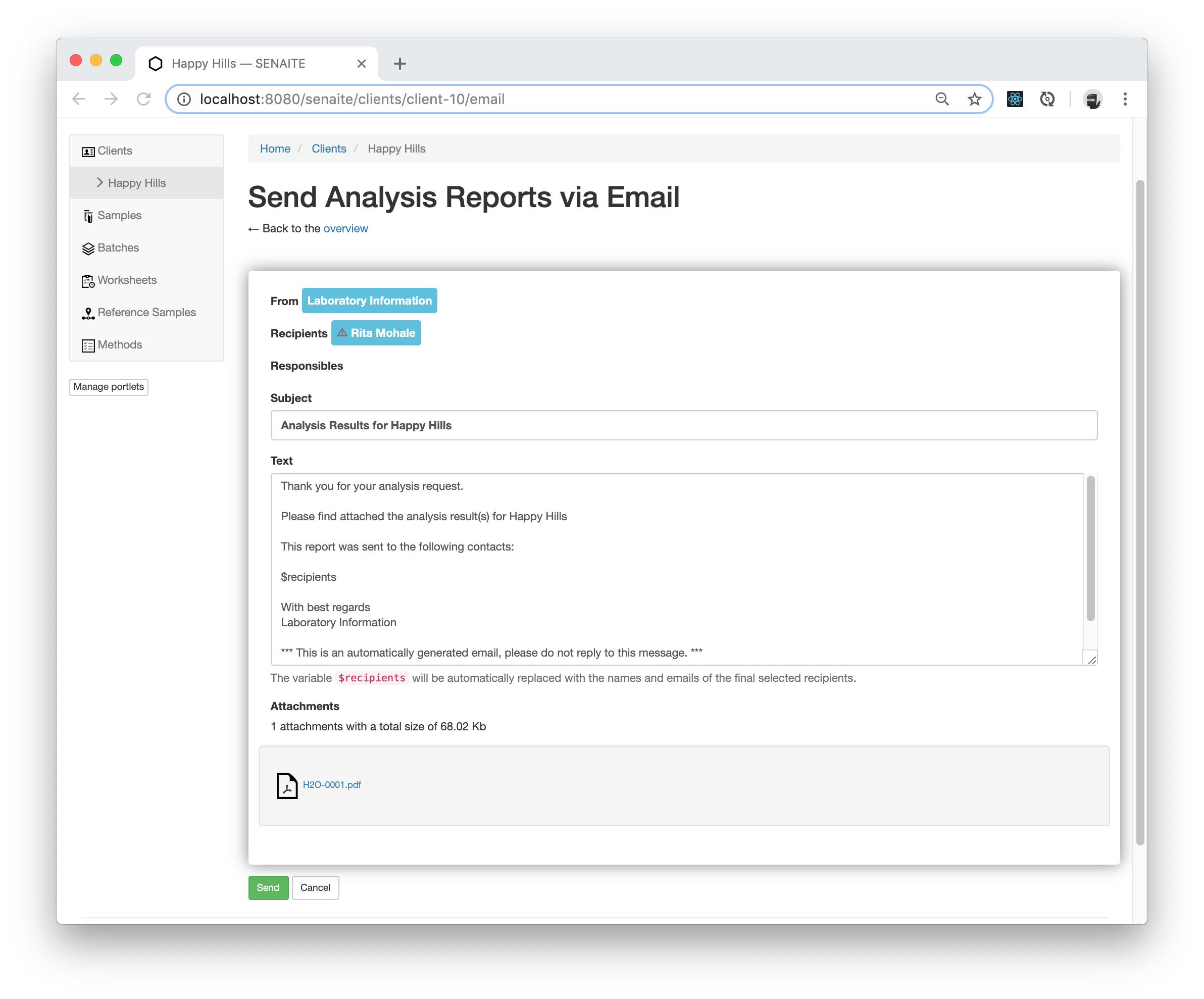
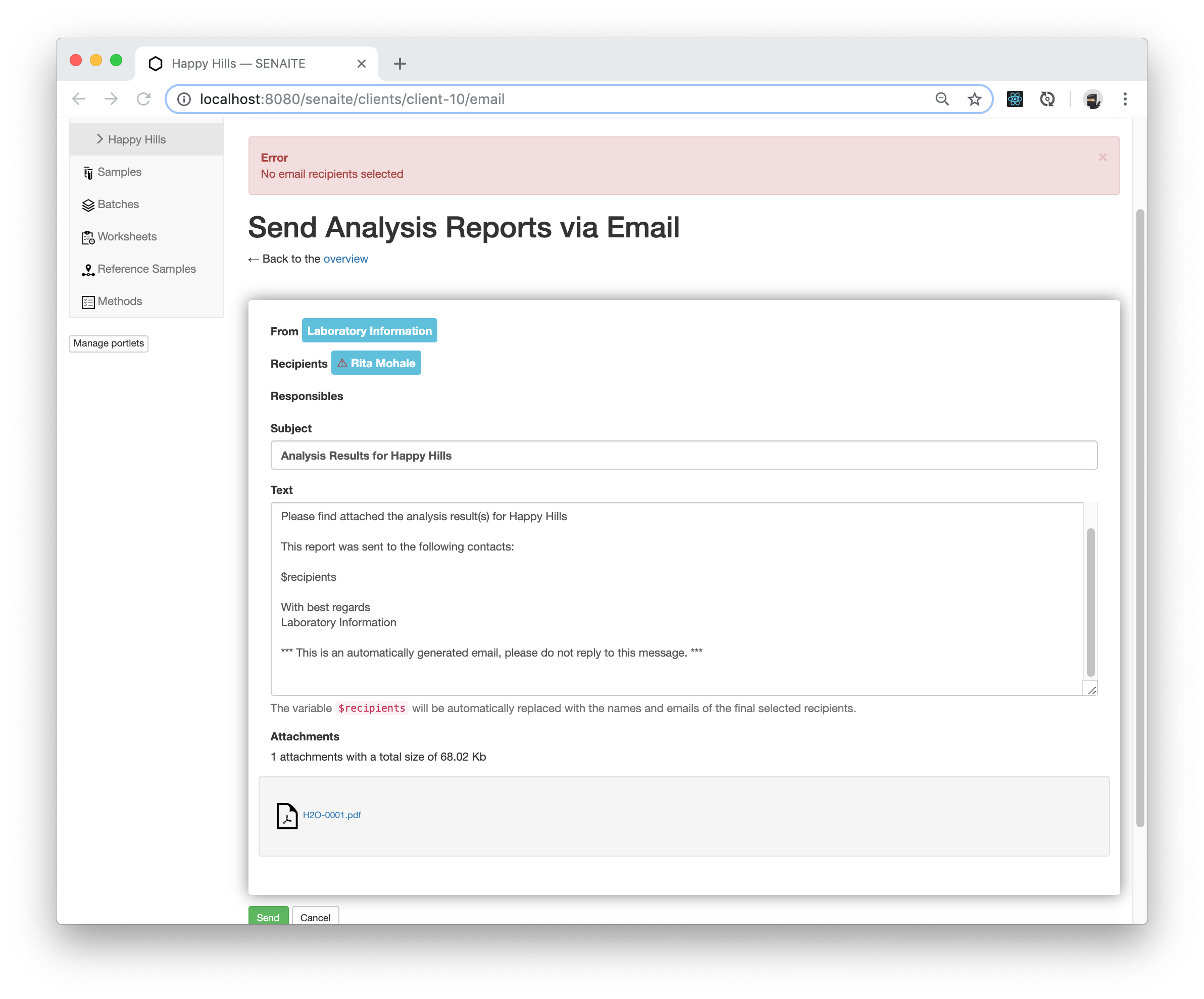
Since we did not add a valid email address for our selected Client Contact, the system shows an error message when we try to send the email.
Luckily, this can be fixed by simply adding an email address to our Client Contact. Navigate to the Contacts tab of the Happy Hills client and select the Edit tab for Rita Mohale.
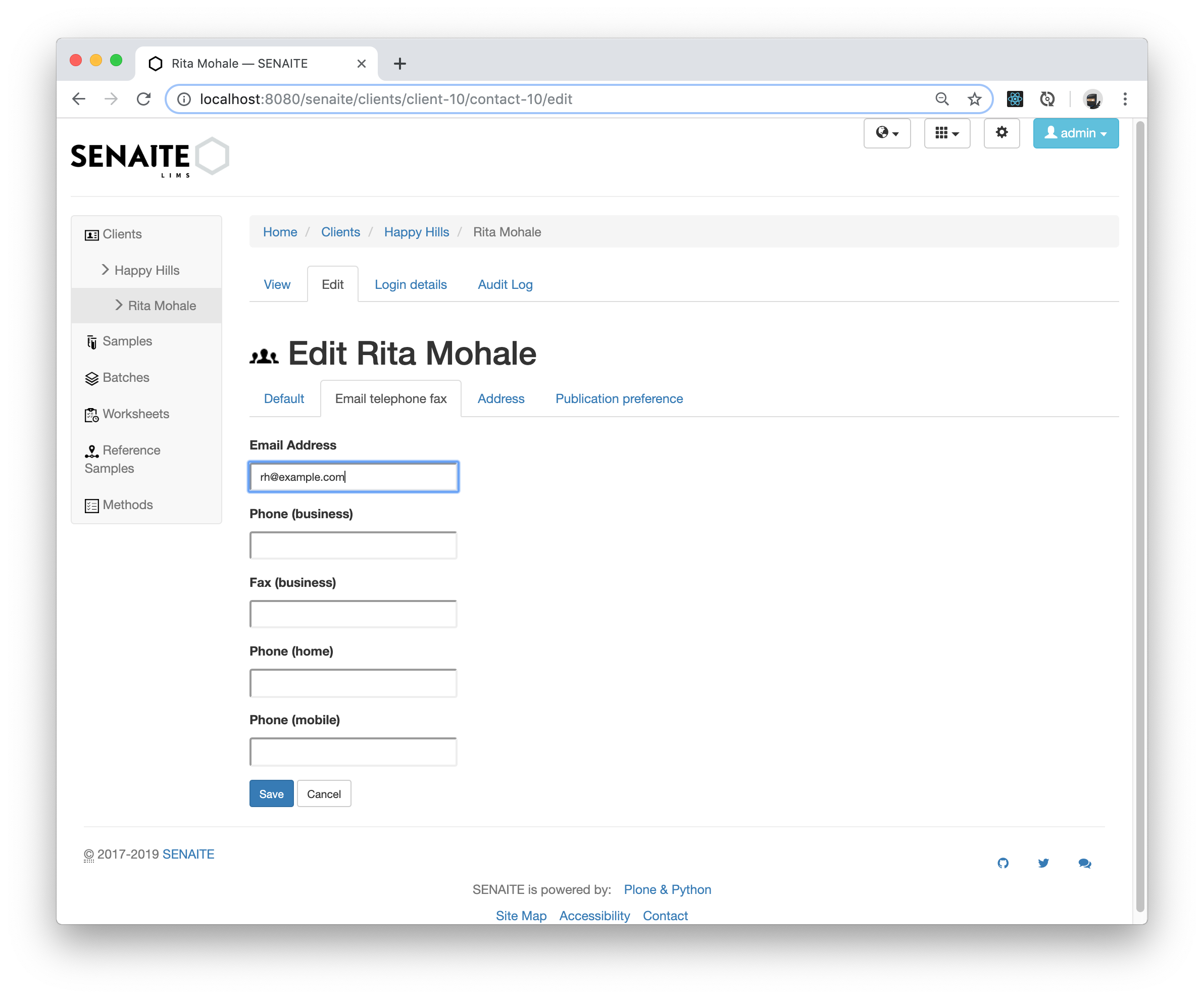
Click on the Save button when you are done and navigate back to the Analysis Reports listing, where you select the generated report and press the Email button.
Now the system should allow to send the email, which will transition the Sample into the Publish state.
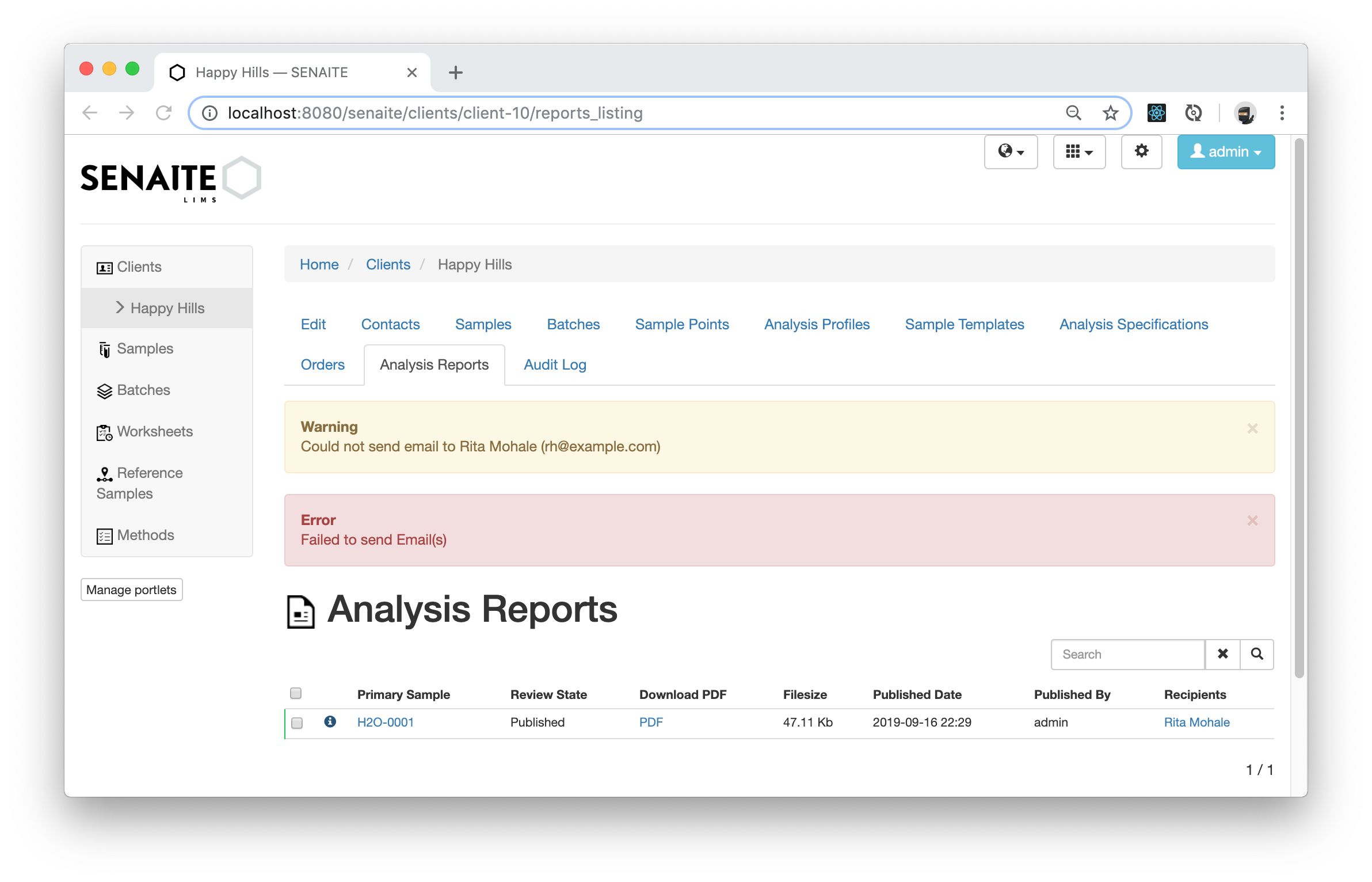
☝️Note: Although the system failed to send the email because we neither configured the email settings of SENAITE, not entered a valid email address, it still transitions the sample to the Published state. This behavior is by purpose, because we actually cannot control email delivery and the publication step should not depend on that.
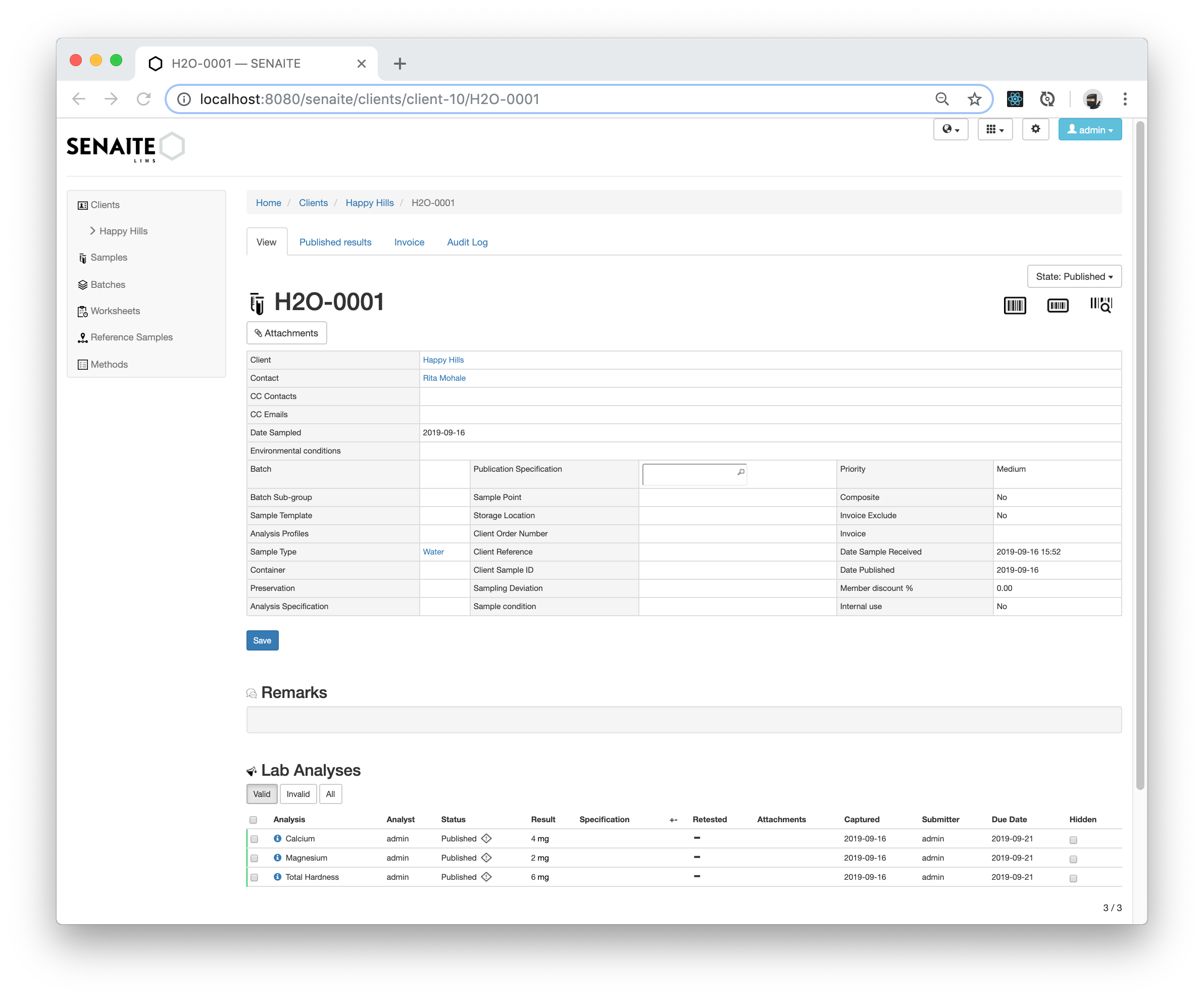
Congratulations 🙌 you successfully published your first Sample in SENAITE.