
Sample Partitions
Samples can be splitted into Partitions (Aliquots), so that specific analyses can be conducted on each Partition individually.
☝️Note: Each Partition acts like a normal Sample and also follows the same Workflow as the other Samples.
In this section we extend our given setup to mimic a laboratory with two
departments, one for Water Chemistry and one for Microbiology.
Since these two departments are located physically in different buildings,
we need to partition the incoming Water samples into two Aliquots.
Preparing the LIMS
First we add a new Lab Department in the LIMS Setup.
Enter the following values in the add form:
- Title:
Microbiology - Description:
Micro-Biological analysis
Please revisit the Quickstart section how to add lab departments.
Next we add a new Analysis Category in the LIMS Setup.
Enter the following values in the add form:
- Title:
Microbiology - Description:
Micro-Biological analyses grouped together - Department:
Microbiology
Please revisit the Quickstart section how to add analysis categories.
Finally, we add a new Analysis Service.
Enter the following values in the add form:
- Title:
Salmonella - Analysis Keyword:
Salmon - Point of Capture:
Lab - Analysis Category:
Microbiology - Department
Microbiology
Please revisit the Quickstart section how to add analysis services.
Creating Sample Partitions
Now it is time to create a new Sample for partitioning.
Please revisit the Quickstart section how to add new samples.
Enter the following values in the add form:
- Contact:
Rita Mohale - Date Sampled: Click the
nowbutton in the calendar popup to choose the current date and time - Sample Type:
Water - Lab Analyses: Select
Calcium,Magnesium,Total HardnessandSalmonella
Also make sure to receive the sample after creation by selecting it in the list and press the Receive button.
Now select the new created Sample and click on the Create Partitions Button to open the partitioning view.
Please select first the number of Partitions to create, in our case 2 and
press the Preview button.
Select now the Calcium, Magnesium and Total Hardness Analyses for the
first Partition, and Salmonella for the second Partition.
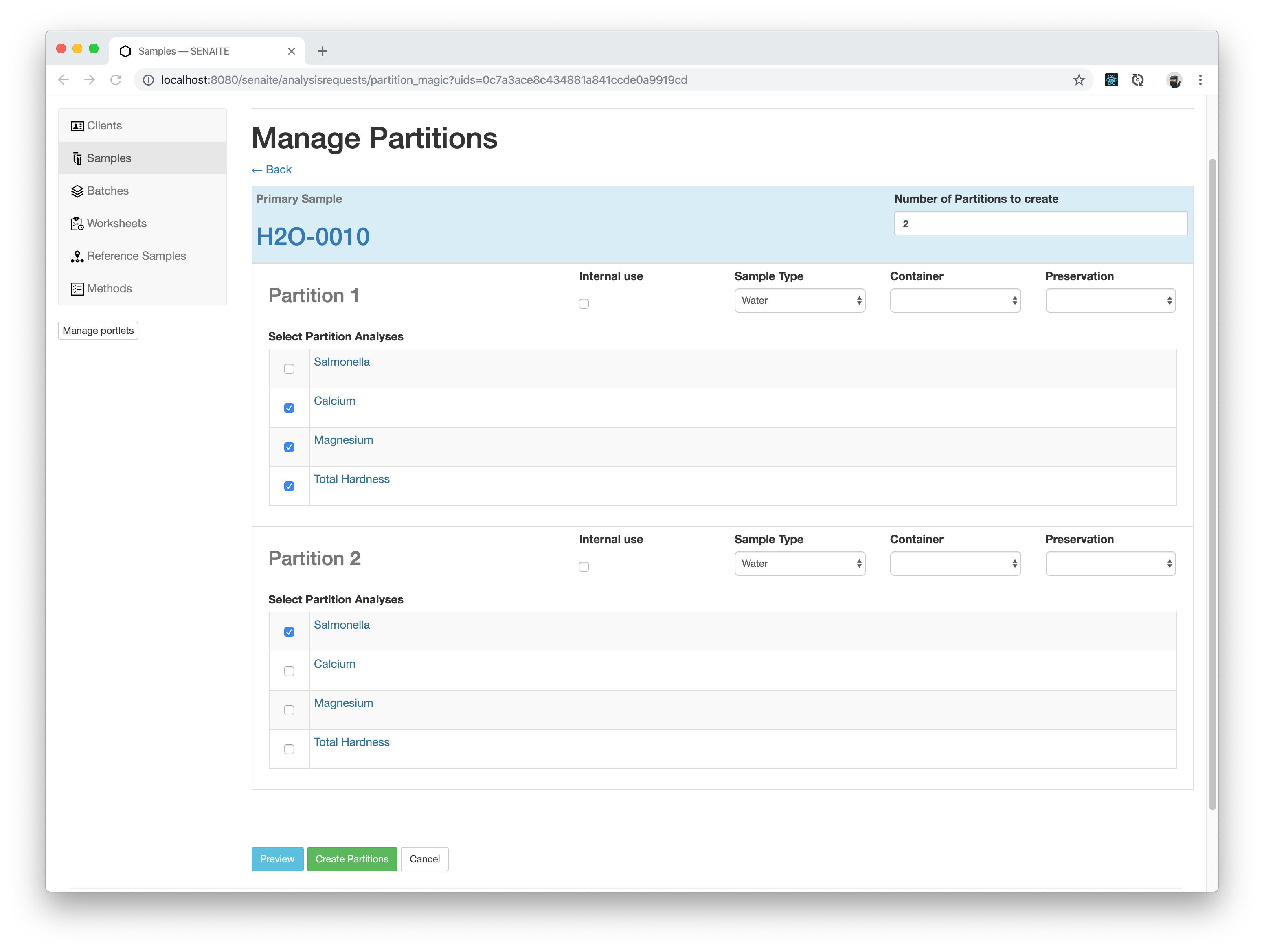
☝️Note: There are some options you can apply for each partition differently: Internal use, Sample Type, Container and Preservation. When Internal Use checkbox is selected, the partition won't be visible to client contacts with granted access to the system. The partition and its analyses won't be displayed in results reports neither.
Click the Create Partitions button when you are done.
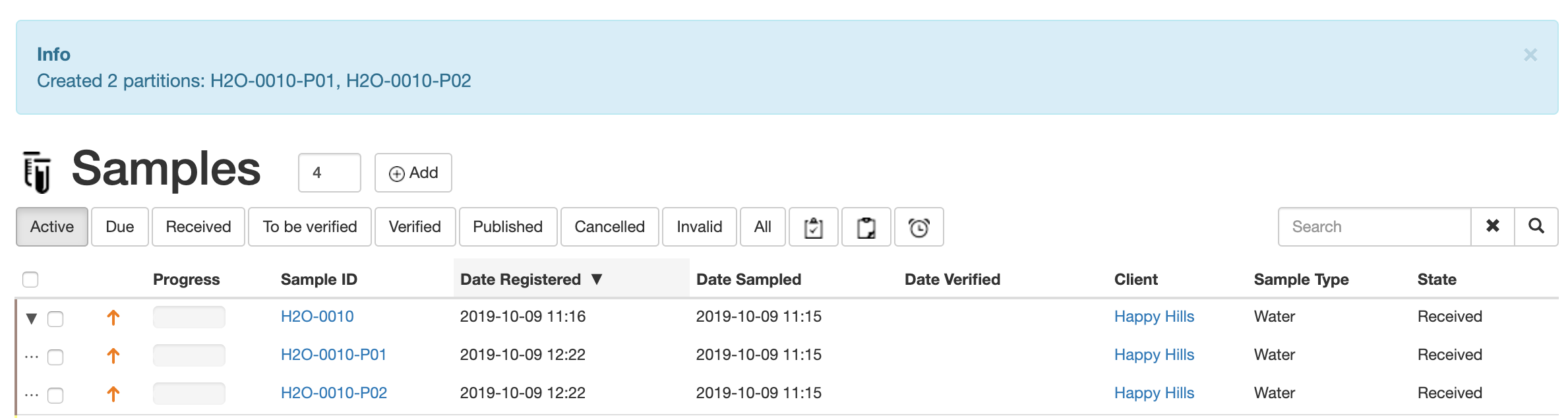
A little black triangle appears now in the Samples listing next to our partitioned Sample. Click on it to expand and view the created partitions.
Note that by default, the partitions keep the id of the parent sample, followed
by a -P (from Partition) and the number of partition. The ID format for
partitions, as well as for other electronic records, can be changed in LIMS
Setup to fit better the lab needs. The ID Formatting machinery will be introduced
later in this documentation.
Introducing Results in Partitions
Introducing results to partitions works the same like in all other Samples, see the Sample Basics section to recap how to enter results.
However, the key difference is, that Partitions propagate the analysis results to their parent Sample.
Let's enter the same results as we did before to our first Partition. Click on
the link for the first Sample (the one ending with -P01) and enter some results.
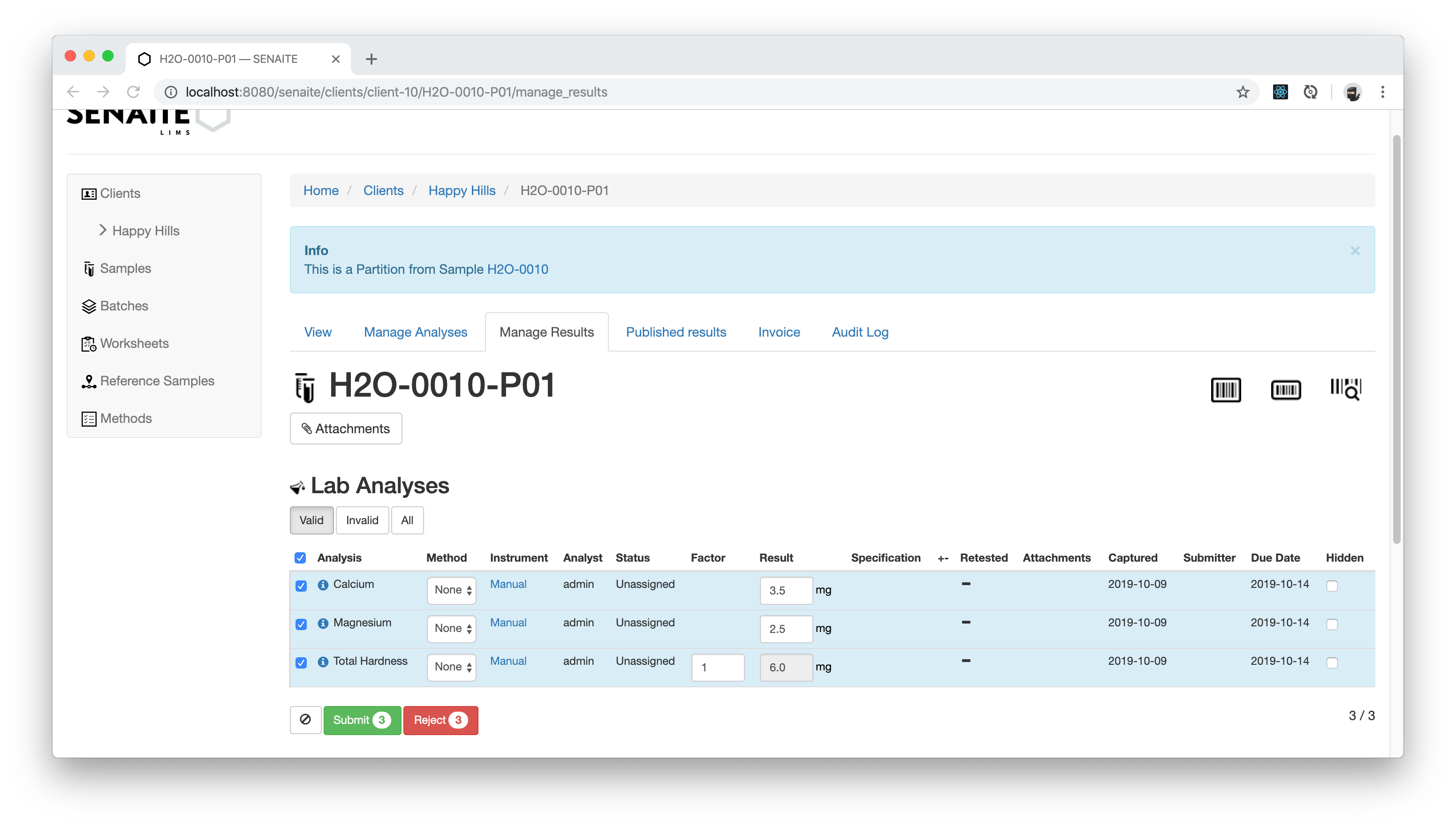
Click the Save and then the Submit Button when you are done.
Now click on the generated link in the blue info box to navigate to the parent Sample.

The entered results will be displayed on the parent Sample as well.
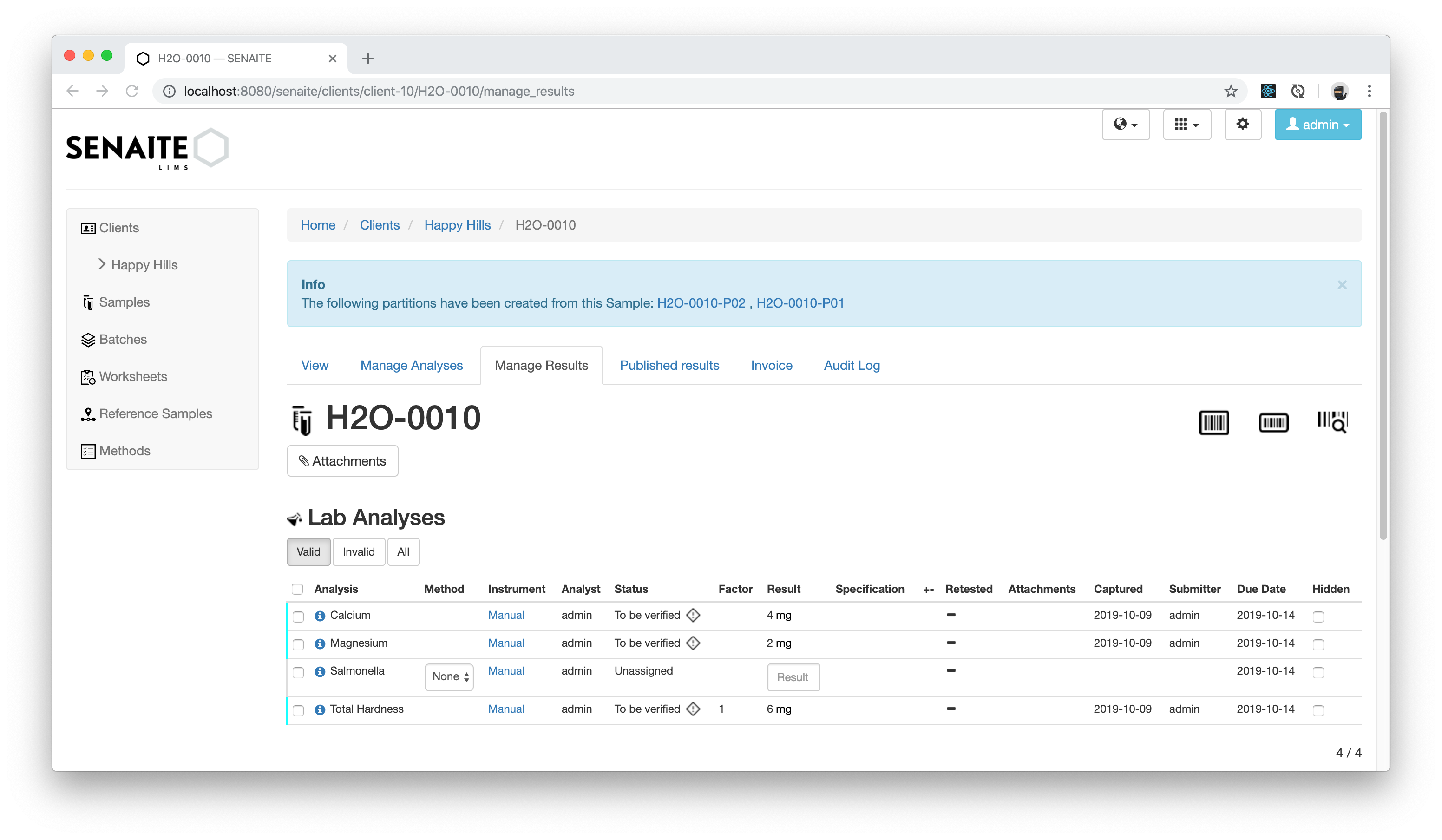
Now we are going to verify the submitted results on the parent Sample.
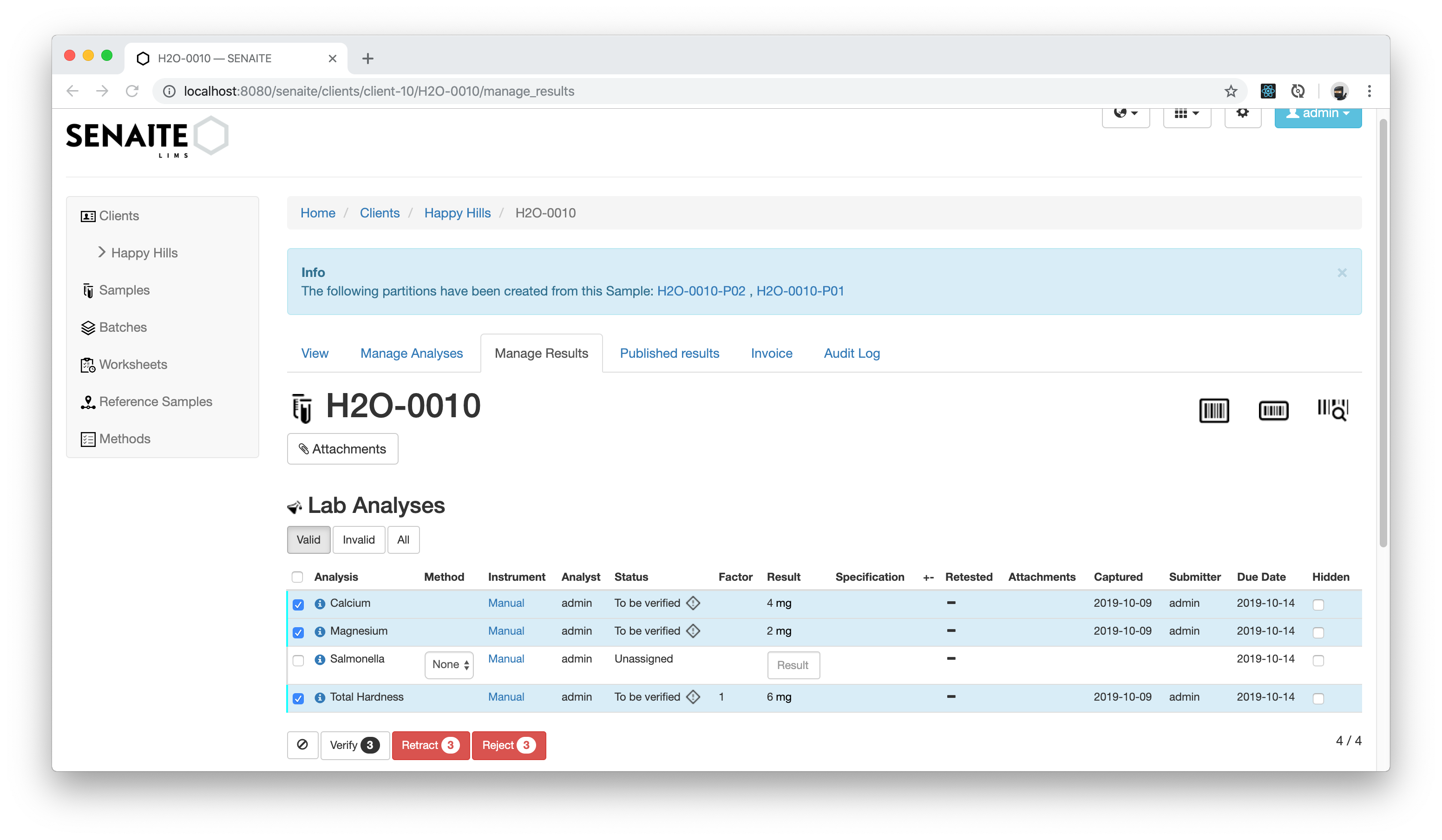
Navigating back to the first Partition shows that also this operation was correctly propagated back.
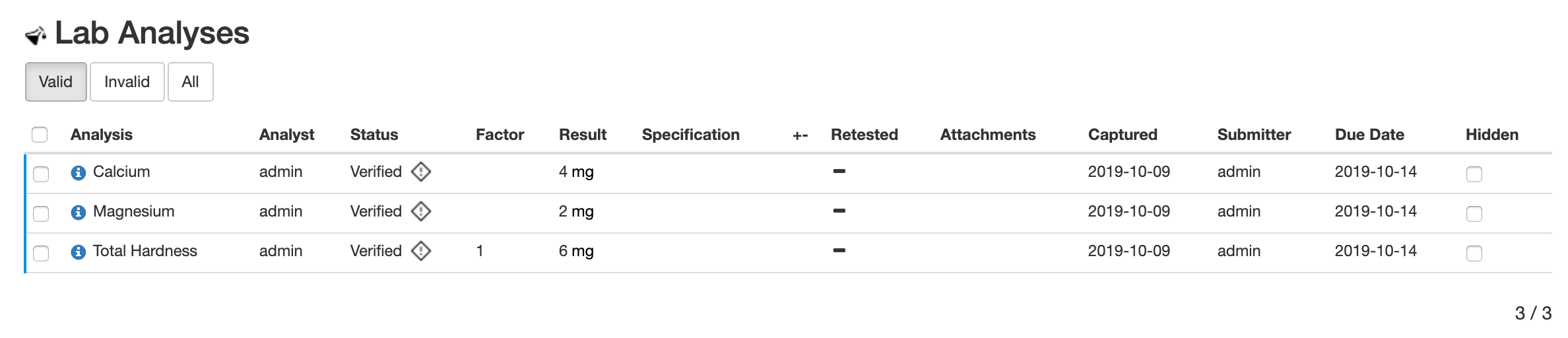
☝️Note: The status of the parent sample will automatically follow the status of its partitions, but only if the analyses that were initially assigned to the parent sample are all them later distributed across partitions. This means that you could create partitions from a given sample with their own analyses each, at the same time you keep some analyses bound to the primary.
Detaching Partitions
As we've seen before, parent samples follows the status of their partitions and analyses from partitions are always displayed in the parent sample. Sometimes this is not the desired behavior, e.g. you might want to keep a partition stored in the laboratory without having any effect to the rest. In such cases, you can make use of the action Detach.
Go to the samples listing and select the second partition (the one ending with
-P02) and press the button Detach.

In Samples listing, the detached partition is no longer displayed under its parent, rather is displayed as if it was a primary sample. If you click to the little black triangle next to the original sample you will notice that only the first partition is displayed below.

Detached partitions become "primary" samples and no longer depend on (or propagate to) their original parent sample, but their relationship is kept in the system. Click to the detached partition.
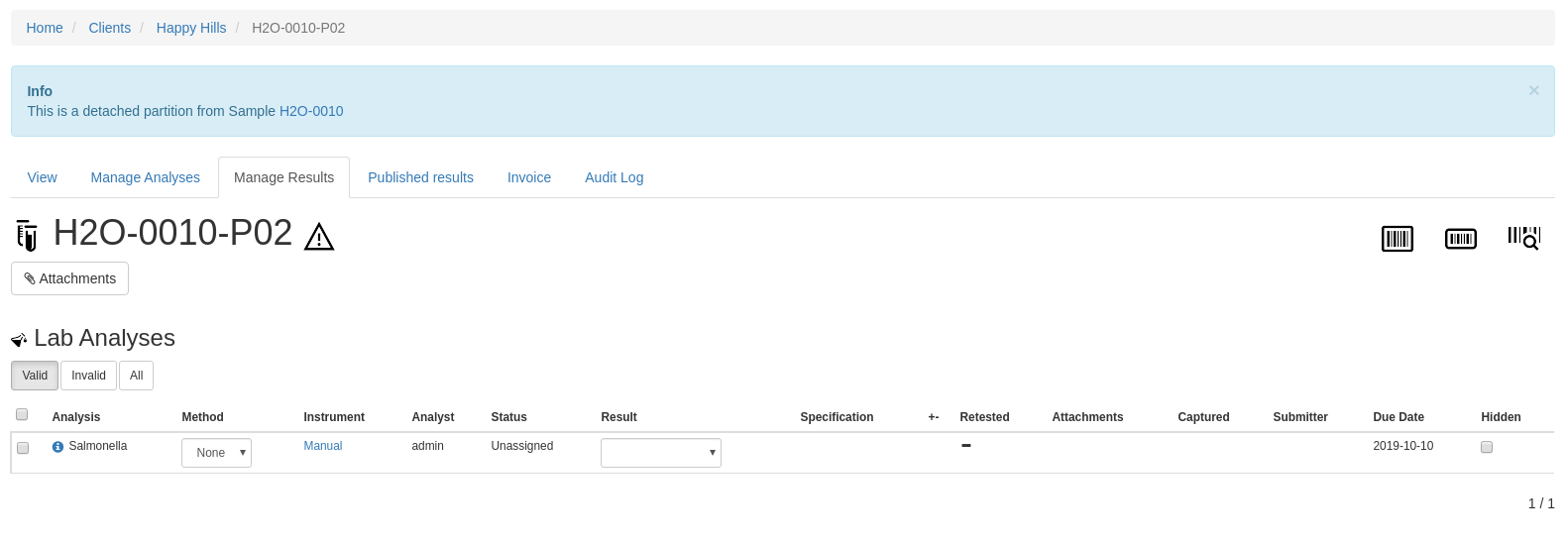
A blue box is displayed at the top with the link to the original sample the current sample was originated from.
Congratulations 🙌 you successfully learned how to create Partitions in SENAITE.