
Copy Samples
Many labs usually process similar Samples of a specific Sample Type for a certain Client and it becomes tedious to create these Samples always from scratch. This is where the Sample Copy come in handy.
Copy a single Sample
In the previous section you successfully created and published your first Sample. Now we are going to duplicate that Sample for that Client.
Navigate to the Samples tab of your client and activate the All filter of the Samples listing table. Select the published Sample from before and click on the Copy to new button at the bottom of the page.
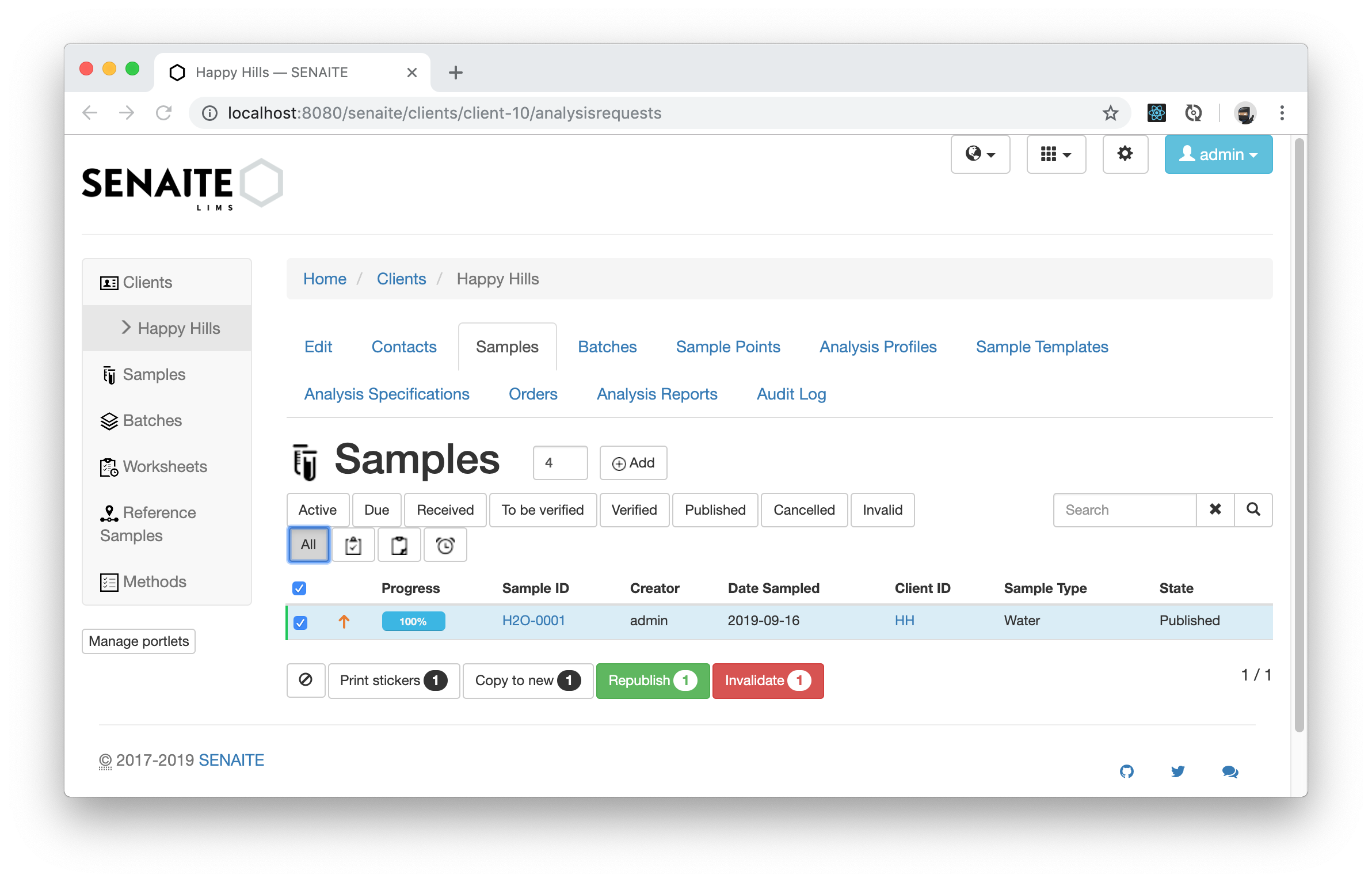
☝️Note: The Sample listing table initially load with the Active filter set. This filter shows only Samples until the Workflow State Verified, but not the Published ones.
The Sample Add form opens again with all the settings copied from the first Sample and giving you the chance to adapt the settings for the copied Sample.
We are going to leave the values as they are and proceed with clicking the Save button.
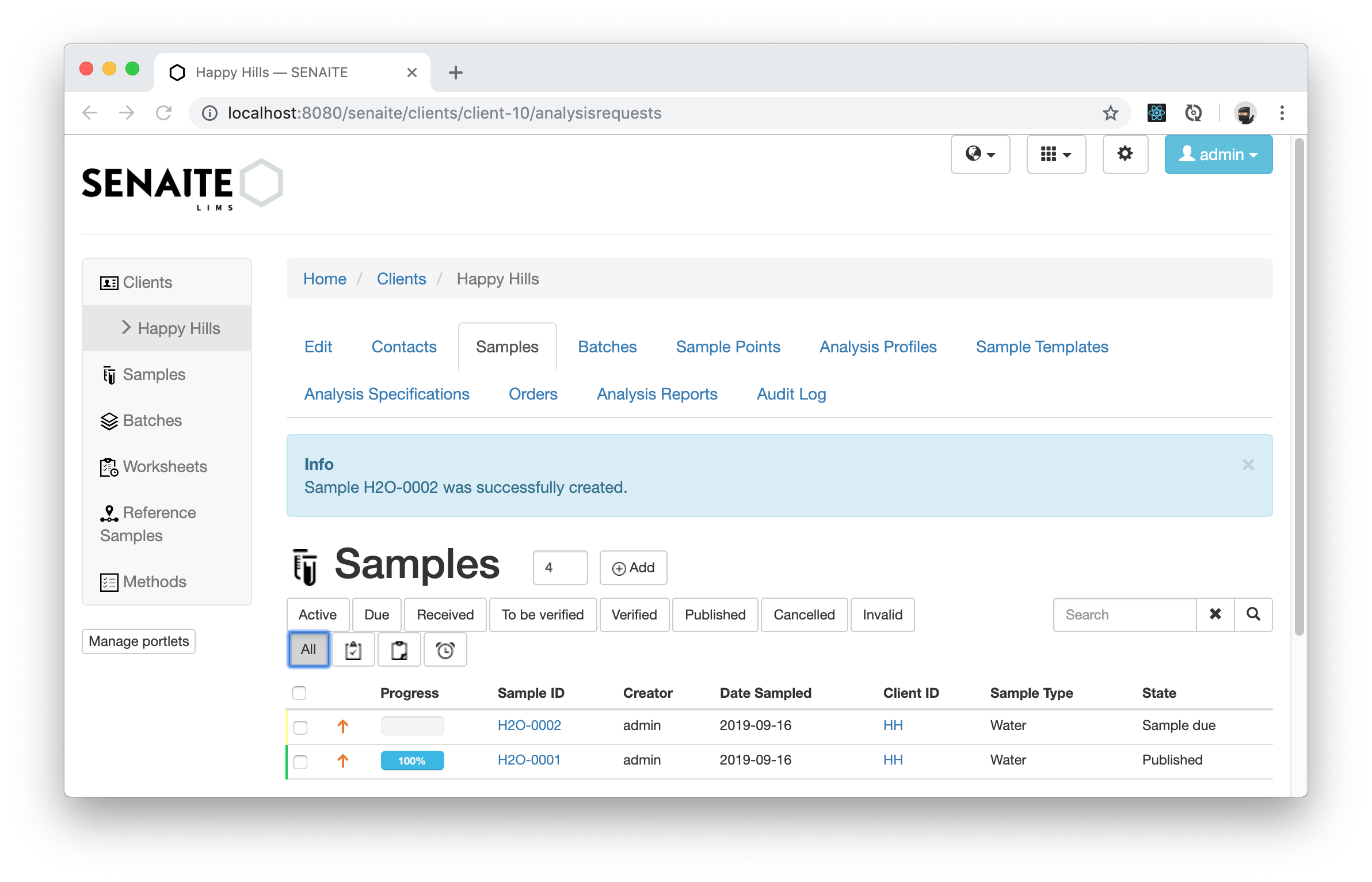
The new Sample was created with the next generated ID for the selected Sample Type.
Copy multiple Samples
It is also possible to copy multiple Samples at once and even Samples from different Clients.
Make sure you are still on the Samples tab of your Client and that you have selected the All filter of the listing table. Select now both samples.
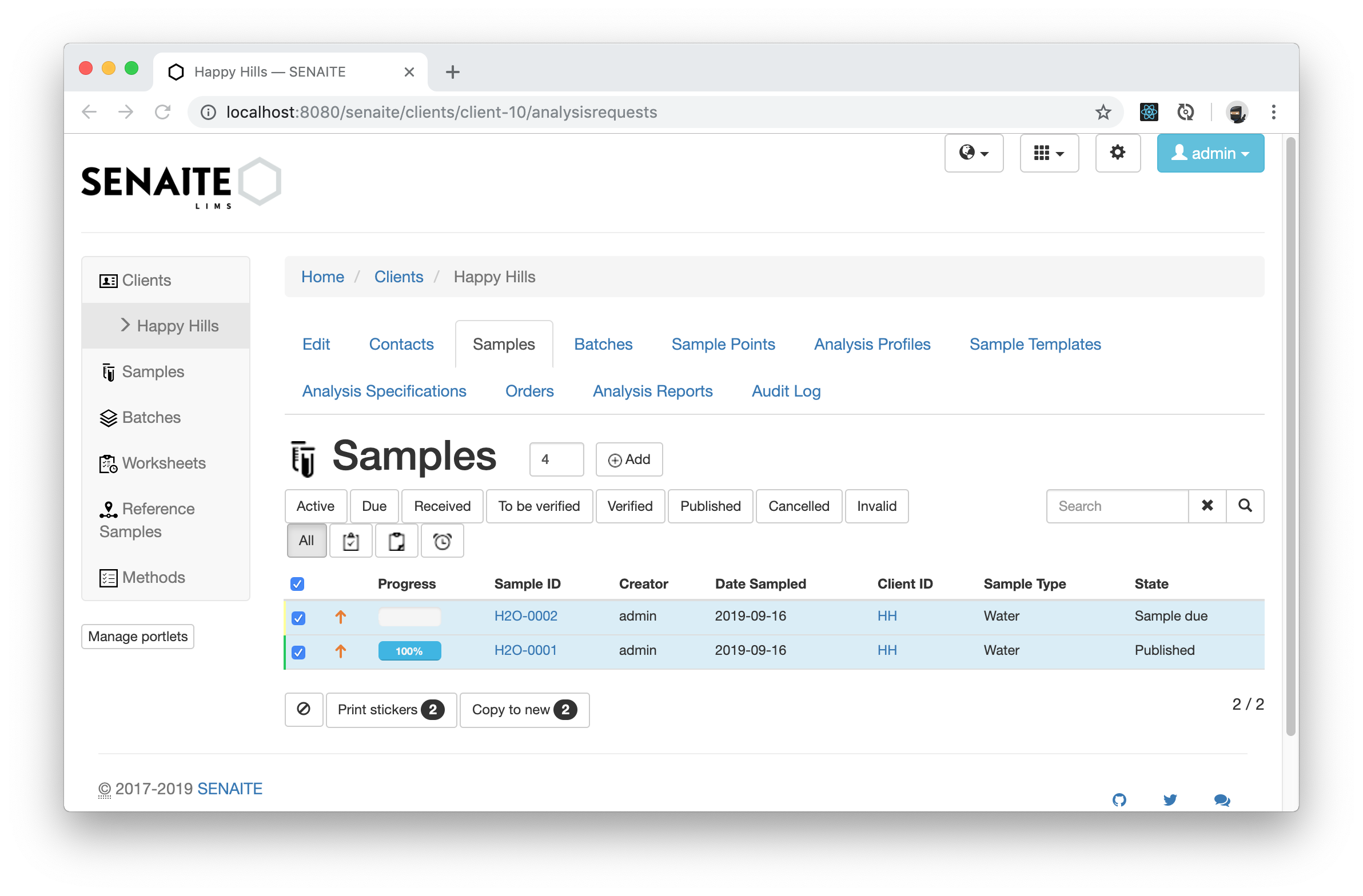
☝️Note: The buttons at the bottom of each listing table appear first when you selected one or more items from the table. The displayed number in the buttons refers to the selected items of the table.
Click on the Copy to new button to create a copy of the selected Samples.
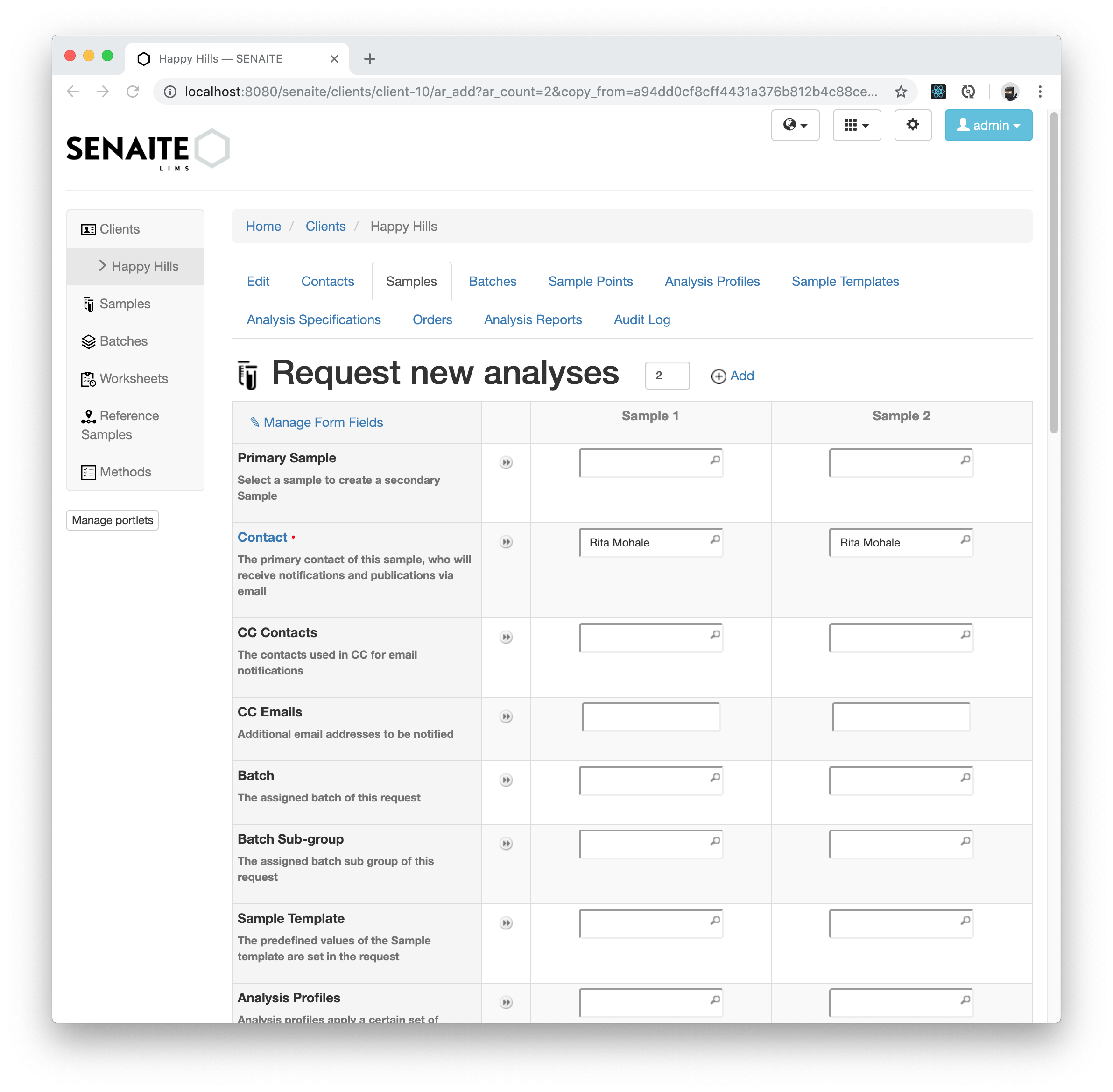
The Add form shows now two columns which hold the copied values from the samples.
☝️Note: The order how the Sample columns appear in that listing correspond to the order of the listing table where you selected the Samples.
Click on the Save button to copy the two Samples.
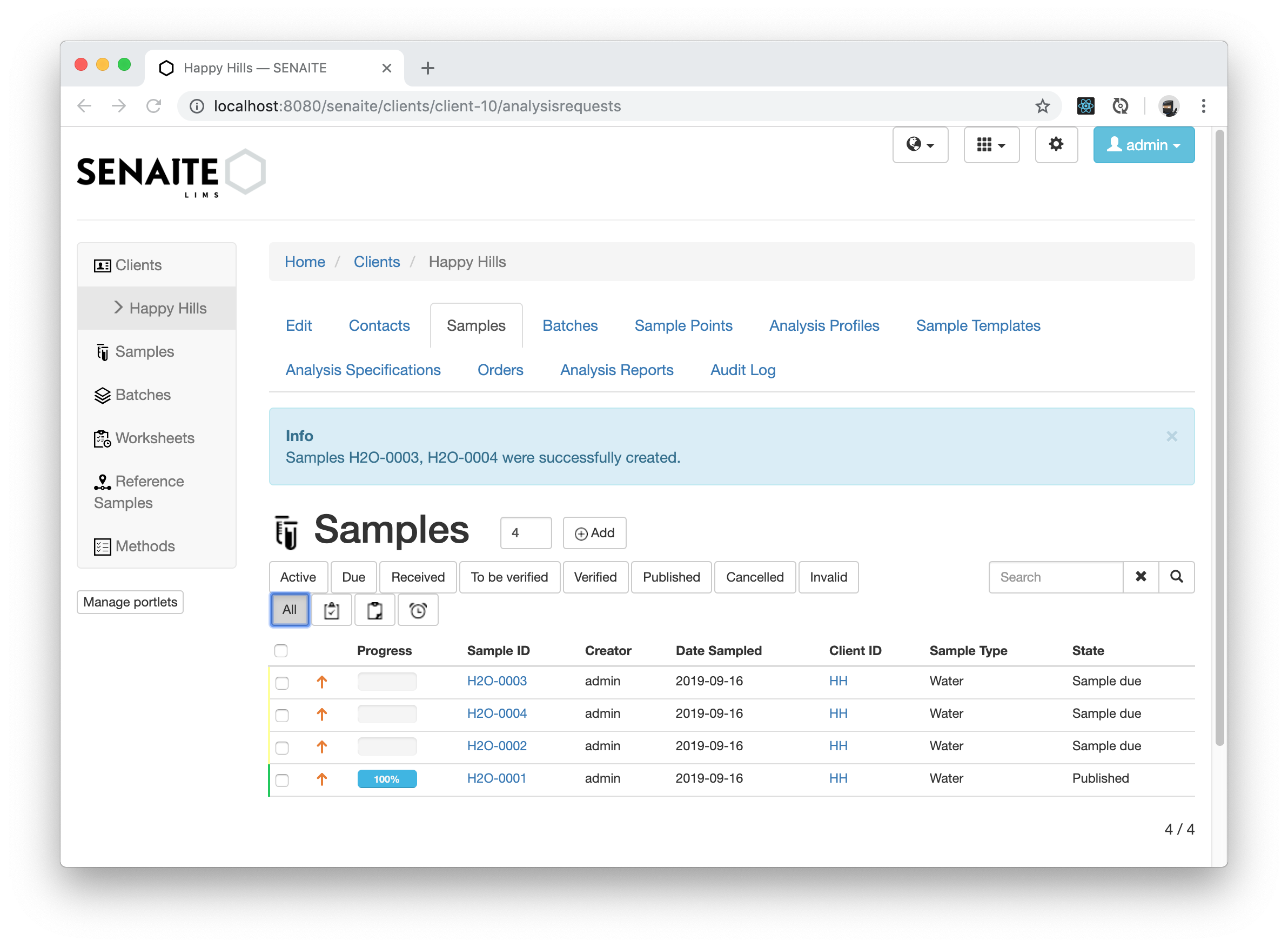
Congratulations 🙌 you successfully copied your first Samples in SENAITE.