
Worksheet Control References
Worksheets provide some powerful tools for Quality Control and Quality Assurance (QA/QC) based on Reference Samples. They can assure that the Instruments measured correctly and mitigate human mistakes when carrying over the results into SENAITE. Besides, the person in charge of verifying results during the verification process makes use of them to guarantee that the tests have been performed in accordance with the SOPs and results are valid.
Preparing the LIMS
Blank and Control References can be both added in a Supplier.
Navigate to the LIMS Setup by clicking the ⚙️ button in the upper right corner and then on the Suppliers tile.
Click on the ⊕ Add Button to create a new Supplier.
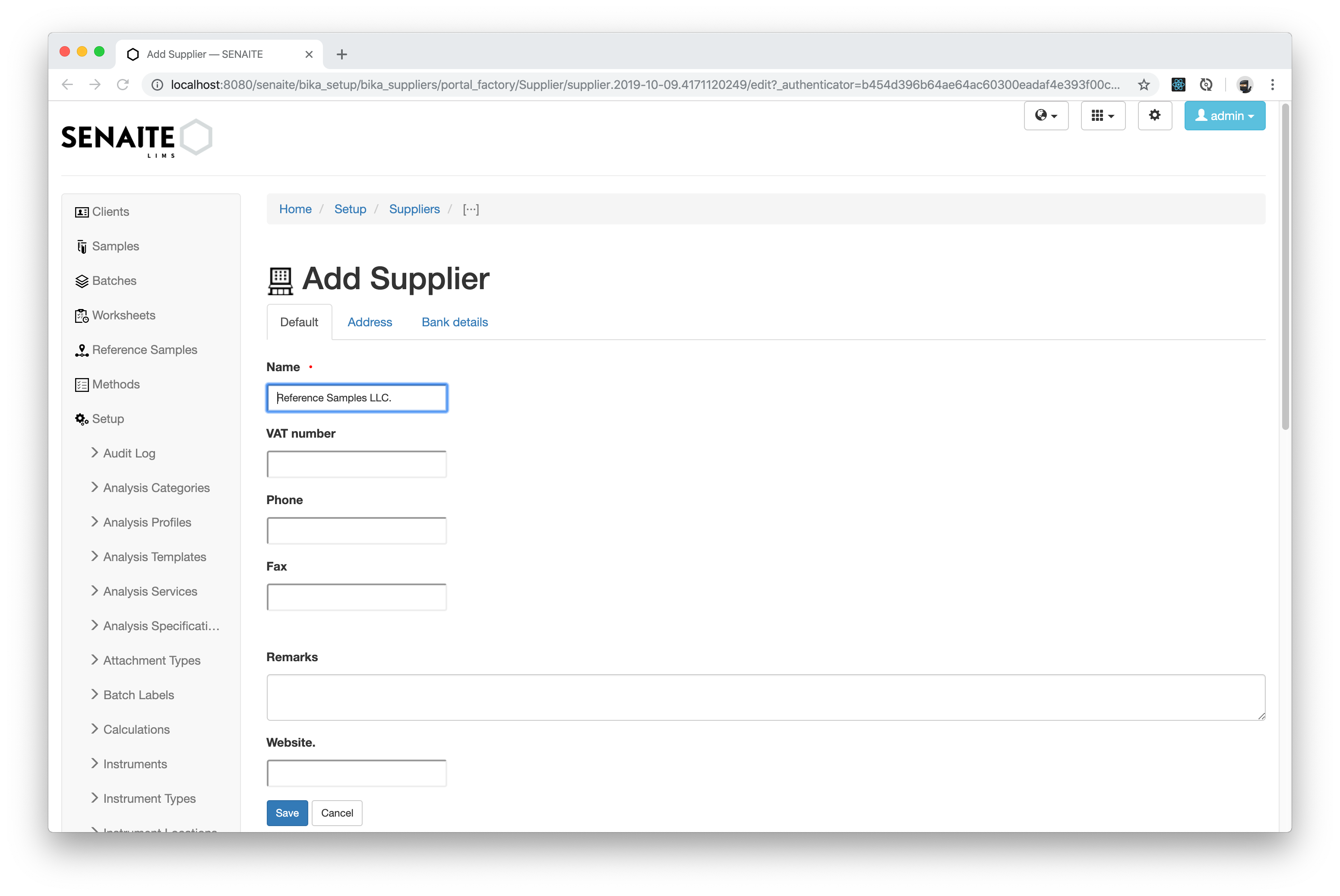
Enter the following values in the add form:
- Name:
Reference Samples LLC.
Press the Save button when you are done.
Blank Reference
Blank References are Samples where all values (e.g. concentration of a given substance or component) are zero or 'blank'.
Navigate to the previously created Supplier and select then the Reference Samples tab.
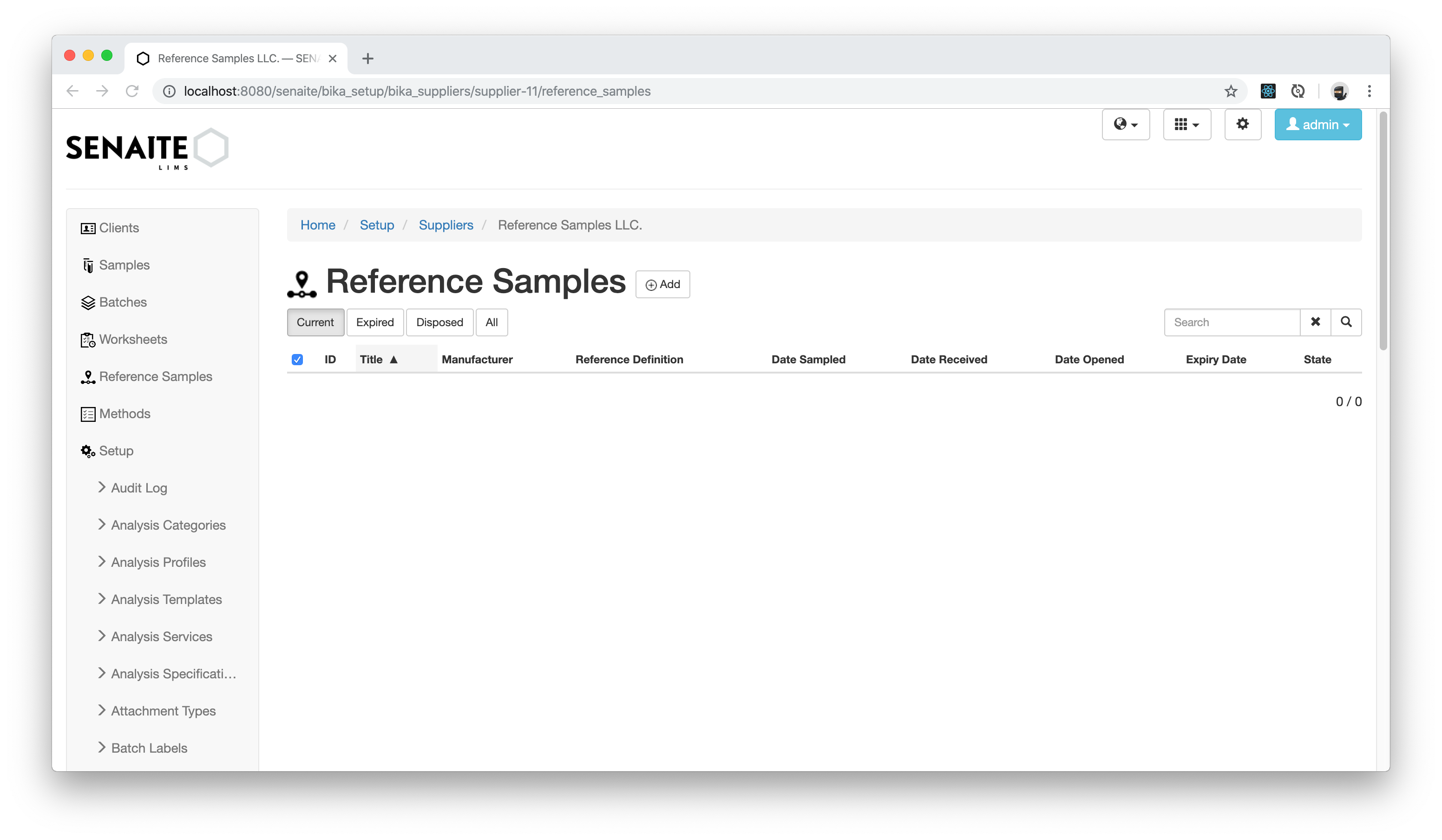
Click on the ⊕ Add Button to create a new Reference Sample.
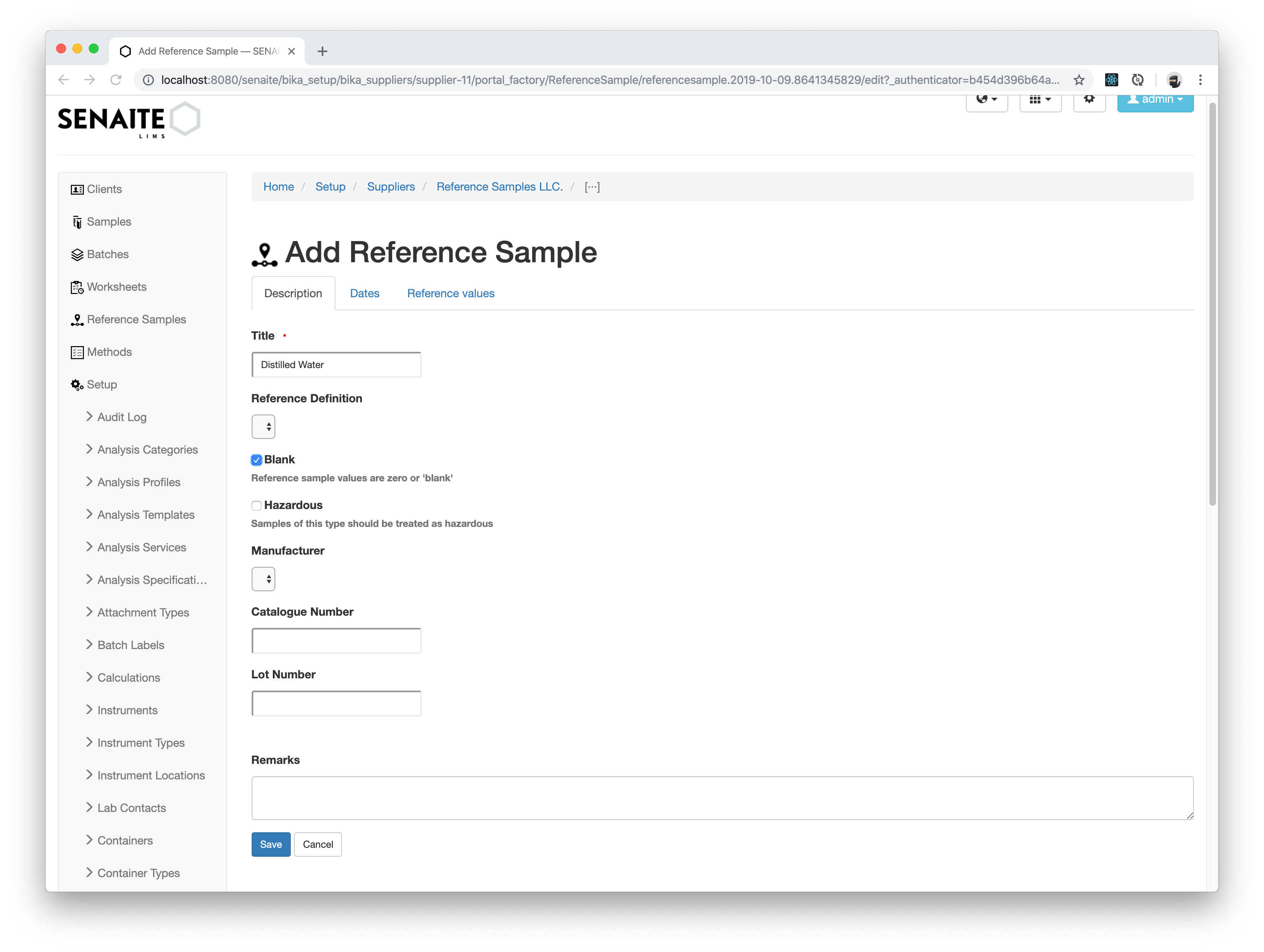
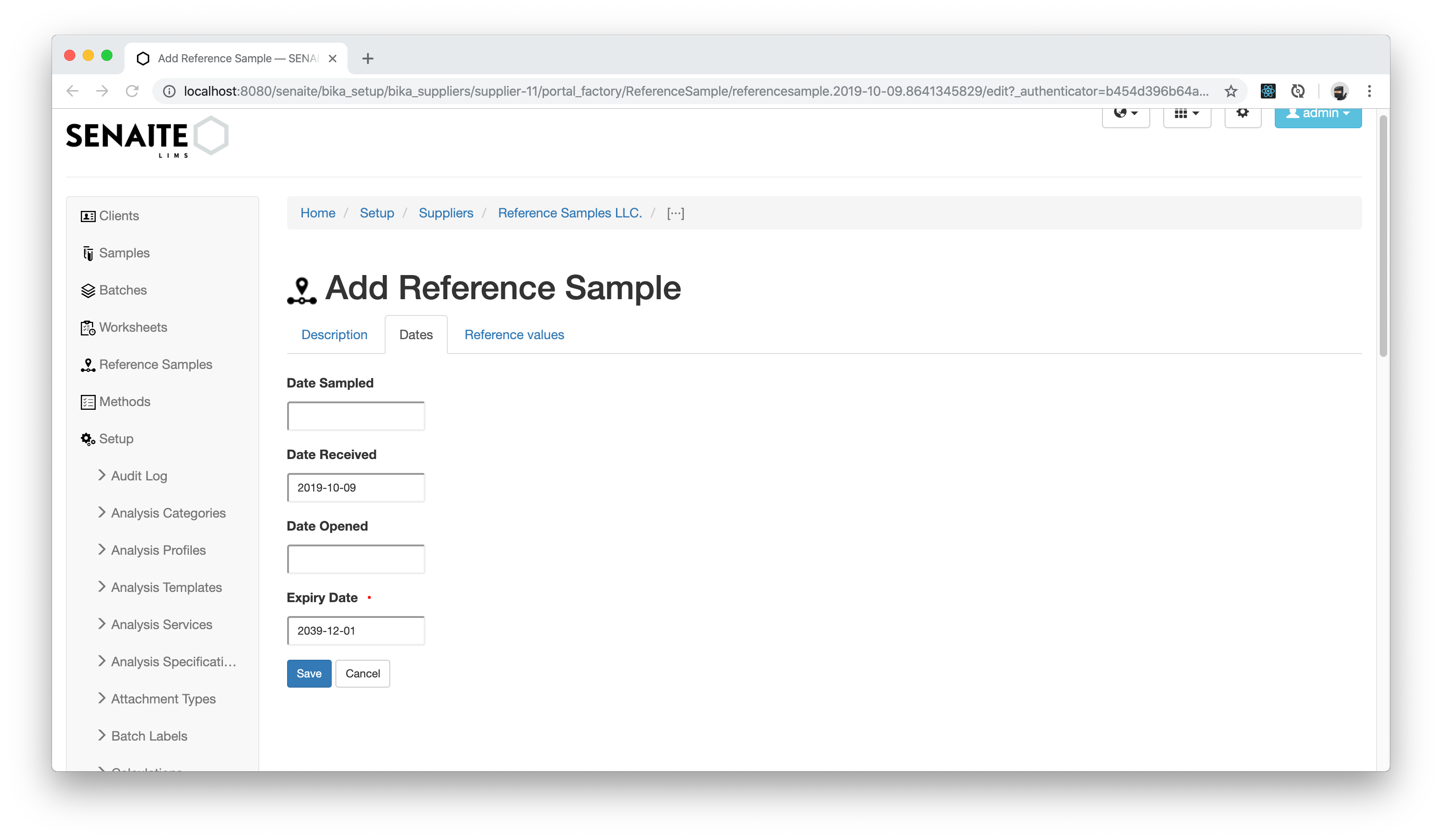
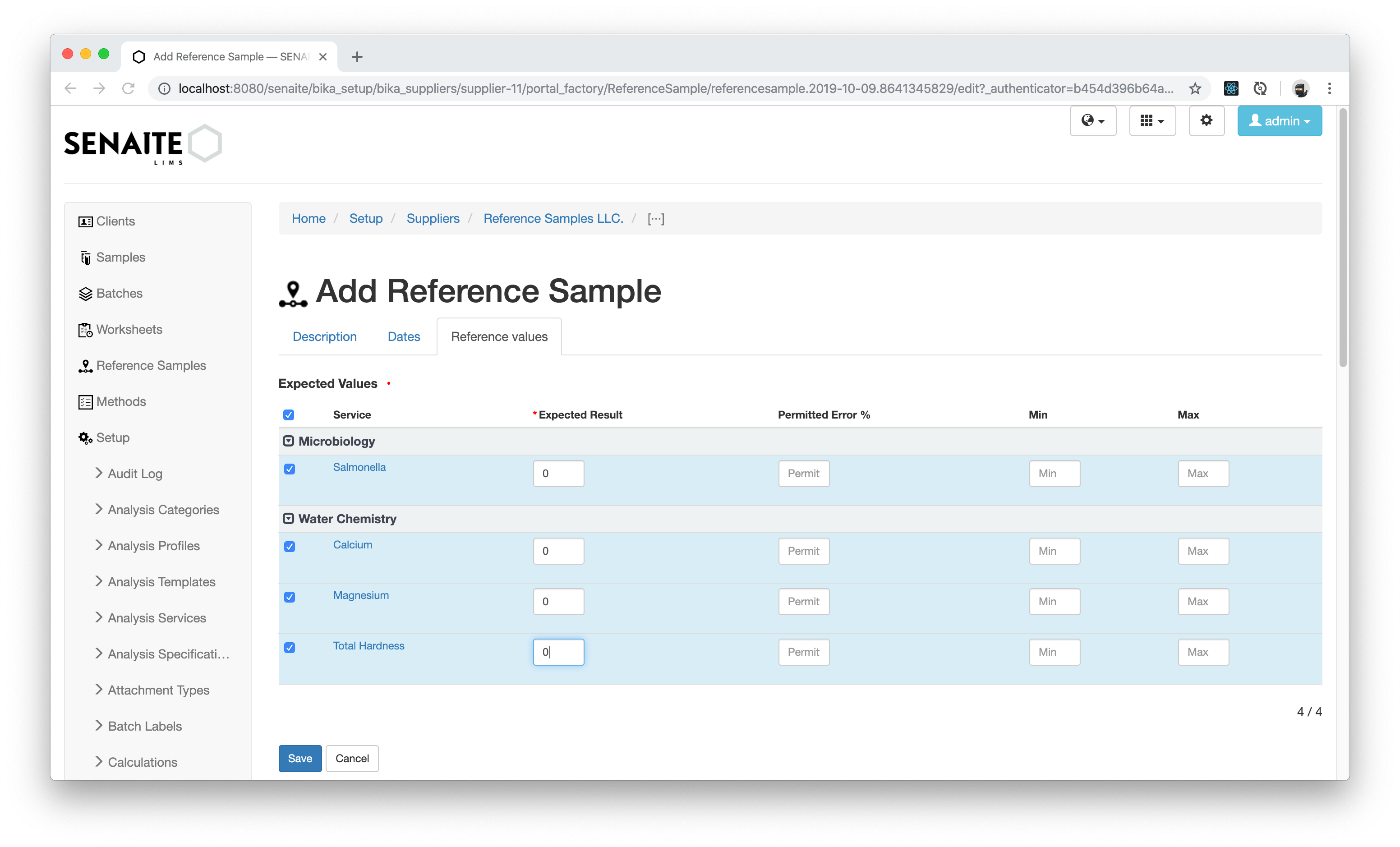
Enter the following values in the add form:
- Title:
Distilled Water - Blank: Activate the checkbox
- Expiry Date: 2039-12-01 (or any other date in the future)
- Reference Values: Set an Expected Result of
0for all Analyses
Press the Save button when you are done.
Navigate now back to the previously create Worksheet and click on the Add Blank Reference tab.
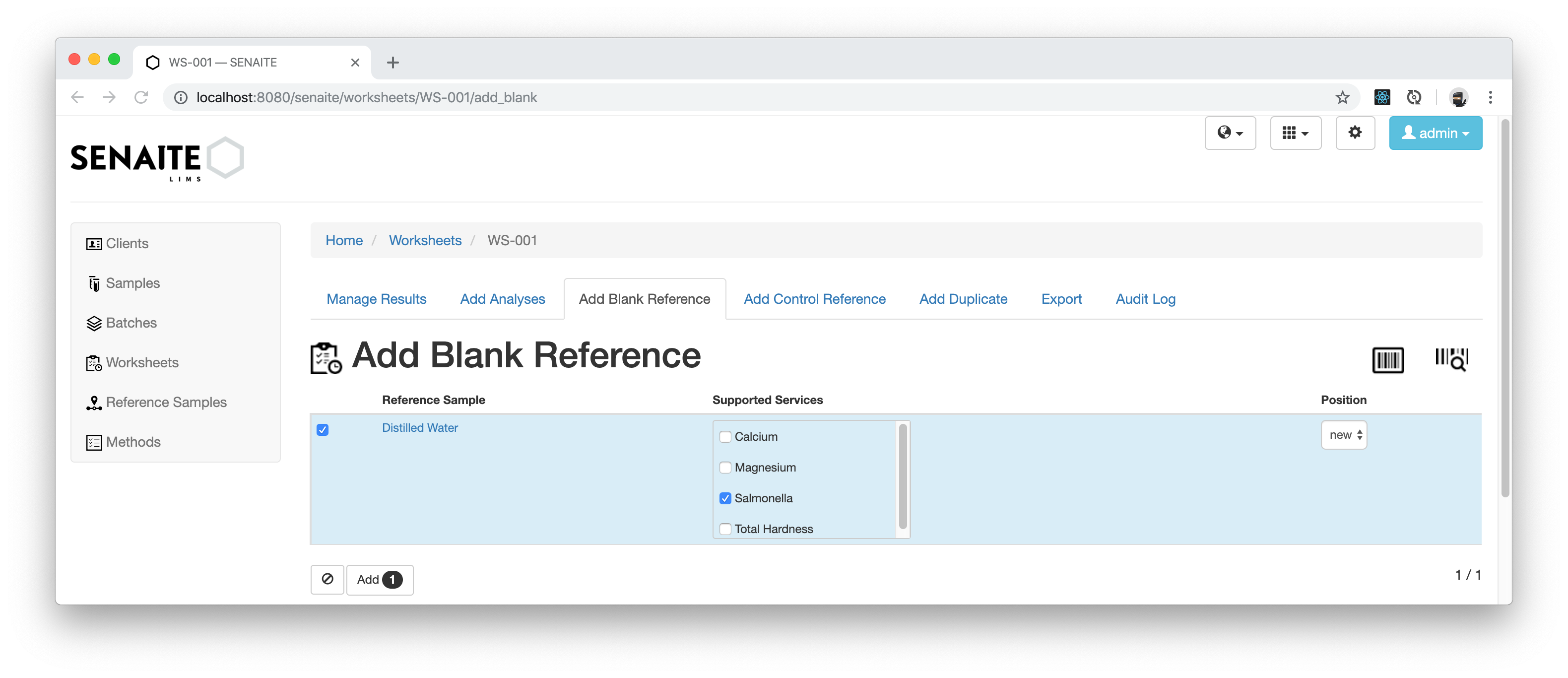
When adding a Blank Reference to a Worksheet, the blank reference values that
match with the Analyses in the Worksheet are always preselected, like in that
case the Salmonella.
However, it is also possible to add the other provided reference values of the Blank to the Worksheet.
We continue with just the already selected reference value and press the Add button.
☝️Note: There is currently a bug in SENAITE Core that you cannot add a reference sample when the Worksheet is in a non-open state, e.g. like in this case To be verified. To workaround this bug you can either create a new Worksheet or retract one of the analysis results, so that the worksheet rolls back to the state Open. The latter option is used in the following example.
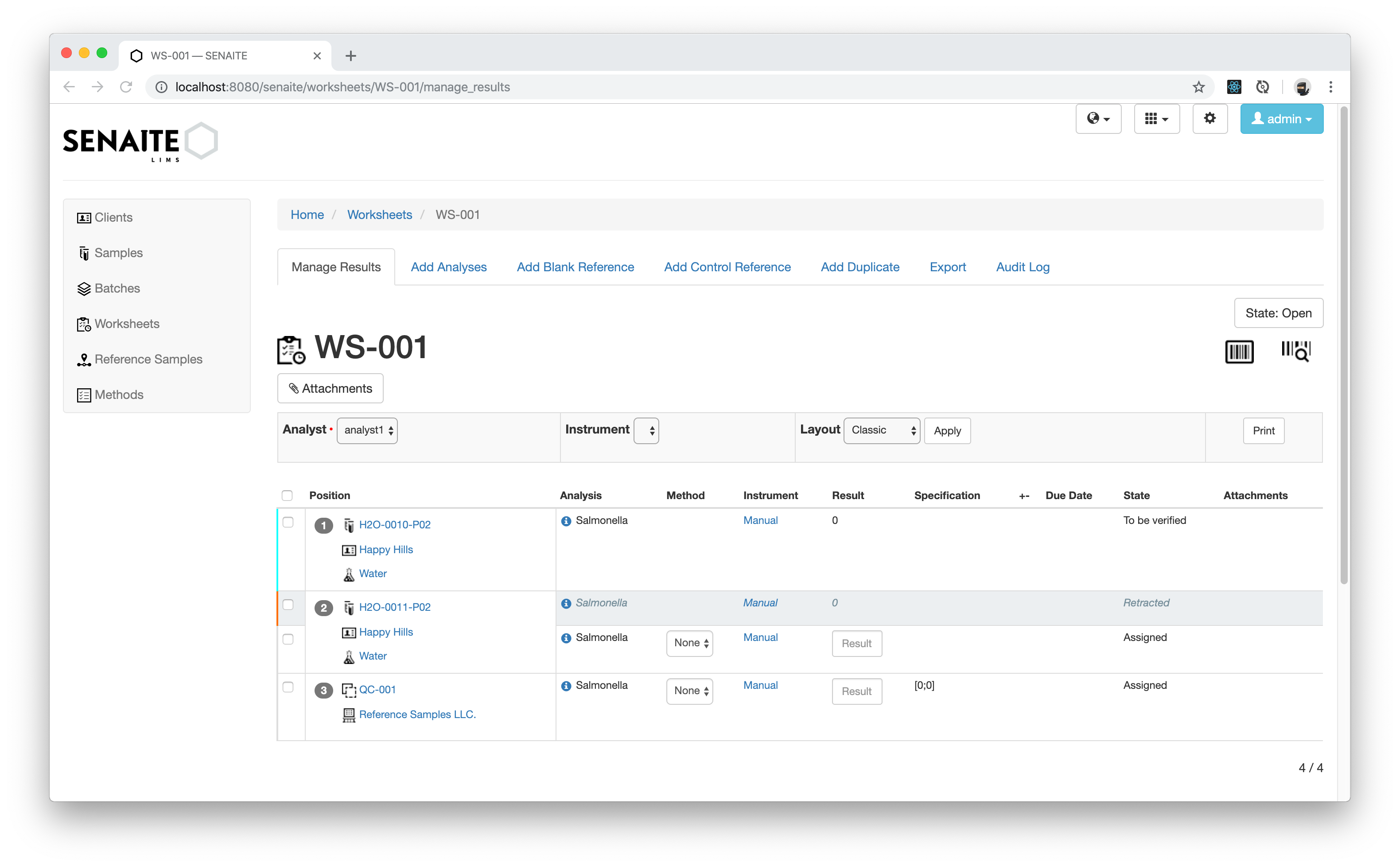
Log in with the analyst1 account to add the results.
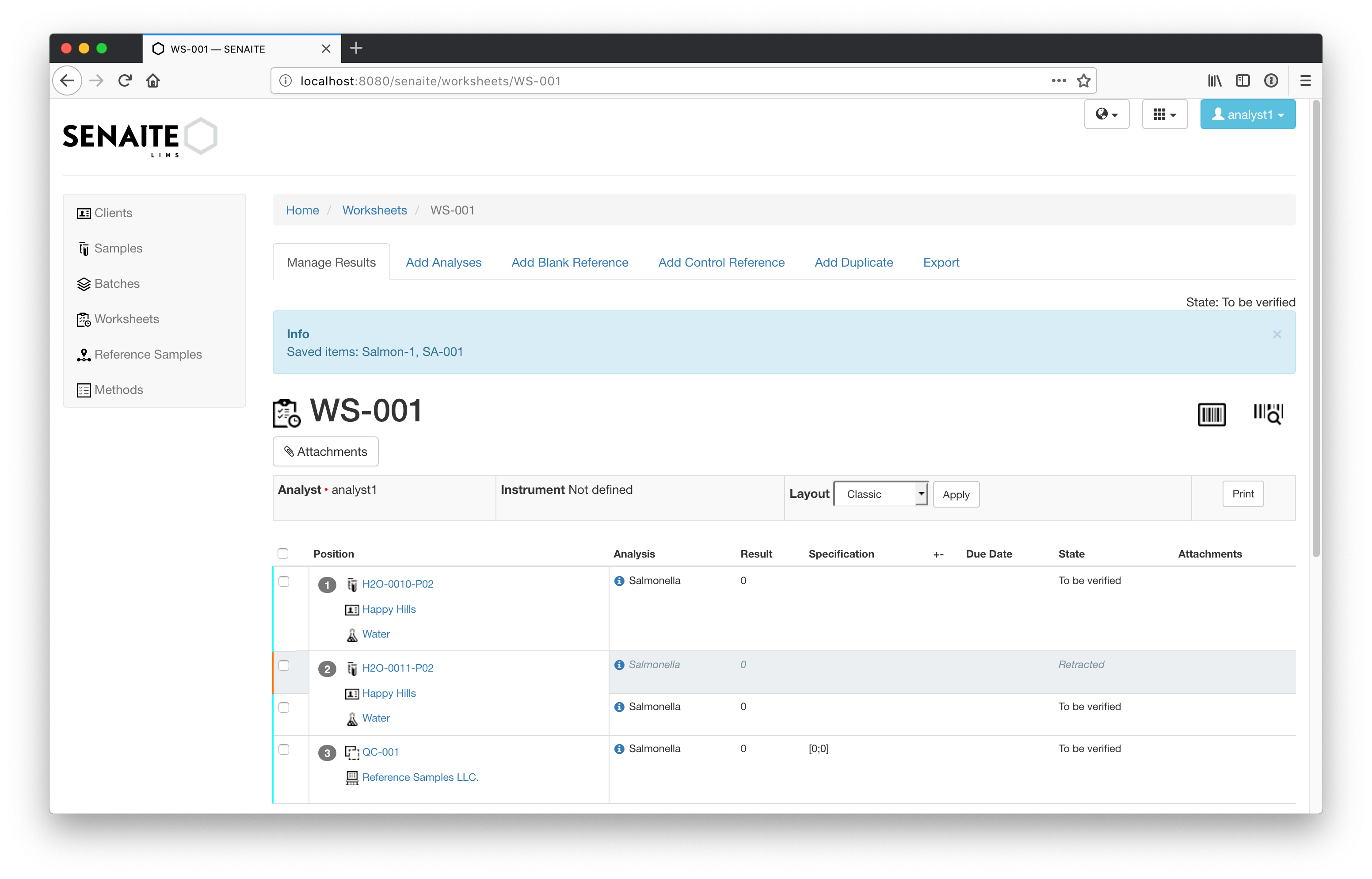
In this case everything is correct and the Analyst neither found any
Salmonella in the Water sample, nor in the Blank Reference Sample.
Consequently, having a correct Blank Reference Result tells us that the used instrument of the Analyst measured correctly. Nevertheless, it does not give any hint if the Analyst did its job correctly.
Control Reference
A Control Reference is similar to the previous Blank Reference, but with the
difference, that the values are non 0 or 'blank'.
Navigate to the previously created Supplier and select then the Reference Samples tab and click on the ⊕ Add Button to create a new Reference Sample.
Enter the following values in the add form:
- Title:
Water Reference - Blank: Deactivate the checkbox
- Expiry Date: 2039-12-01 (or any other date in the future)
- Reference Values:
Calcium:- Expected Result:
5 - Permitted Error:
5
- Expected Result:
Magnesium:- Expected Result:
5 - Permitted Error:
5
- Expected Result:
Total Hardness:- Expected Result:
10 - Permitted Error:
5
- Expected Result:
Press the Save button when you are done.
Navigate back to the Worksheets listing and add a new Worksheet for analyst1
and assign from one of the previous Samples the Analyses Calcium, Magnesium
and Total Hardness. Chose the Classic layout.
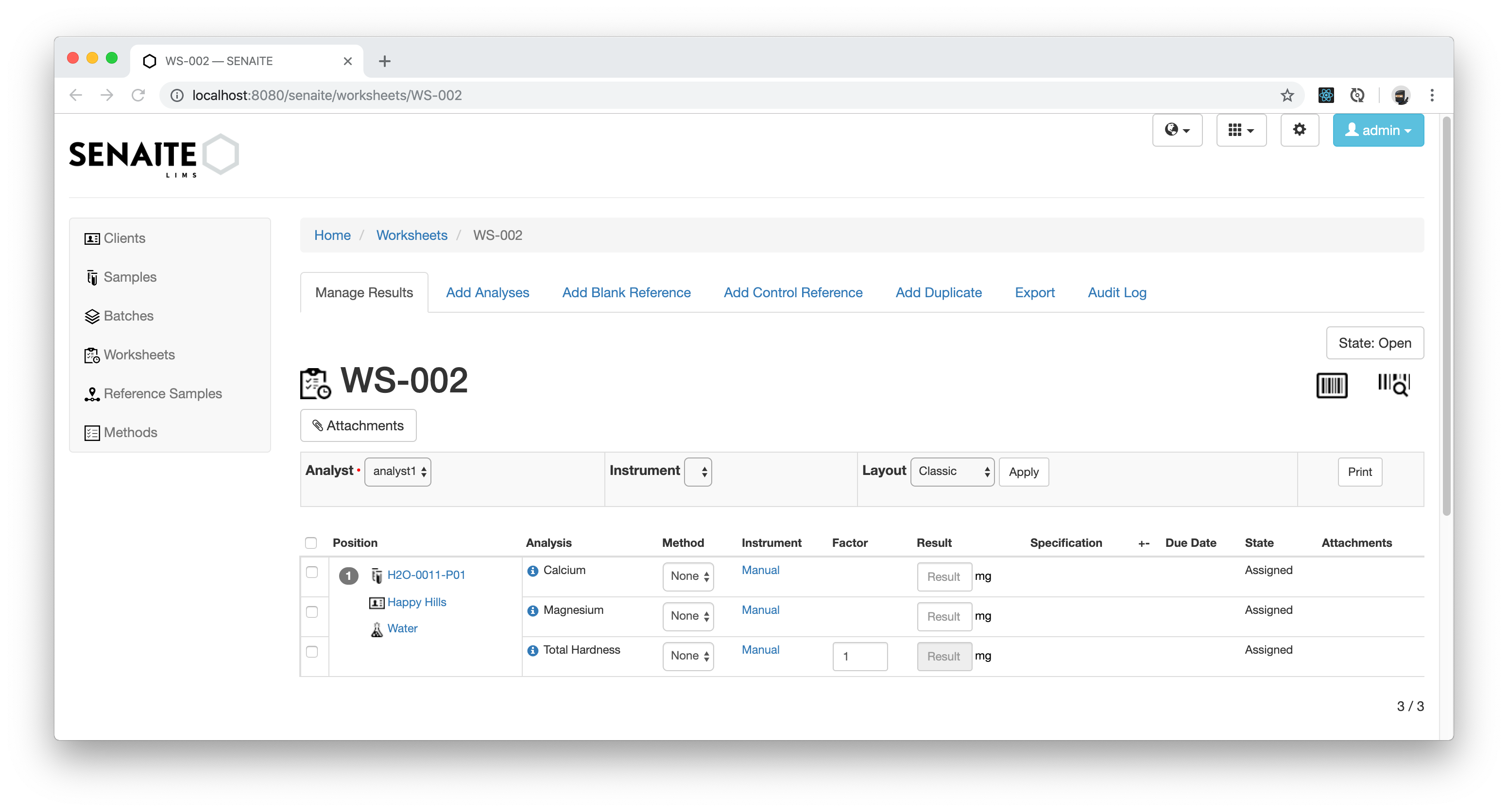
Navigate now to the Add Control Reference tab.
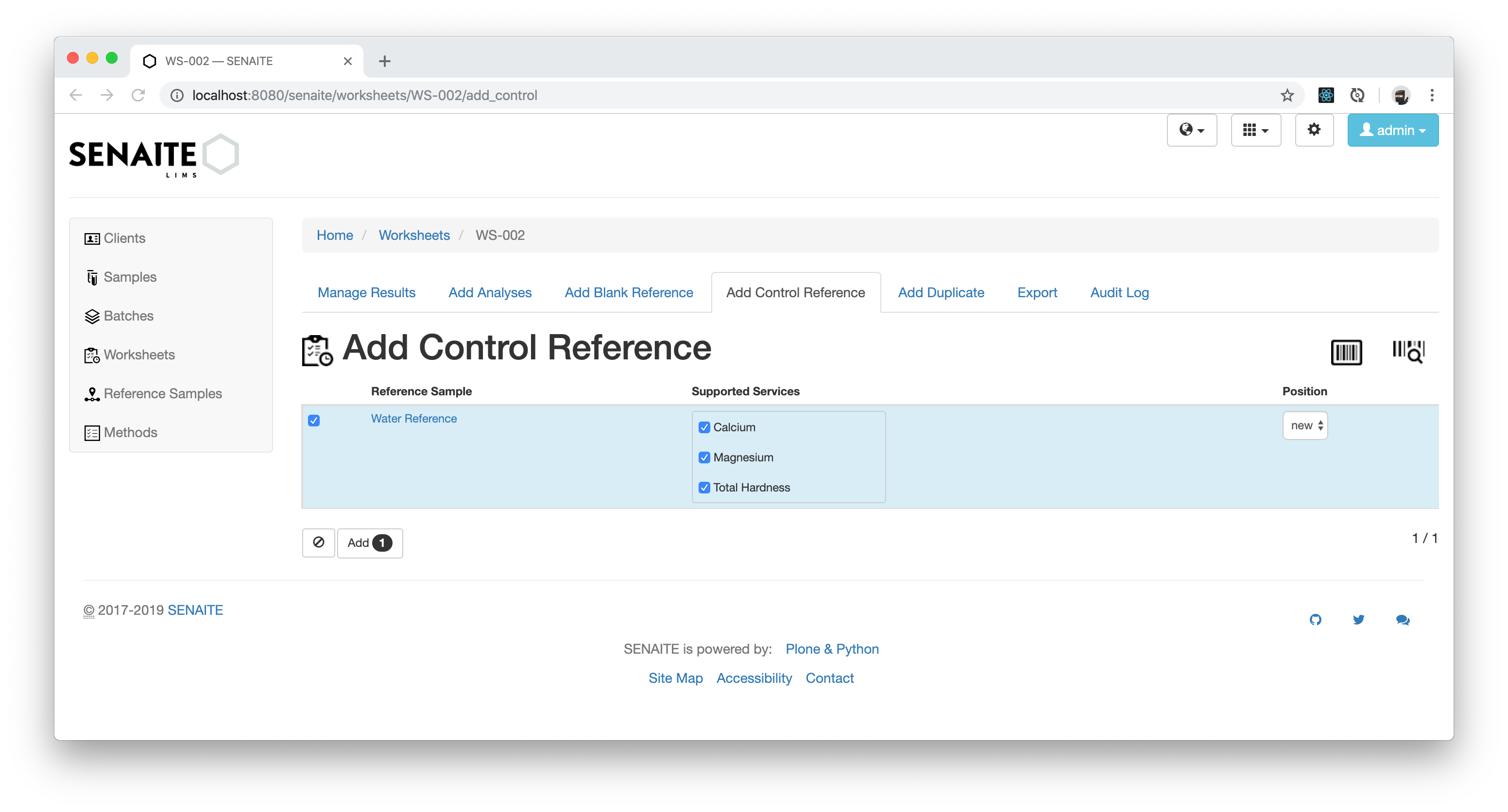
This time all the values from the Control Reference are selected, because we have exactly these Analyses in our Worksheet.
☝️Note:
There is currently a bug in SENAITE Core that you cannot add a control references for
Calculated Analyses. Therefore, we ignore for now the missing value for Total Hardness.
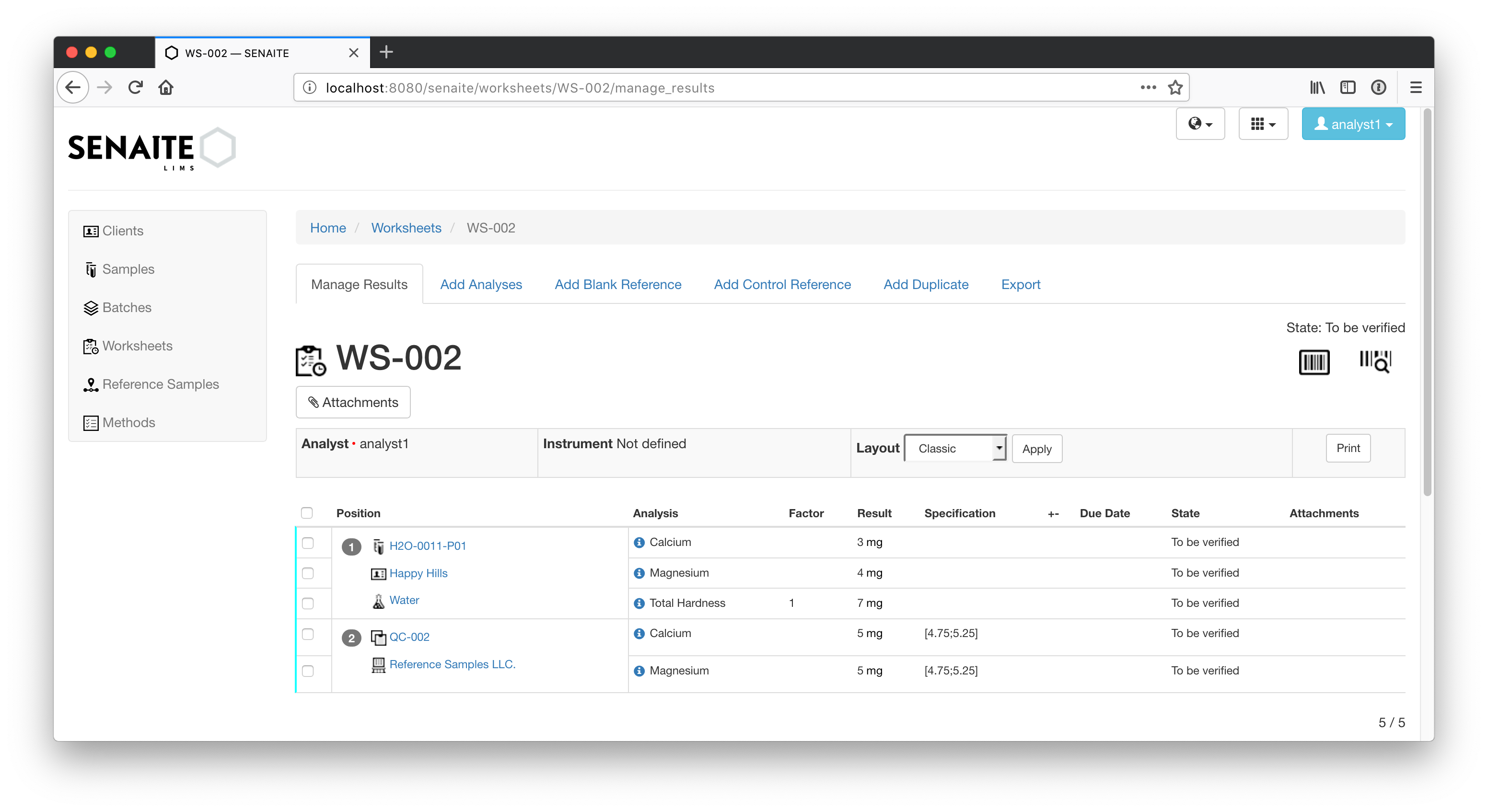
In this case everything is correct and the measured results for Calcium and
Magnesium are in the permitted error percentage of [4.75;5.25].
Consequently, having a correct Control Reference Result tells us again that the used instrument of the Analyst measured correctly, but there is still no hint if the Analyst carried over the numbers correctly.
Duplicates
Every Sample of a Worksheet can be duplicated with all of the contained Analyses.
Navigate now back to the previously created Worksheet and click on the Add Duplicate tab. Please also ensure that the Worksheet is in the open state, because it is otherwise not possible to add the Duplicate.
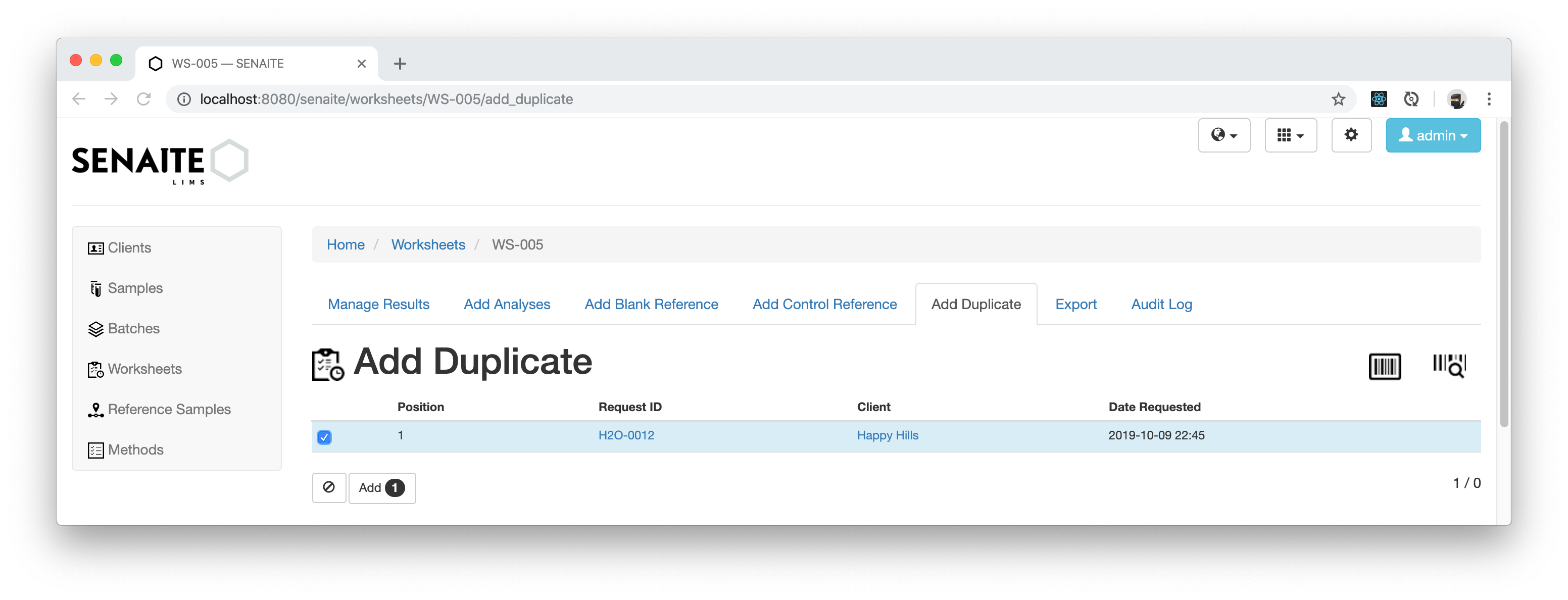
All the Analyses from the Sample are now duplicated for this Worksheet and any deviation between the actual results and the duplicate will be alerted.
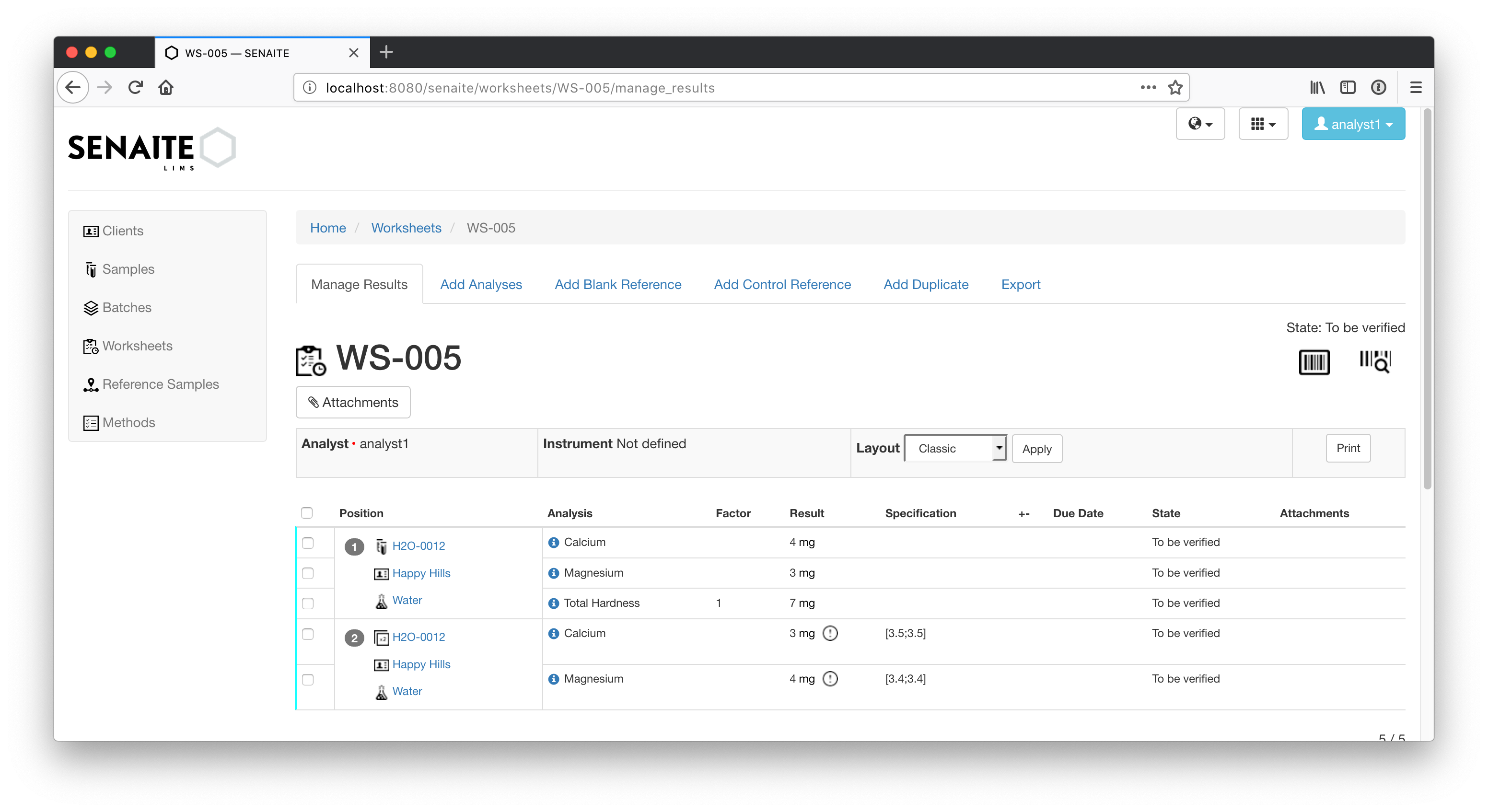
In this case the Analyst entered different results for the Calcium and
Magnesium Analyses of the Duplicate, which got marked with an exclamation
mark.
Consequently, the Analyst did either measured incorrectly or had an carry over mistake.
☝️Note: By default, the duplication variation percentage is set to 0 %. This means that an alert will be displayed if the results of duplicate analyses carried out on the same sample differ, even if the difference is small. You can change the duplication variation percentage in "Analysis Service" edit view, under "Method" tab.
Congratulations 🙌 you successfully learned how to add reference Samples to your Worksheet and how to interprete them.