
Analysis Templates
Analysis templates are kind-of similar to Analysis Profiles, but allow the values to be changed when adding new Samples and to pre-define Sample Partitions as well as the selected analyses per partition.
Another key difference to Analysis Profiles is that only one Analysis Template can be added when adding a new Sample.
Add global Analysis Templates
Analysis Templates can be added globally for the whole LIMS or per Client. Here we are going to add one that is available globally.
Click on the ⚙️button in the upper right corner and chose the Analysis Templates tile and press then the Add Button.
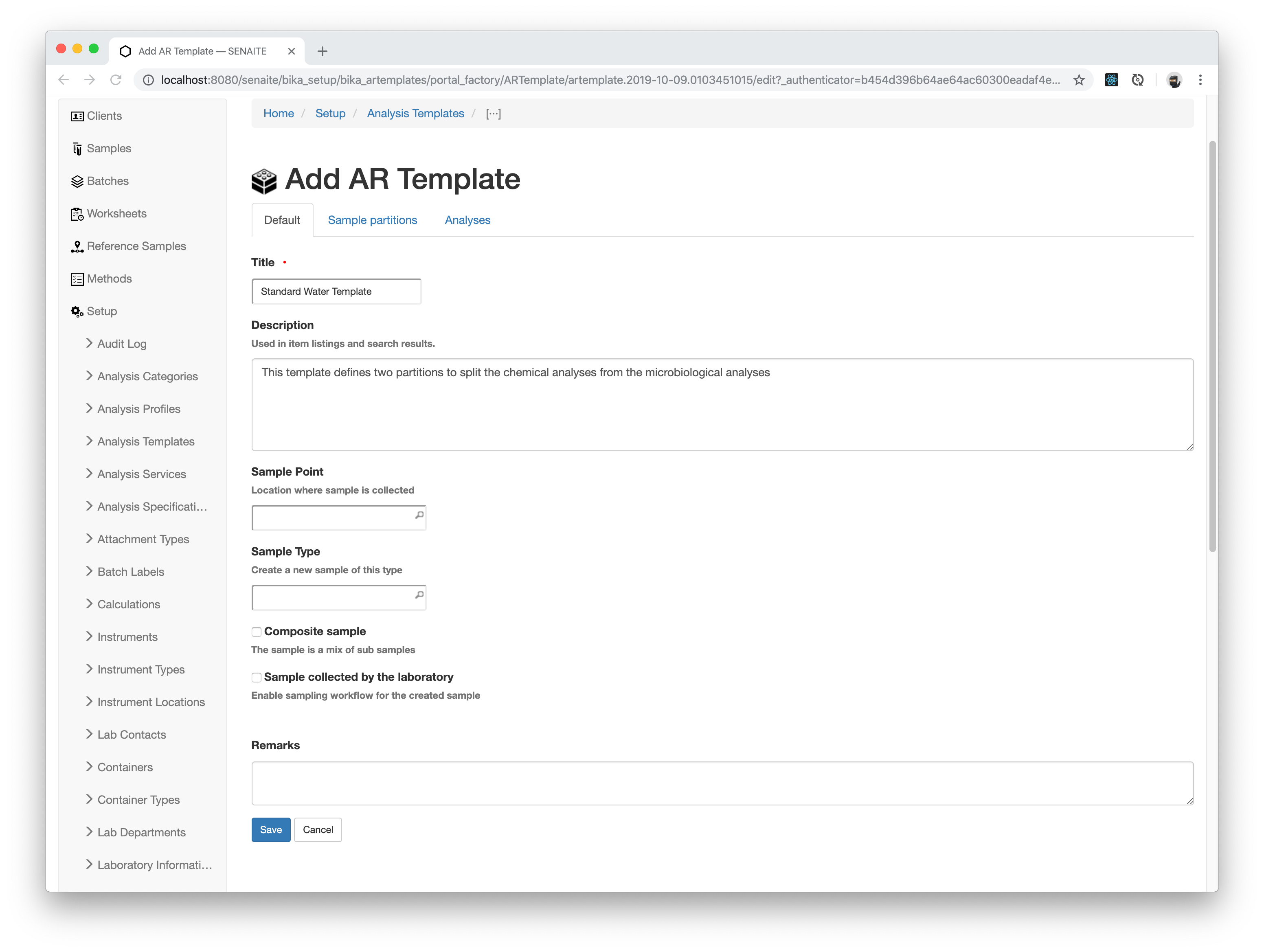
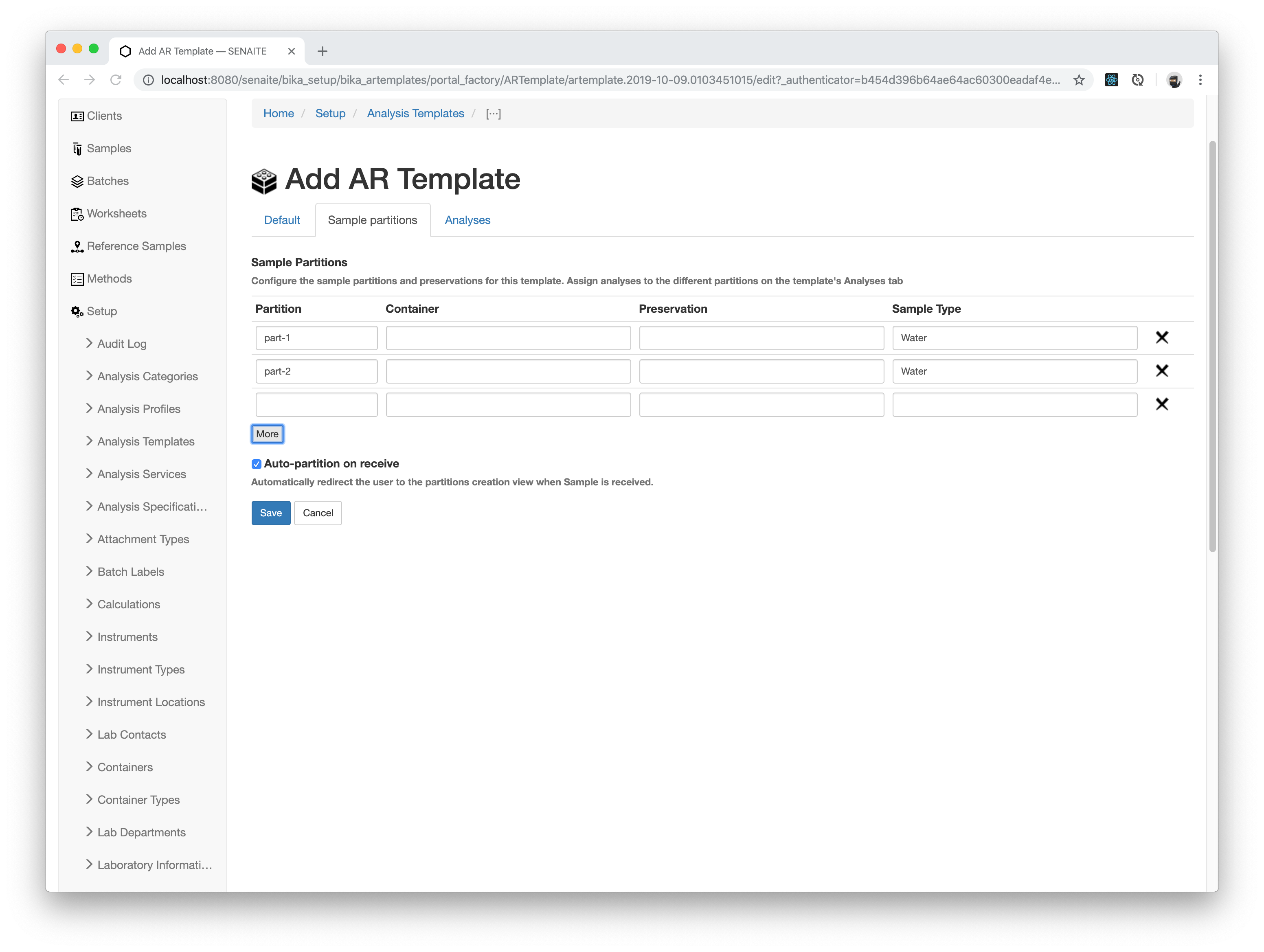
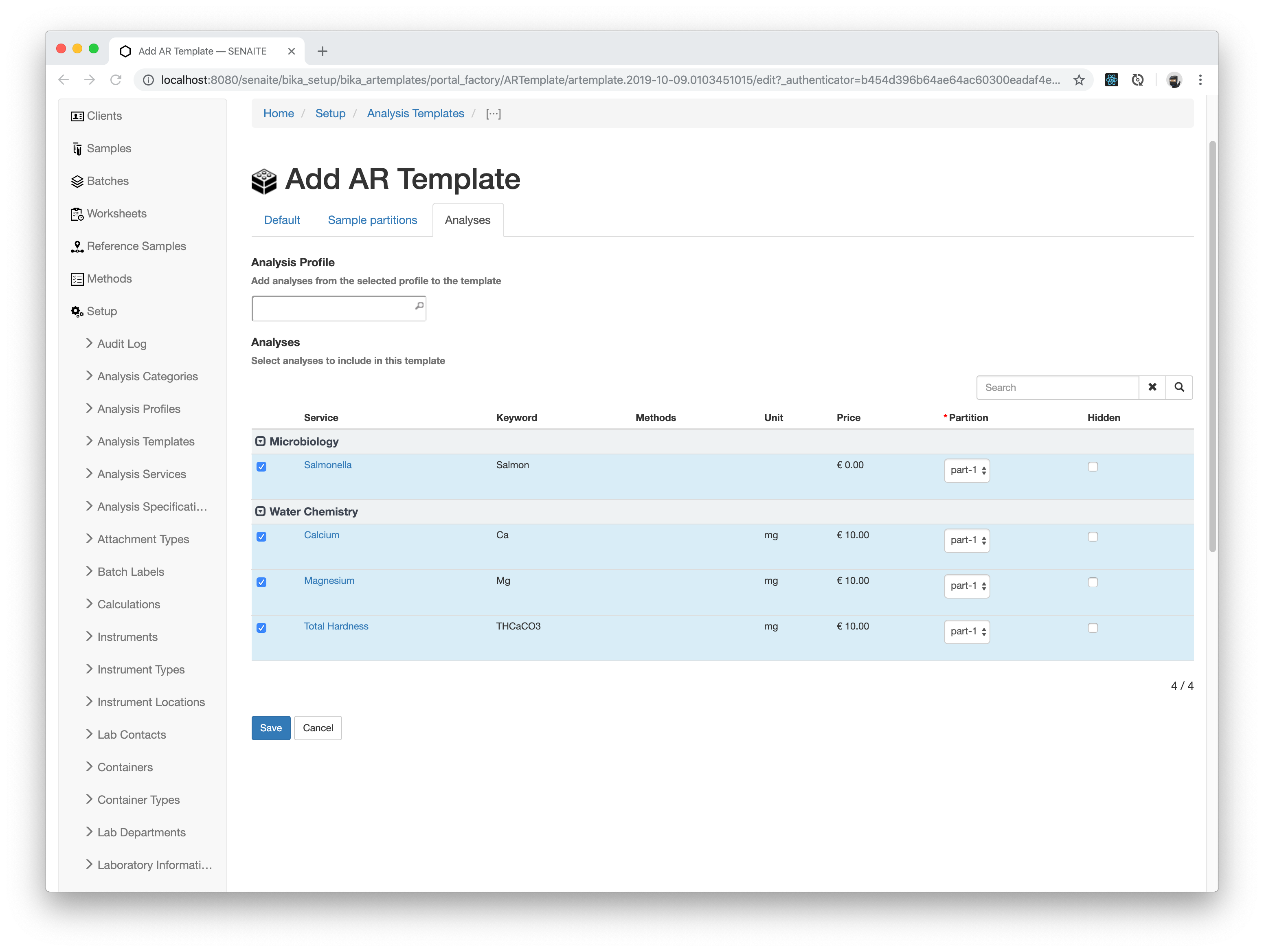
Enter the following values in the add form:
- Title:
Standard Water Template - Description:
This template defines two partitions to split the chemical analyses from the microbiological analyses - Analyses: Activate
Calcium,Magnesium,Total HardnessandSalmonellafrom the listing - Sample Partitions: Press two times the more button and select the Sample type
Waterfor the rowspart-1andpart-2. Also enable the Option Auto-partition on receive
Press the Save button when you are done.
☝️Note: Analyses can be first assigned to partitions after the template was initially saved with the initially set partitions.
Press the Edit tab again and navigate to the Analyses tab to assign the selected analyses to the partitions.
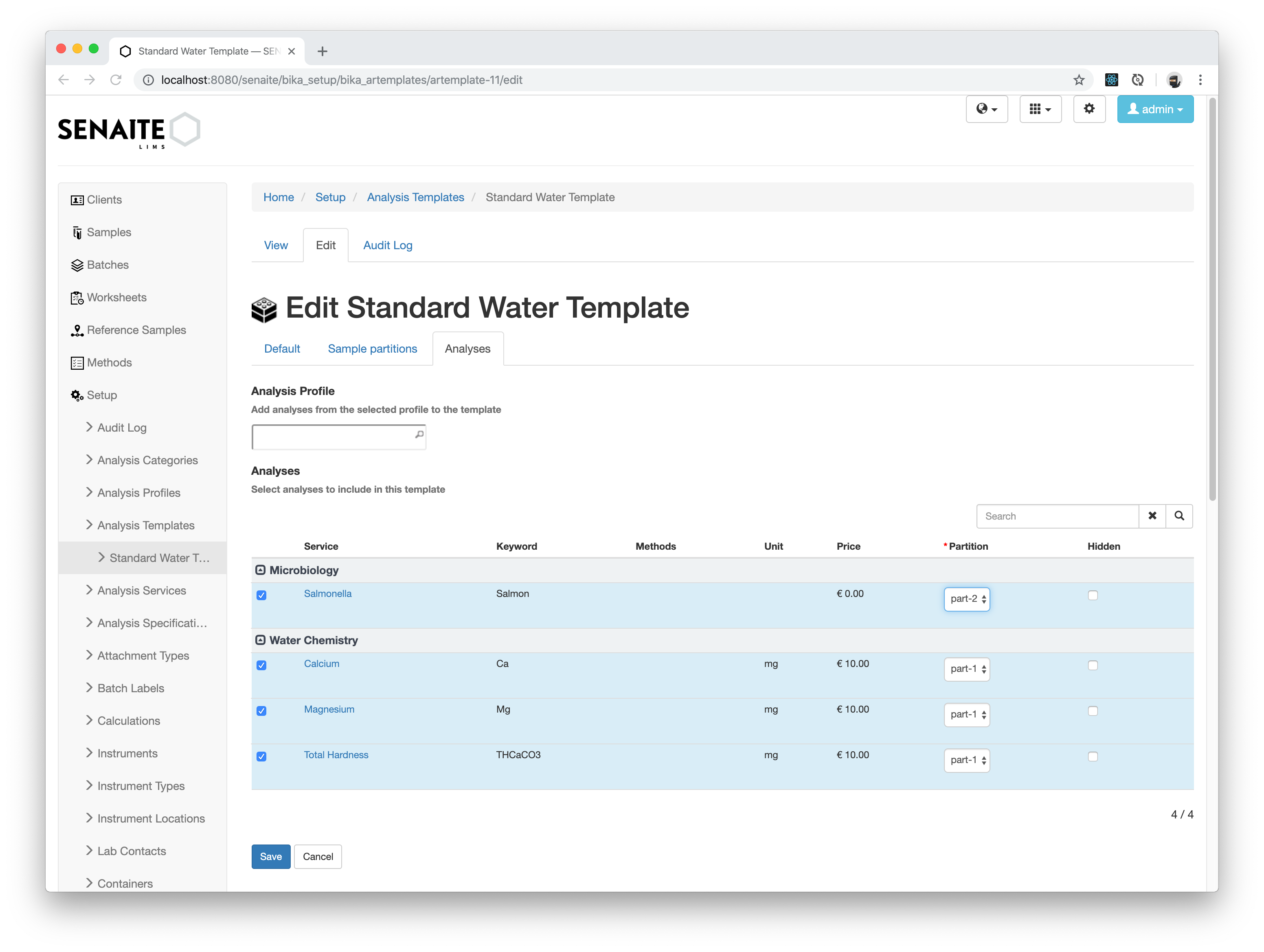
Now assign the Salmonella Analysis to the second Partition and press the
Save button when you are done.
Apply an Analysis Template to a Sample
Now it is time to apply the Analysis Specification to a Sample. Navigate to the Samples tab of our Happy Hills Client and create a new Sample.
Add the new created Analysis Template in the corresponding field.

Add now the remaining required fields and press the Save button when you are done.
Receive the sample after creation by selecting it in the list and press the Receive button. The partition view opens now automatically with the selected analyses from the template assigned to each partition.
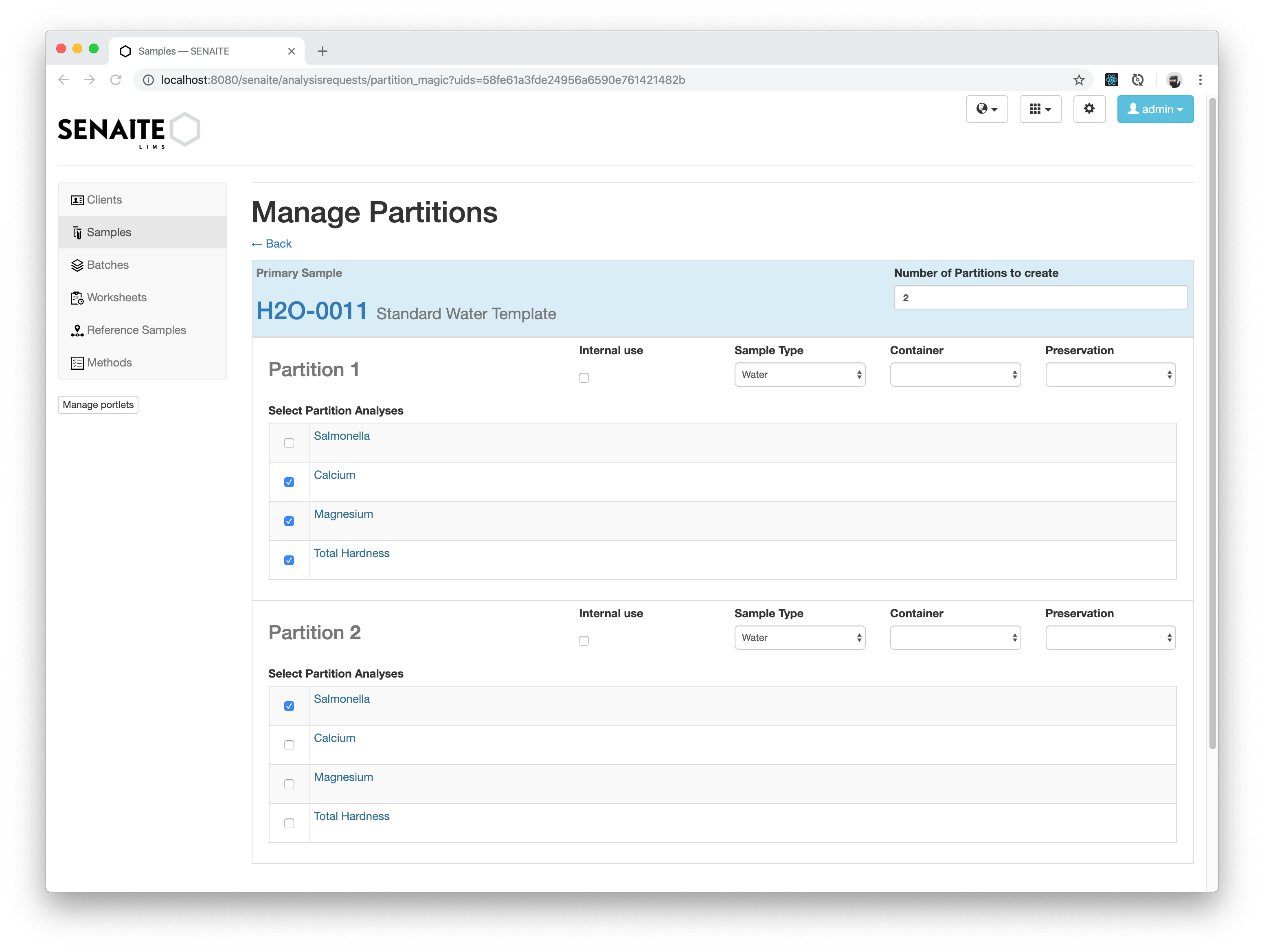
Click the Create Partitions button to proceed.
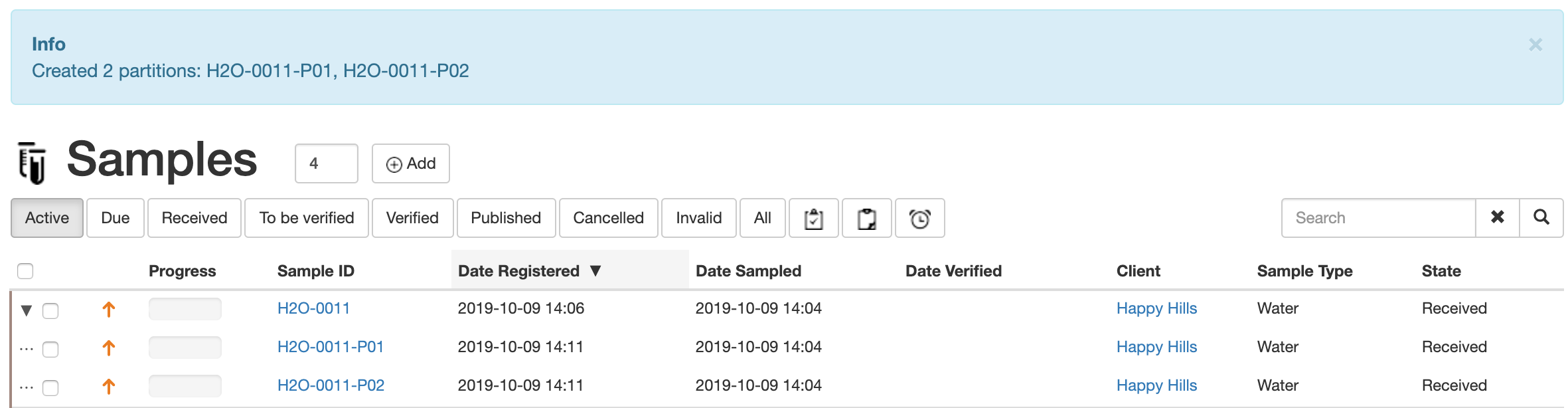
Congratulations 🙌 you successfully learned the advantages of using Analysis Templates