
Sample Barcodes
Samples are usually sent in Containers to the lab and need to be identified with the electronic record in SENAITE on arrival. To support that identification process, SENAITE provides an easy and customizable way to print Barcodes for Analysis Requests, Batches, Worksheets etc.
Generate a Barcode for a Sample
In the previous section you copied several new Samples. Now we are going to print a Barcode for them to label the Samples and identify and find them quickly in SENAITE.
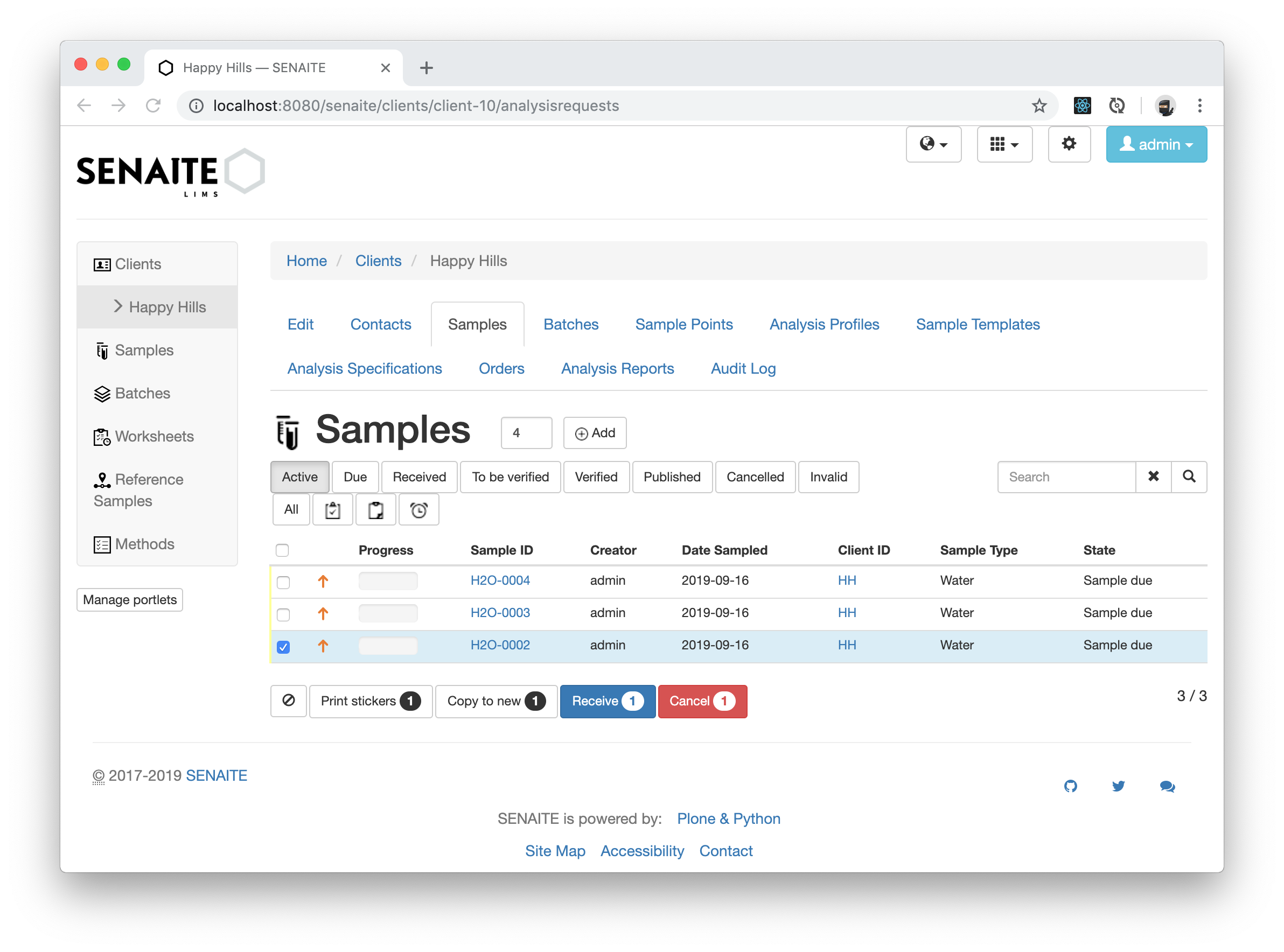
Navigate to the Samples tab of your client and activate the Active filter of the Samples listing table. Select one of the registered Sample from before and click on the Print Stickers button at the bottom of the page.
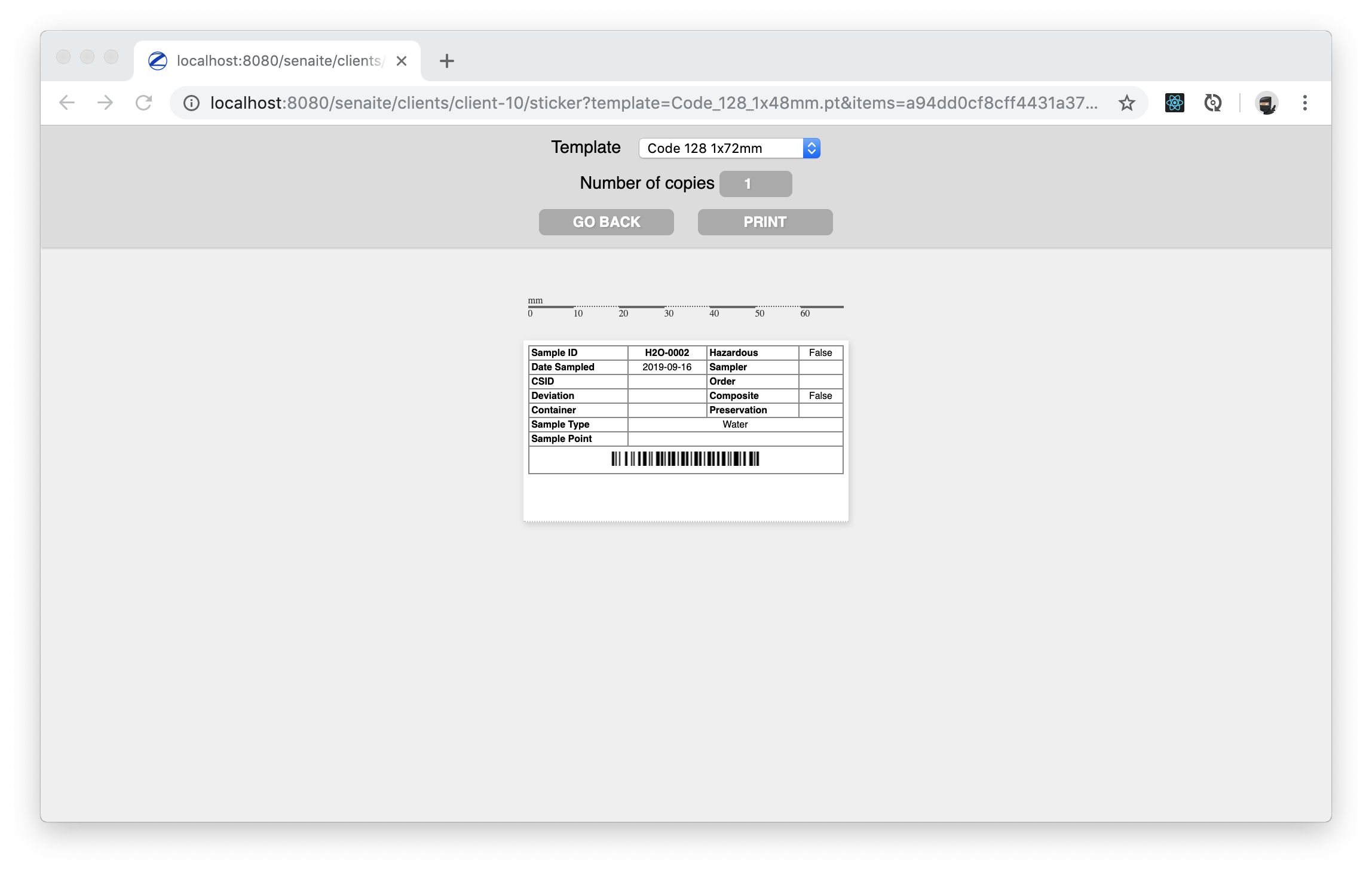
This opens the Barcode Print Preview where a Barcode Template and the number of Copies can be selected.
☝️Note:
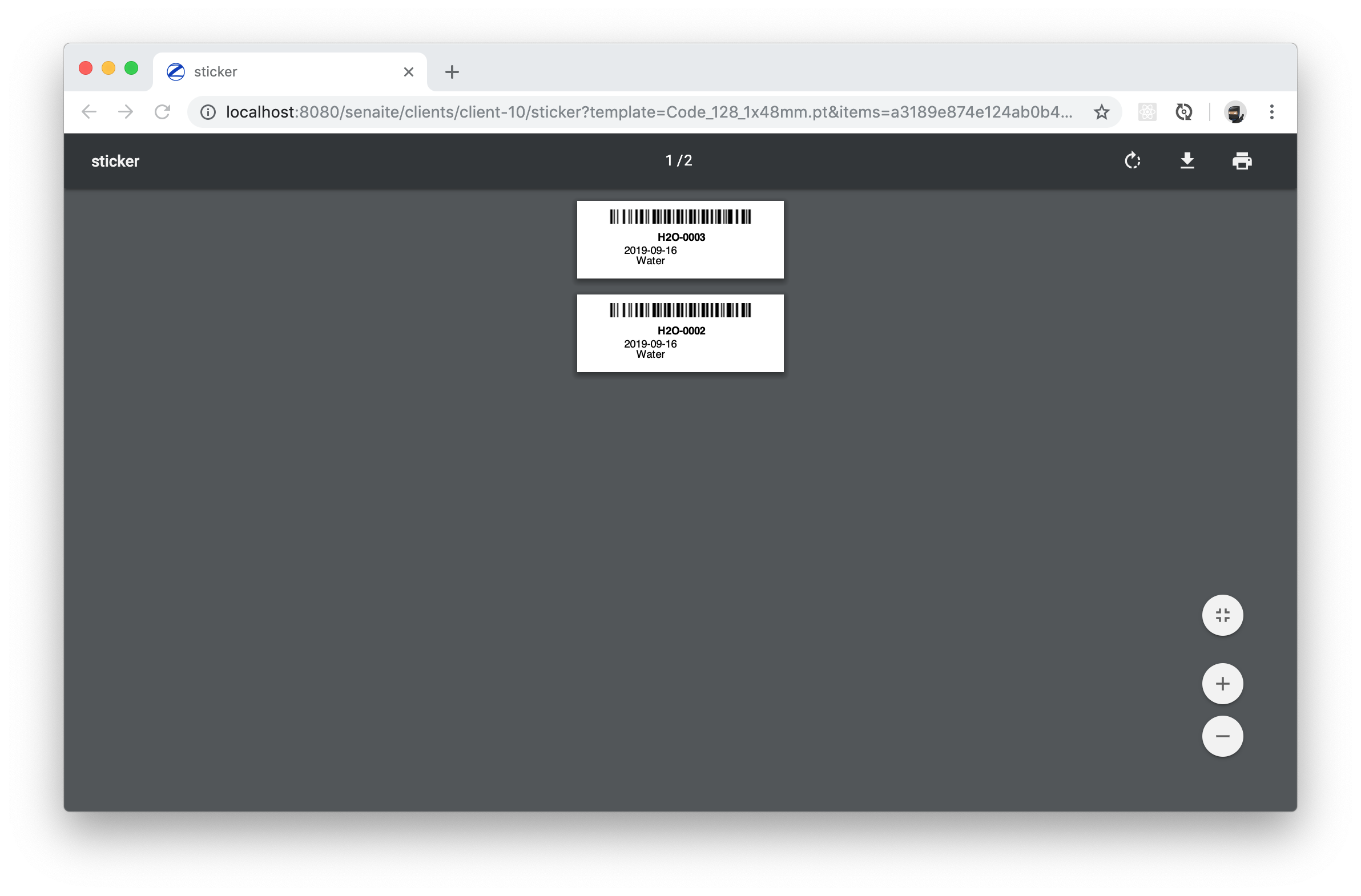
The Print button will generate a PDF of the selected Barcode with the given
dimensions. The PDF can then be printed via the Print Dialog of your Operating
System (usually triggered by the keys Ctrl+P), which need to be configured
properly to match the dimensions of your Sticker Printer.
At this point it can not be controlled anymore from SENAITE how your Printer
will match the dimensions and the placement of the generated Barcode.
🤓 Pro-Tip: You can easily customize the existing stickers (or create your own) direcly in the codebase of SENAITE. However, it is always recommended to do such customizations in a separate Add-on to prevent your changes from being lost when updating the core codebase of SENAITE.
Barcodes can also be generated directly from within a Sample. Open a Sample from the Samples listing by clicking on the generated Sample ID link. Make sure you are on the View tab and click on the rightmost barcode icon below the workflow menu to open the Barcode Print Preview.
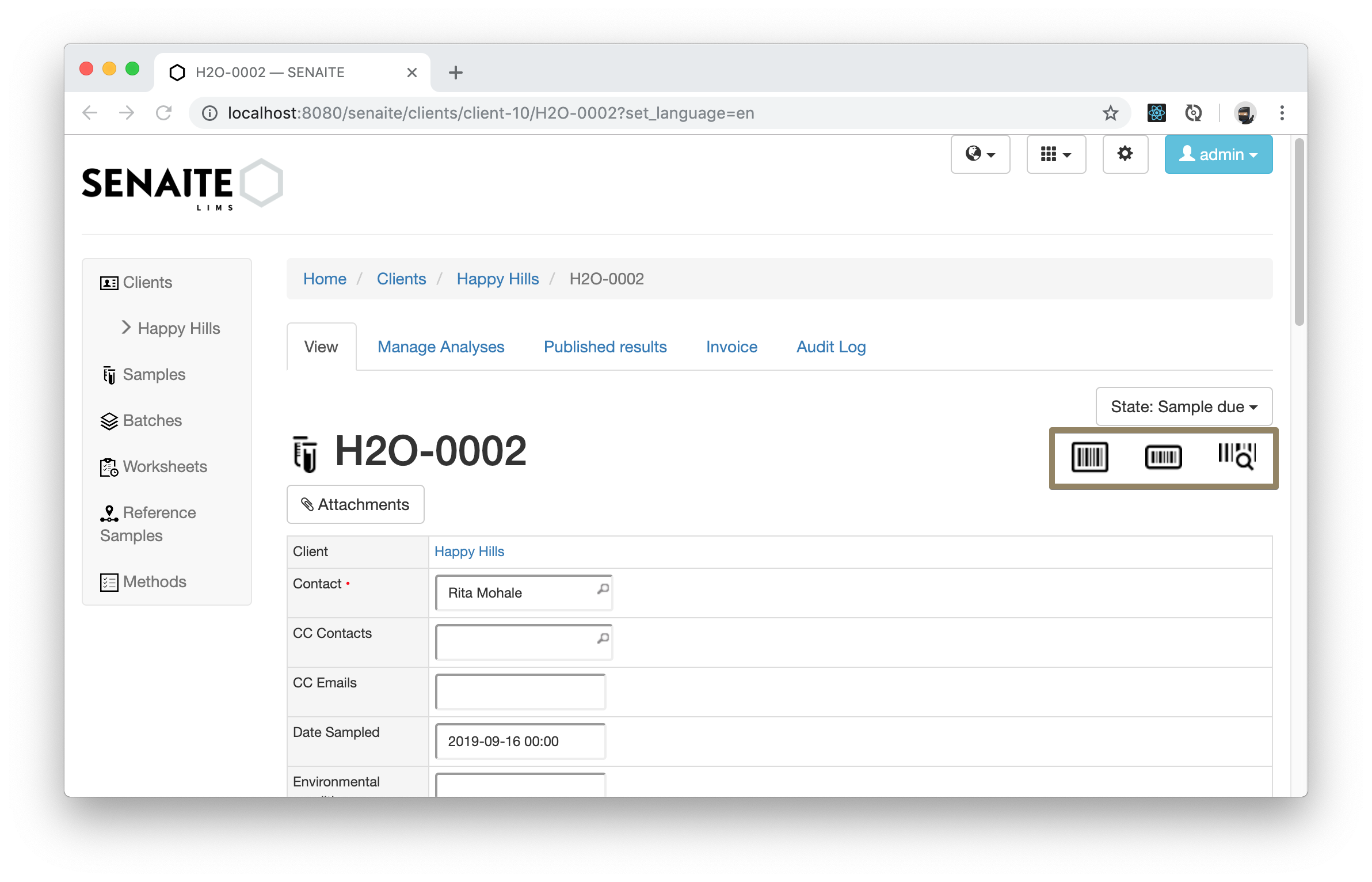
The other two Barcode Buttons are a short cut to print the configured small or large Barcode directly.
Generate Barcodes for multiple Samples
You can als easily print barcodes for multiple Samples. Navigate to the Sample listing and select two or more Samples from the listing table.
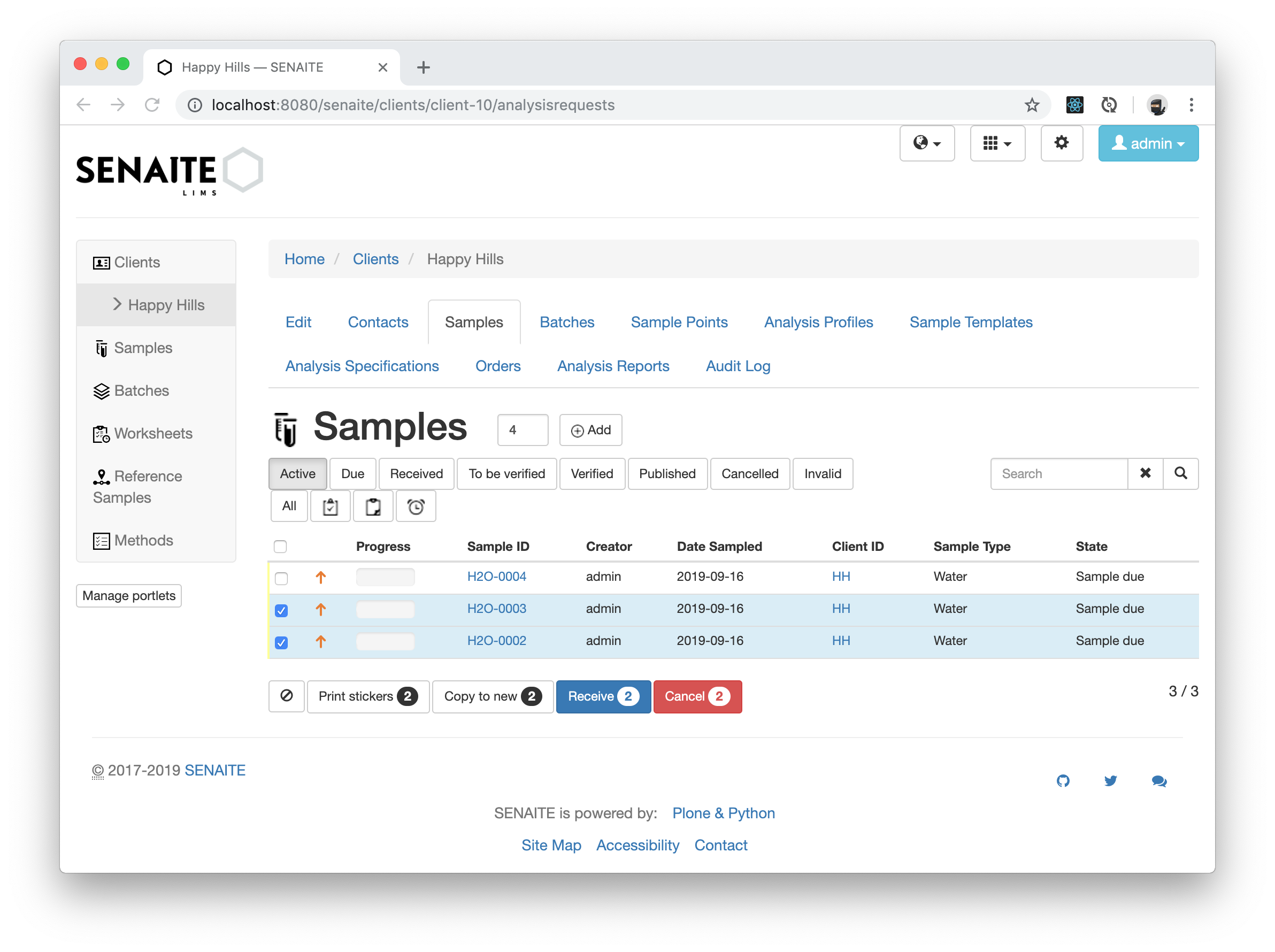
Clicking on the Print Stickers button opens again the Barcode Print Preview, but this time for both of the selected Samples.
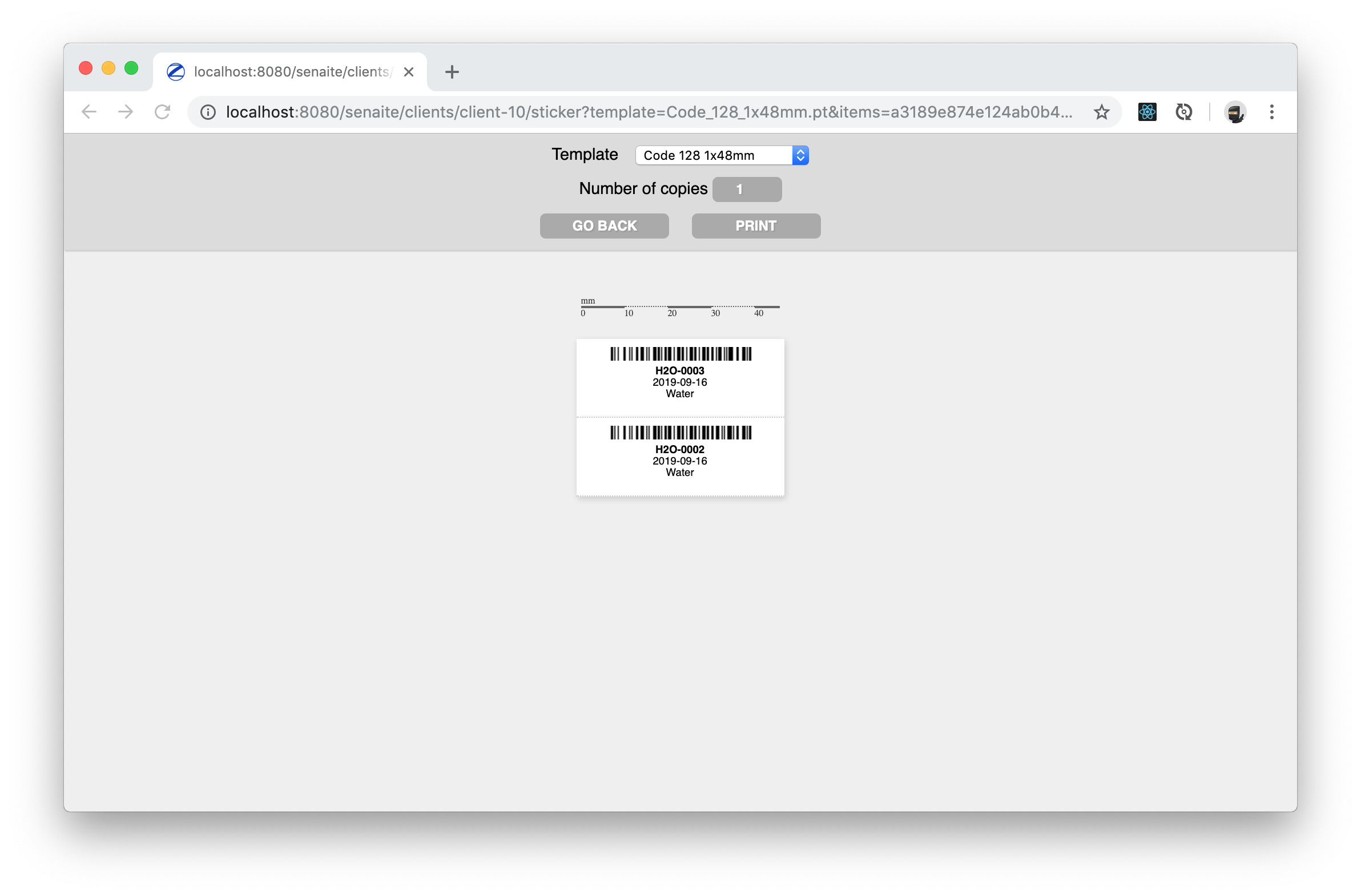
Pressing the Print button generates the barcodes for the selected Samples.
Autogenerate Barcodes on Sample Reception
The printing of Barcodes can be automated when Samples are registered or received. The setting can be enabled in the Sticker section of the LIMS Setup, as well as the standard templates for the small and large Barcodes.
Click on the ⚙️button in the upper right corner and choose the grey Setup tile to open the general Setup options. Select the Sticker tab and chose Receive from the Automatic sticker printing menu. Press save when you are done.
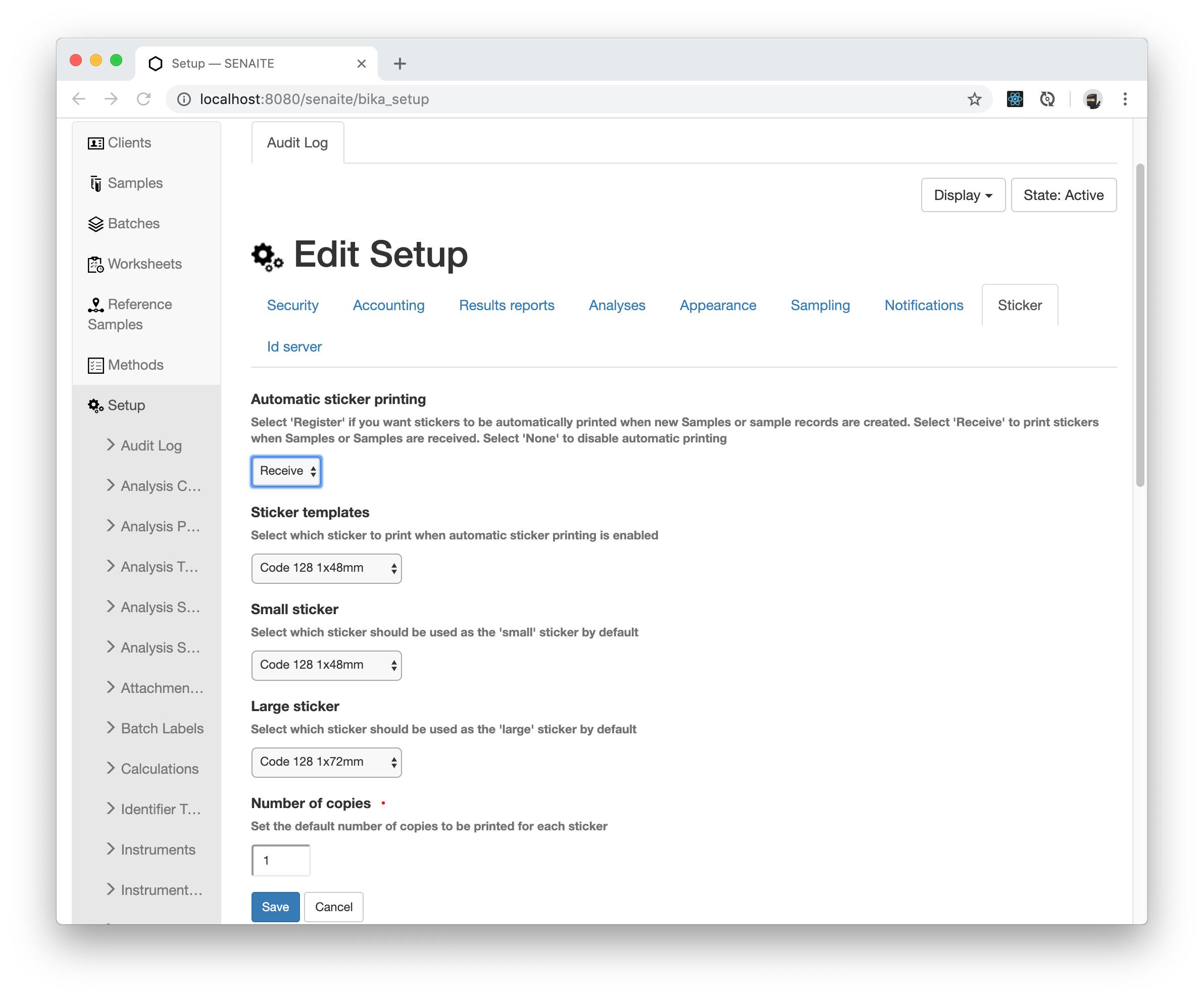
The Barcode Print Preview opens now automatically when you receive a Sample.
Locating a Sample when scanning the Barcode
The generated Barcodes contain the generated Sample ID which is unique in SENAITE. Therefore, scanning the barcode will reveal this Sample ID and put it usually on the place where the cursor is placed.
To streamline the process of scanning and locating a scanned barcode, SENAITE
provides the Spotlight Search, which can be triggered with the keys Ctrl+Space.
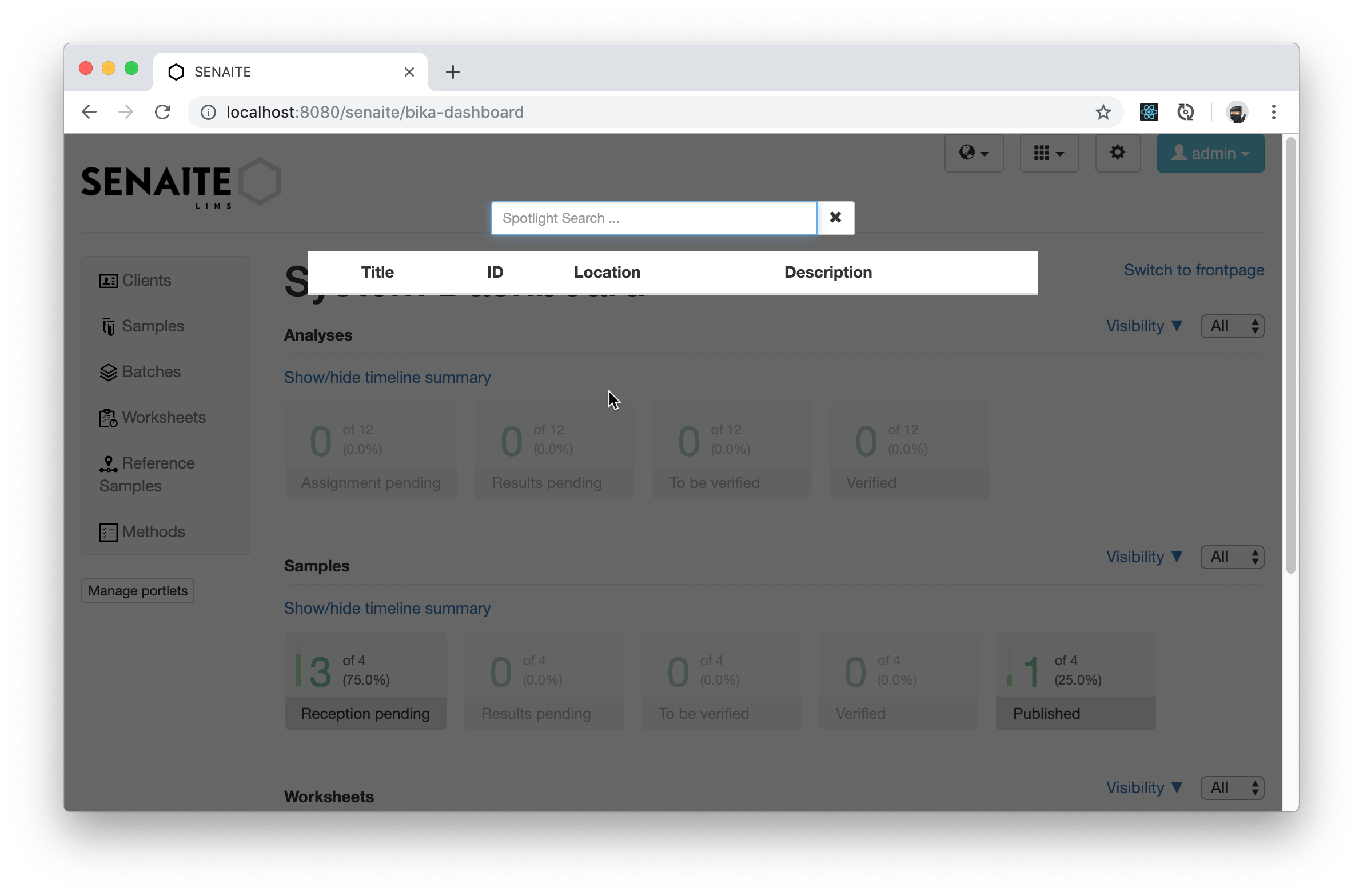
The Spotlight Search can be executed at any place in SENAITE and always places the cursor directly in the search field.
We simulate now the scanning of a sample by putting in directly the Sample ID of one of the generated barcodes.
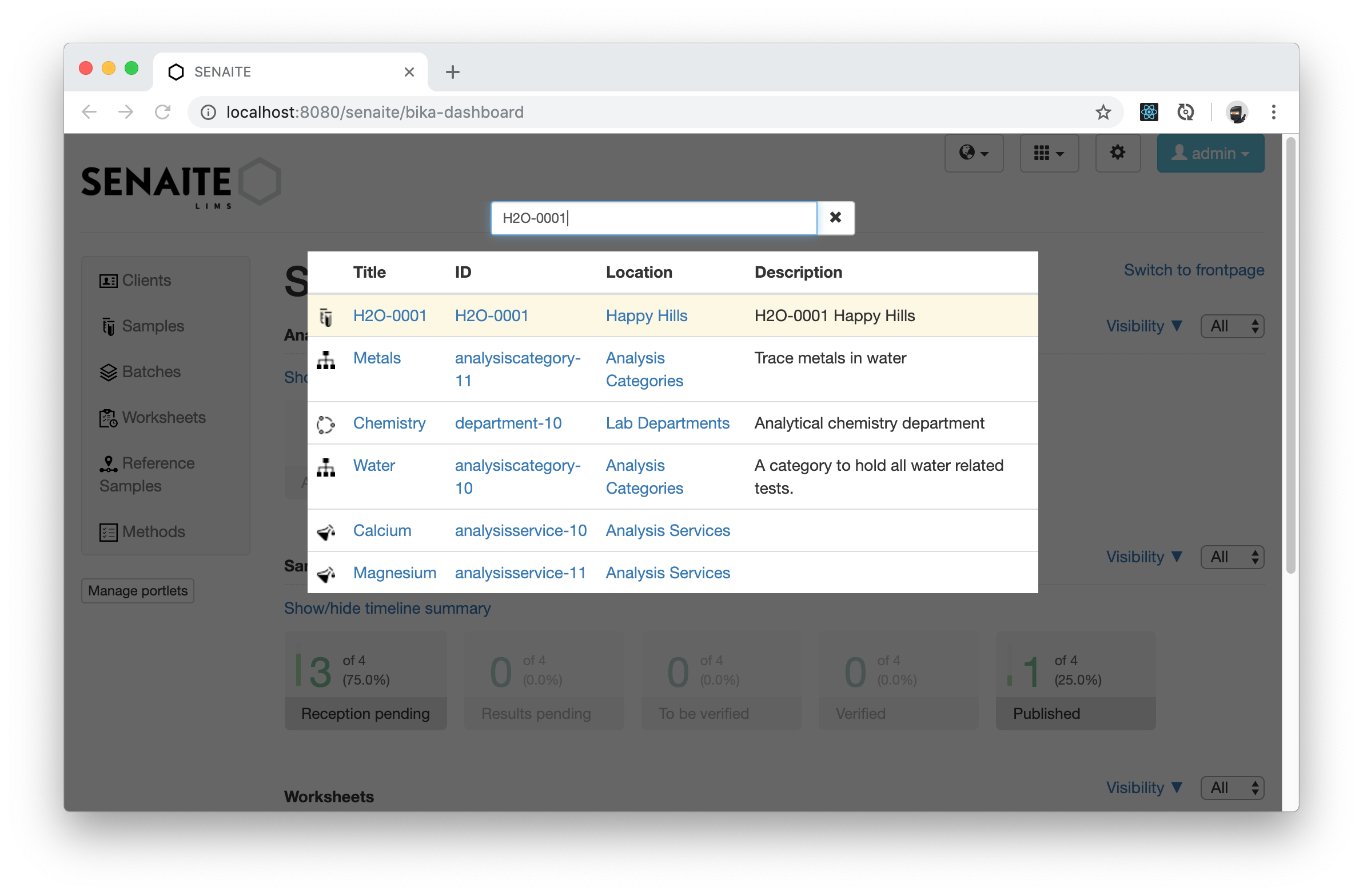
Navigate with the Up and Down arrow keys of your keyboard to select a
search result and press Enter to navigate to this item.
🤓 Pro-Tip:
If the item you searched appears at the top of the Spotlight Search, you can
press immediately Enter to select and navigate in one step.
Congratulations 🙌 you successfully printed barcodes for your Samples and located them quickly with the Spotlight Search.