
A quick start into SENAITE
In this guide we will show you how to create your first sample in SENAITE.
Configure SENAITE for the first sample
When SENAITE is initially installed, it comes without any configuration and needs to be setup first to be able to create samples.
Open the LIMS Setup Screen
Navigate to the LIMS Setup by clicking the ⚙️ button in the upper right corner.
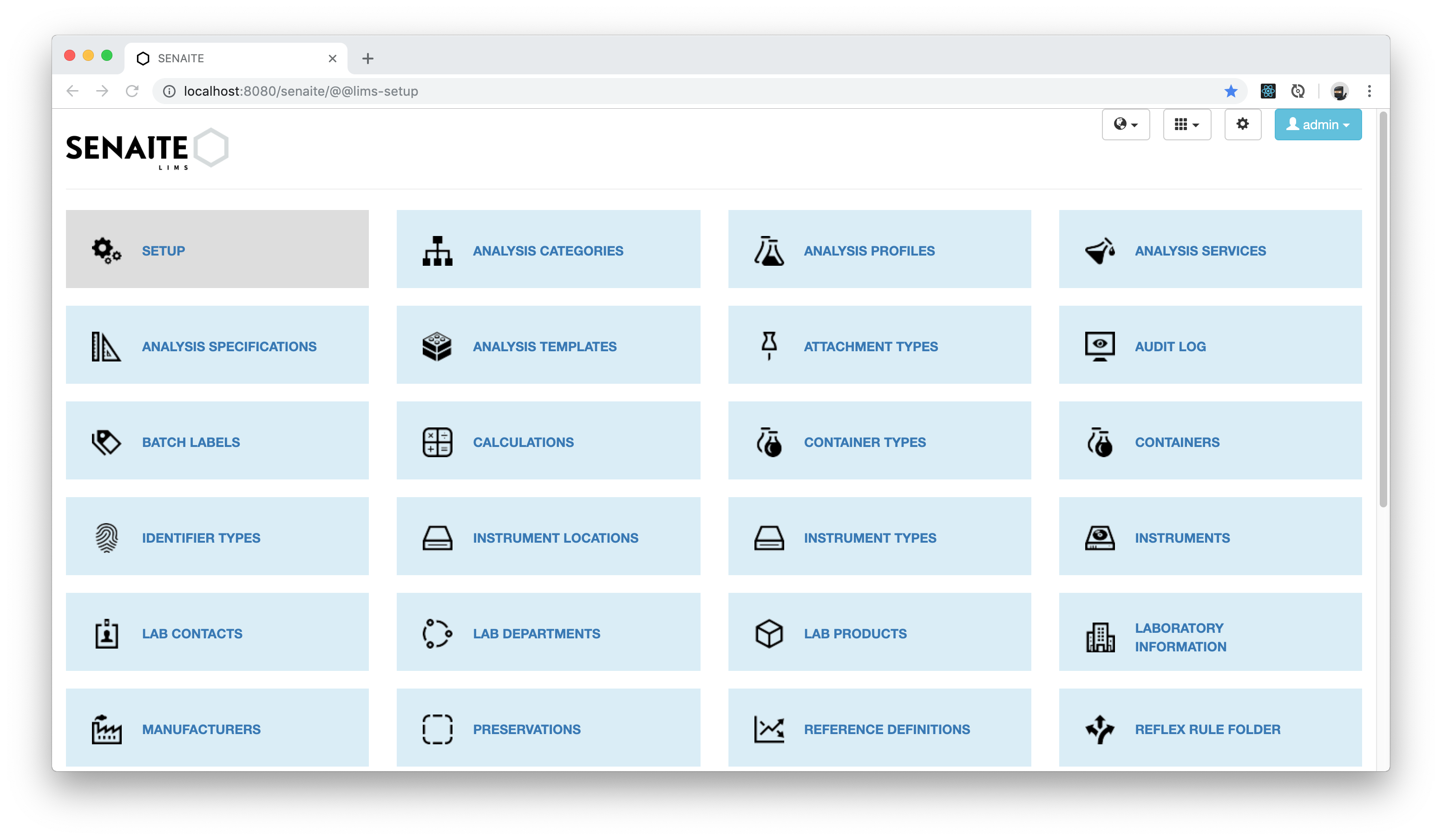
This screen shows all the available setup items to configure SENAITE for your lab.
☝️Note: The ⚙️button is almost on every screen available and allows you to quickly navigate to the LIMS Setup.
🤓 Pro-Tip:
You can also press the key-combination Ctrl+Space to open the Spotlight
Search. You can search then the setup location you want to visit and select
with the Up and Down arrow keys of your keyboard the location and press
Enter. SENAITE will navigate you then directly to the item you requested.
Add Lab Departments
Firstly, we want to add a lab department. Therefore, click on the Lab Departments tile to navigate to the listing of laboratory departments.
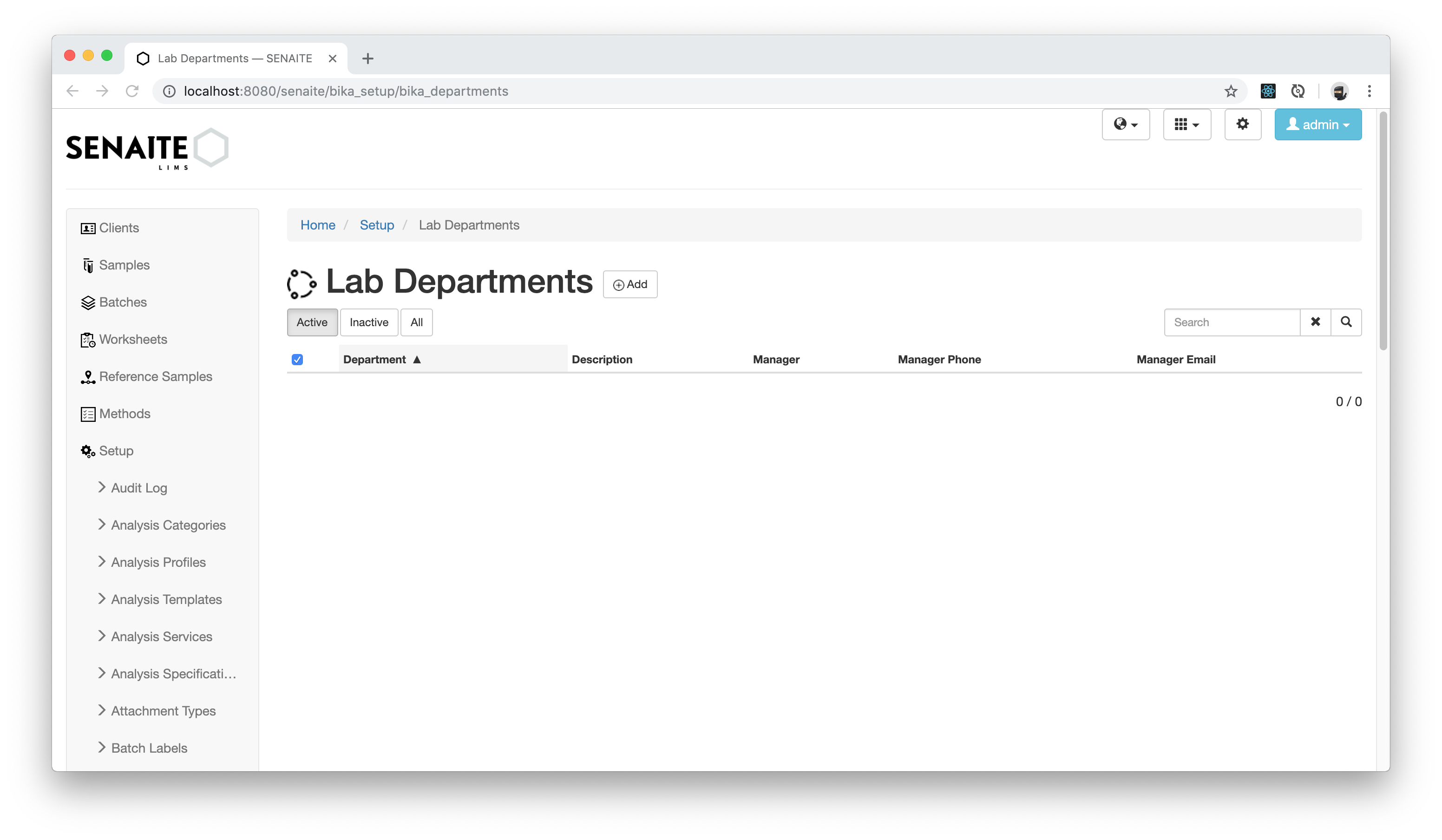
Click on the Add button above the listing table to add a new lab department.
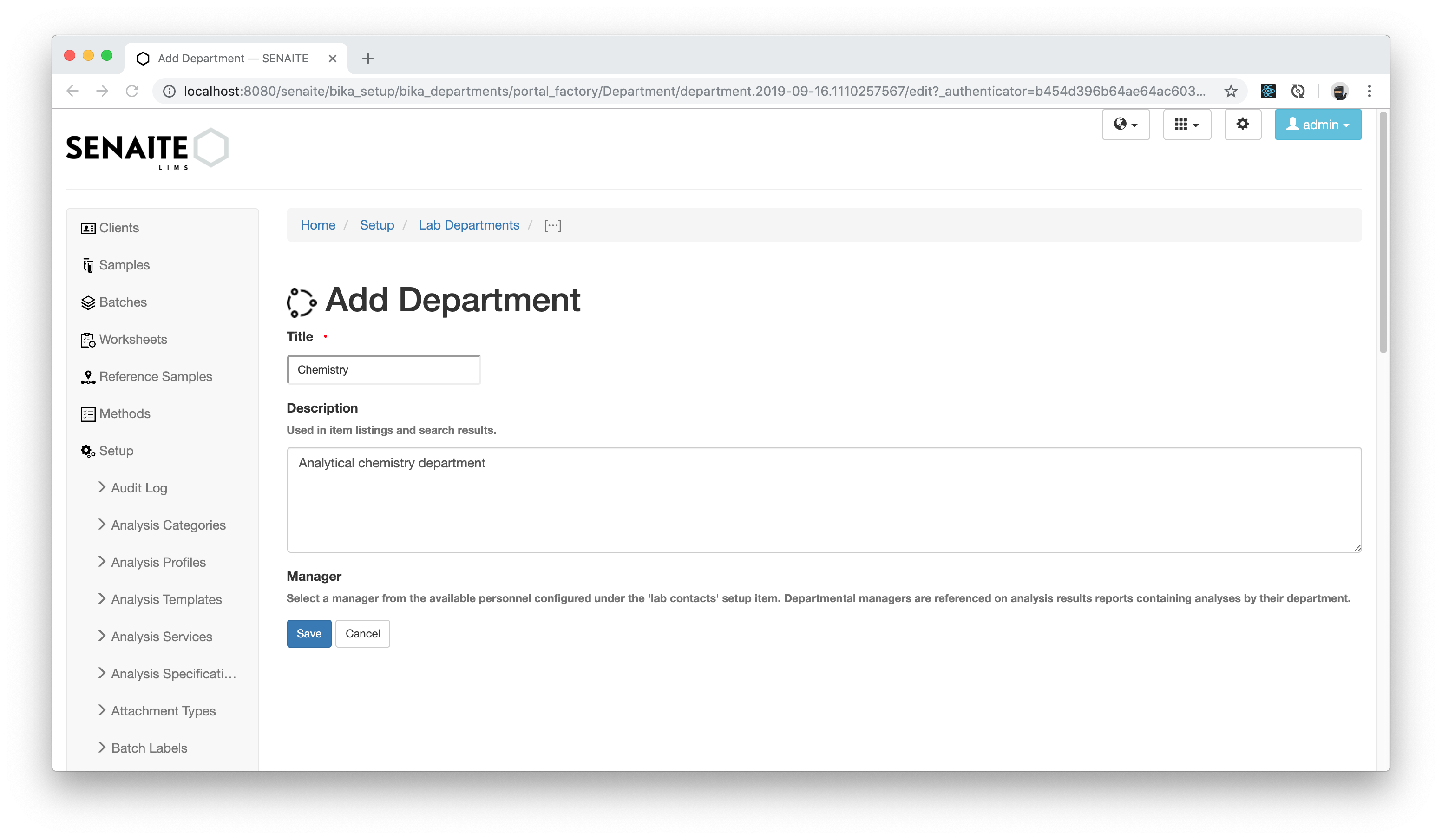
Enter the following values in the add form:
- Title:
Chemistry - Description:
Analytical chemistry department
Click the Save button when you are done.
Add a Laboratory Manager
The admin user the system created by default on install should only be used
for maintenance purposes and by qualified personnel. SENAITE ships with default
user roles and the most common are:
Lab Manager: users with this role can manage the LIMS from a functional perspective and have rights to do almost everything, albeit they are bound to Good Laboratory Practices (GLP) and ISO policies.Lab Clerk: users with this role can manage clients and some setup configurations. They are mostly responsible of reviewing samples on reception, communication with clients and distribution of published results.Analyst: users with this role do not have rights to manage. Analysts are the users who enter analysis results into the system.
Move to the LIMS Setup screen by clicking again the ⚙ button in the upper right corner of your screen.
Click now the Lab Contacts link. Press the Add button to add a new Contact and fill the form as follows:
- Firstname:
Lab - Surname:
Manager - Departments:
Chemistry
Click the Save button.
At this point, we've created a laboratory contact, but there is still the need to create a user bound to this contact to be able to login to the system. Now, click to Login Details tab and fill the form as follows:
- User Name:
labman - Password:
labman - Confirm Password:
labman - Email:
labman@example.org - Add to the following groups: choose
LabManagers
Press the Save button.
Add a Laboratory Analyst
Now, go back to Lab Contacts list by either clicking the link from the breadcrumbs bar at the top or by clicking again the ⚙ button in the upper right corner of your screen. Then, follow the abovementioned procedure to create a new contact with the following information:
- Firstname:
Lab - Surname:
Analyst - Departments:
Chemistry
Click the Save button and follow same steps as previous section to create a new user, but with role Analyst:
- User Name:
analyst - Password:
analyst - Confirm Password:
analyst - Email:
analyst@example.org - Add to the following groups: choose
Analysts
Press the Save button.
Login as Laboratory Manager
Press the Log out element from the blue dropdown list at top-right with title admin.
You are now logged out from SENAITE. Use the credentials for the labman user you created in the previous section:
- Login Name:
labman - Password:
labman
Press the Log in button. Note that Lab Manager is displayed now in the blue box at top-right corner.
Add Analysis Categories
Move to the LIMS Setup screen by clicking again the ⚙ button in the upper right corner of your screen.
Click now the Analysis Categories link to add a category for the analyses you add in the next step.
Currently, your SENAITE installation has no analysis categories configured.
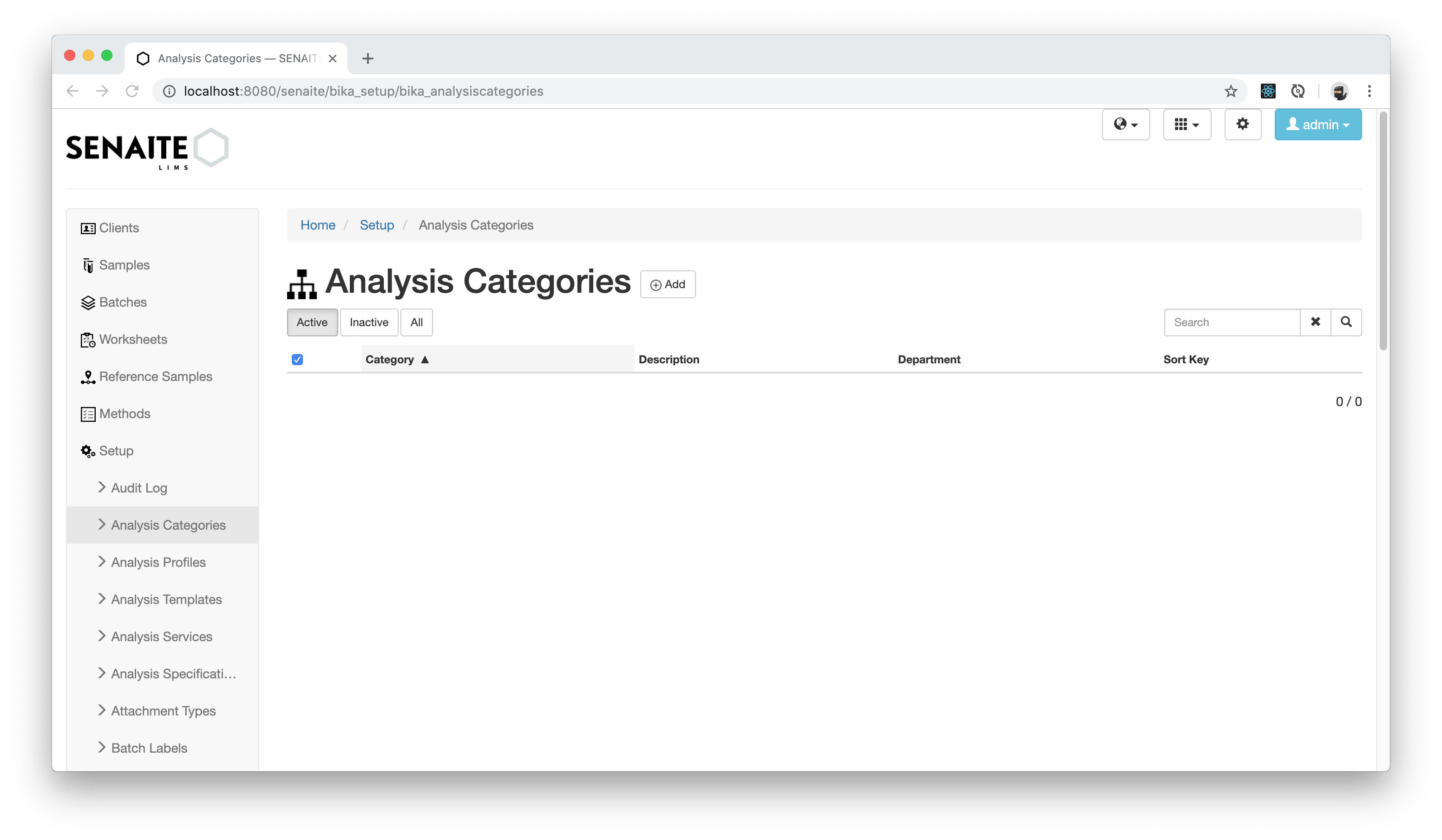
Let's add the category Water Chemistry to group together chemical water analyses by clicking the Add Button above the listing table.
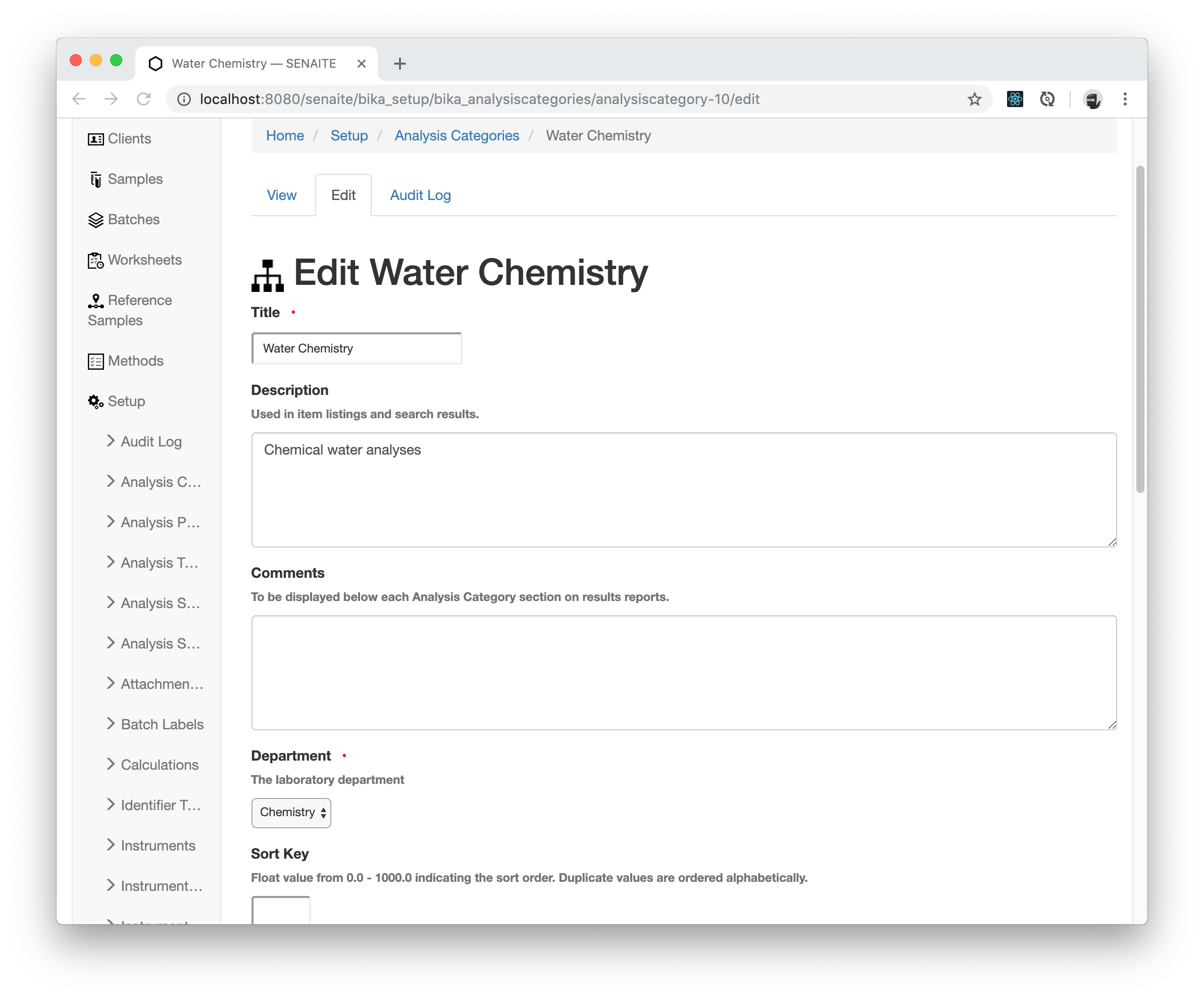
- Title:
Water Chemistry - Description:
Chemical water analyses - Department:
Chemistry
Click again the Save button when you are done.
☝️Note: Analysis categories allows you to group analyses regardless of the department they are assigned to. Thus, you can have analyses in same category that belong to different departments. Here we've created a "Water chemistry" category, but we could rather create a category called "Liquids" or "Mining". The criteria used to group analyses depends on your laboratory needs.
Add Analysis Services
Analysis services represent the catalog of tests/analyses the laboratory is able to perform. Although in most cases we think of an Analysis Service as a single test for which we expect a single result, their level of granularity may depend on the laboratory needs and/or compiled Standard Operating Procedures (SOPs).
We add some analysis services by clicking the Analysis Services link in the LIMS Setup screen.
In this example we are adding Calcium, Magnesium and Total Hardness.
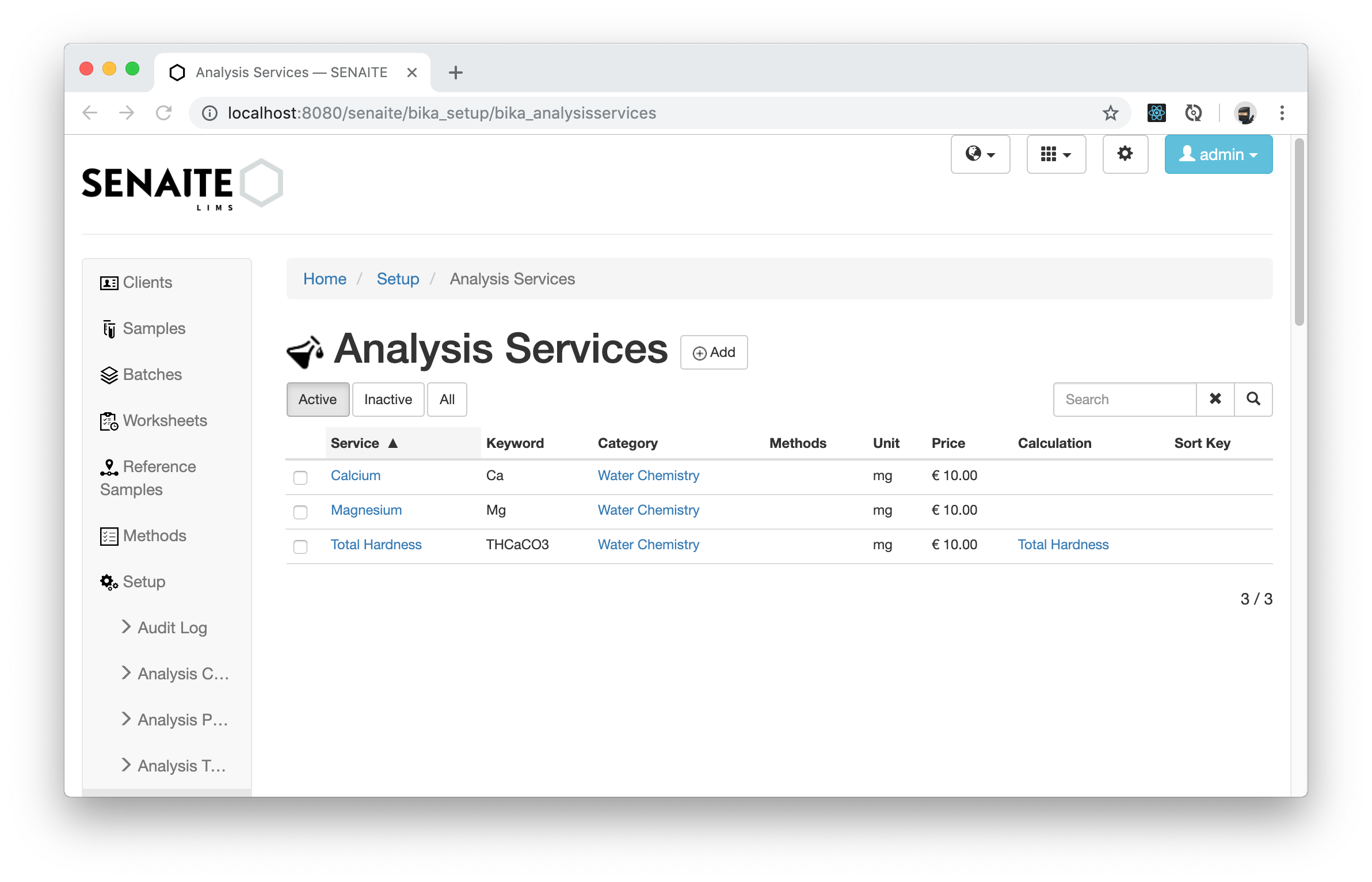
Proceed like in the previous examples by clicking on the Add button and entering the values, e.g. for the Calcium analysis as follows:
- Title:
Calcium - Unit:
mg - Analysis Keyword:
Ca - Point of Capture:
Lab - Analysis Category:
Water Chemistry - Price (excluding VAT):
10 - Department
Chemistry
Repeat the steps for the Magnesium and Total Hardness Analysis Services
and chose Mg and THCaCO3 as the Analysis Keyword respectively.
☝️Note: The "Analysis Keyword" is an important field and must be unique. This keyword will be used widely by the system. Amongst other uses, keywords are used in calculations or to find matches when importing results from instruments. They can also be displayed in results reports if needed. CAS Numbers for chemical substances or LOINC codes for health measurements are good keyword choices.
🤓 Pro-Tip: You can also duplicate existing Analysis Services from the listing view by selecting the checkbox of the Service you want to copy and click on the Duplicate button.
Add Sample Types
To be able to create samples in the system later, we need to add some Sample Types as well. Navigate therefore to the LIMS Setup and click on the Sample Types tile.
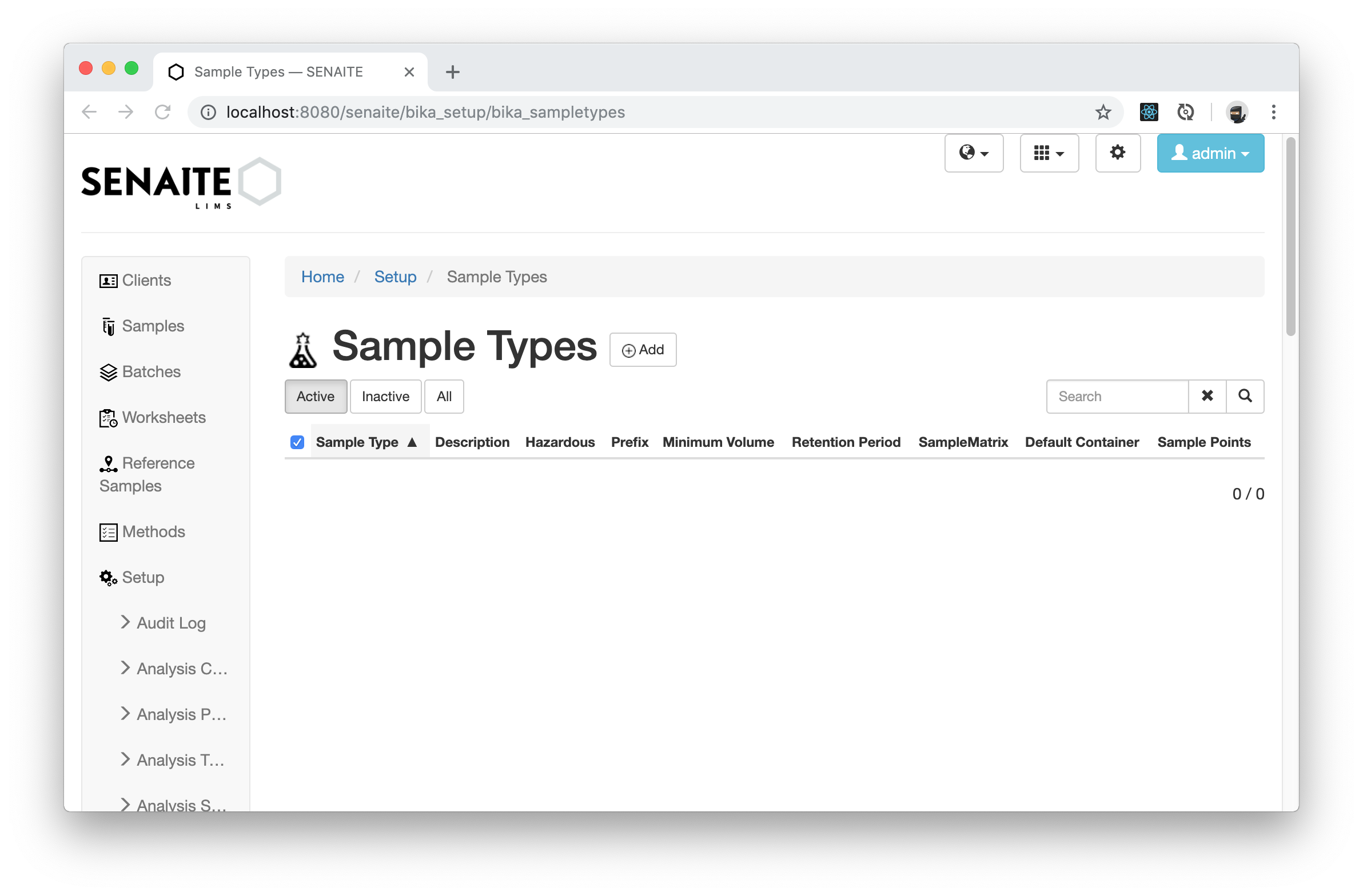
Create a new Sample Type "Water" by clicking on the "Add" button.
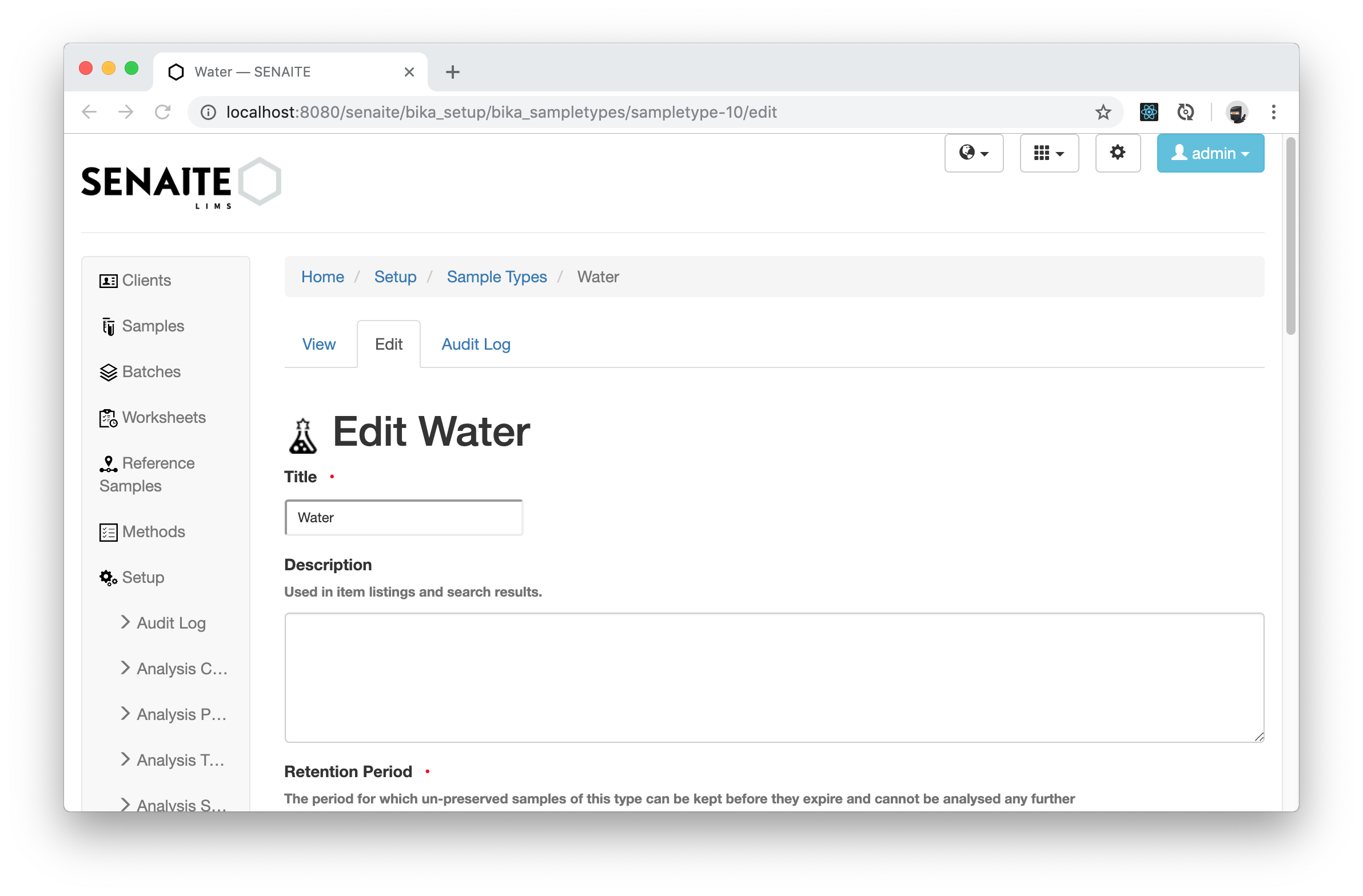
Enter the following values in the add form:
- Title:
Water - Prefix:
H2O - Minimum Volume:
100 ml
☝️Note:
The Sample Type Prefix H2O will control the generated ID of the new sample
later. Please always chose a concise and short identifier!
Creating the first sample
All Samples reside below Clients in SENAITE.
☝️Note: Although the system was initially designed for contract analyses labs, it is also perfectly possible to configure the system for non-contract-analysis labs, e.g. for quality control analyses for the producing industry. Simply add just one client which represents your own company.
Add Clients
Navigate to the Clients listing over the left side menu. Currently there are no Clients in the database.
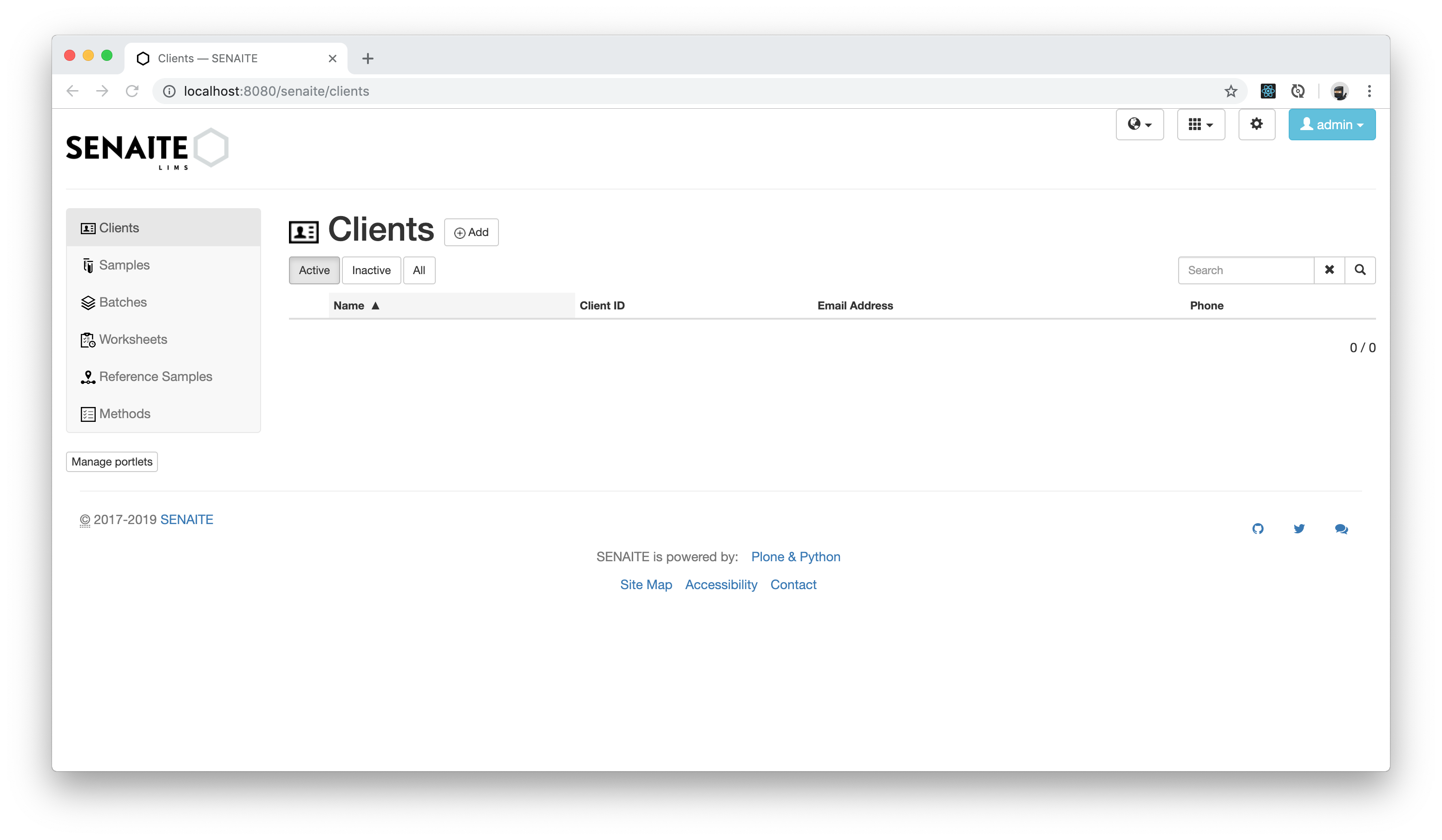
Add a new client by clicking on the Add button.
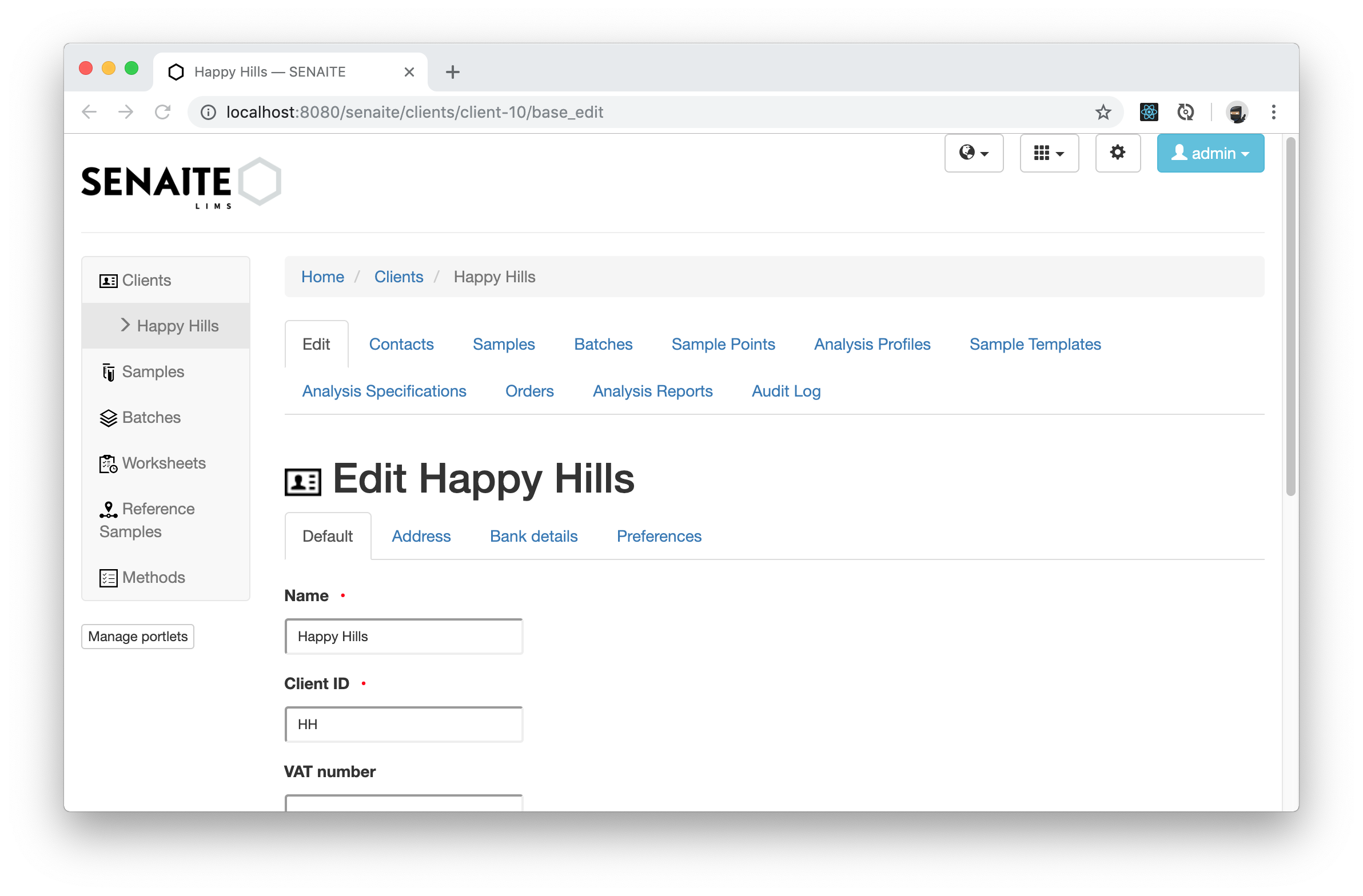
Enter the following values in the add form:
- Name:
Happy Hills - Client ID:
HH
Click the Save button when you are done.
☝️Note:
The Client ID must be unique in the system.
Add Client Contacts
Each Client needs to have at least one Client Contact which represents a natural person in the system. As we will see in the next section, client contact is a mandatory field when creating a sample. The reason is that the client contact assigned to a sample will be the laboratory's first point of contact during the sample's life-cycle within the lab facilities.
Make sure you are within the newly created Happy Hills client and choose then
the Contacts tab.
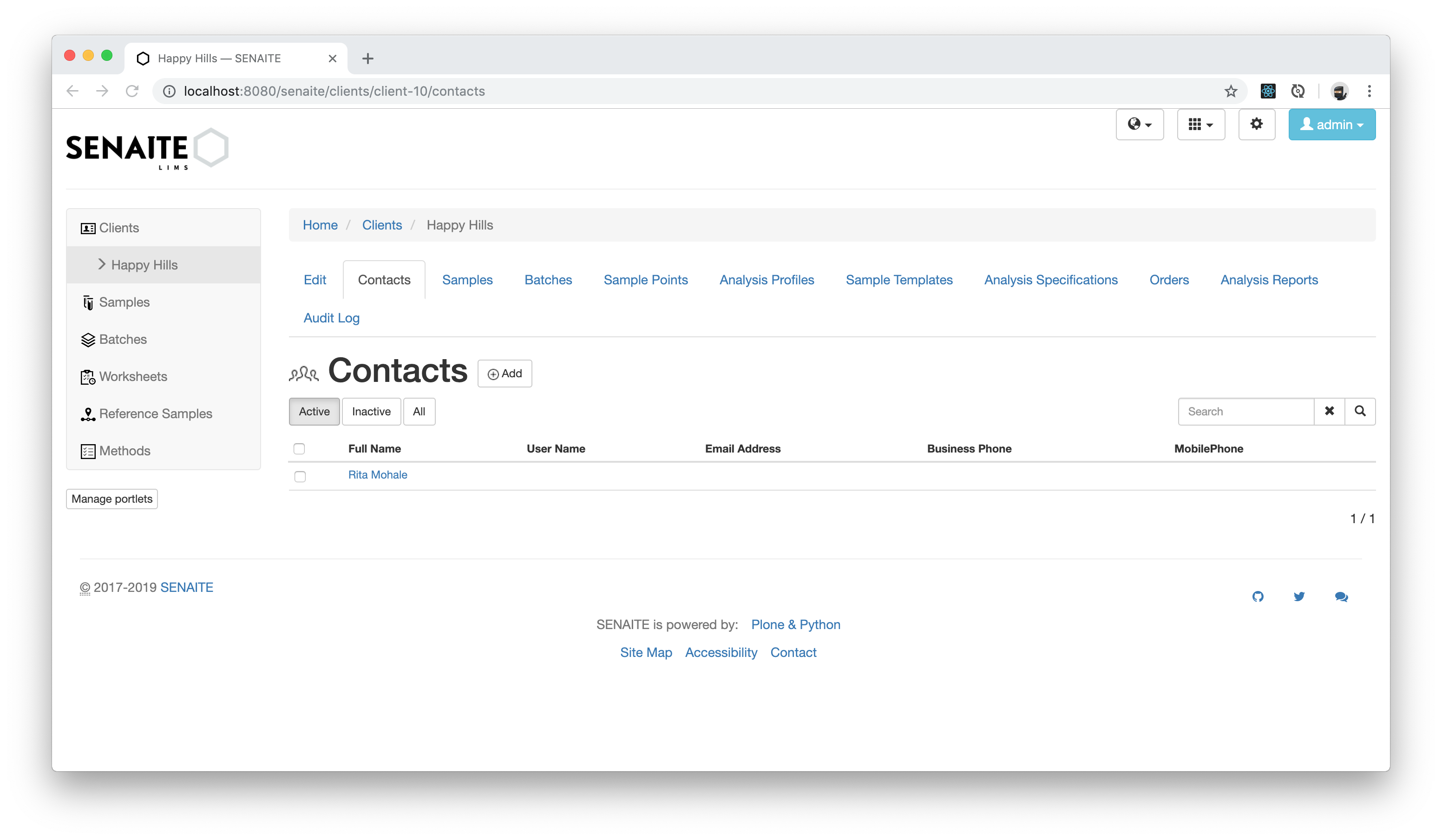
Click on the Add button and create a new Client Contact with either your own details or as shown in the screenshot above.
☝️Note:
The Email Address of the contact will be later used to send the result report.
The system need to have a configured Email Server setting as well.
Add new Samples
As already mentioned, all samples reside inside Client Entities in the database. Now that we just created a new Client, we can also add new Samples for this Client.
Make sure you are in the newly created Happy Hills Client and choose the
Samples tab.
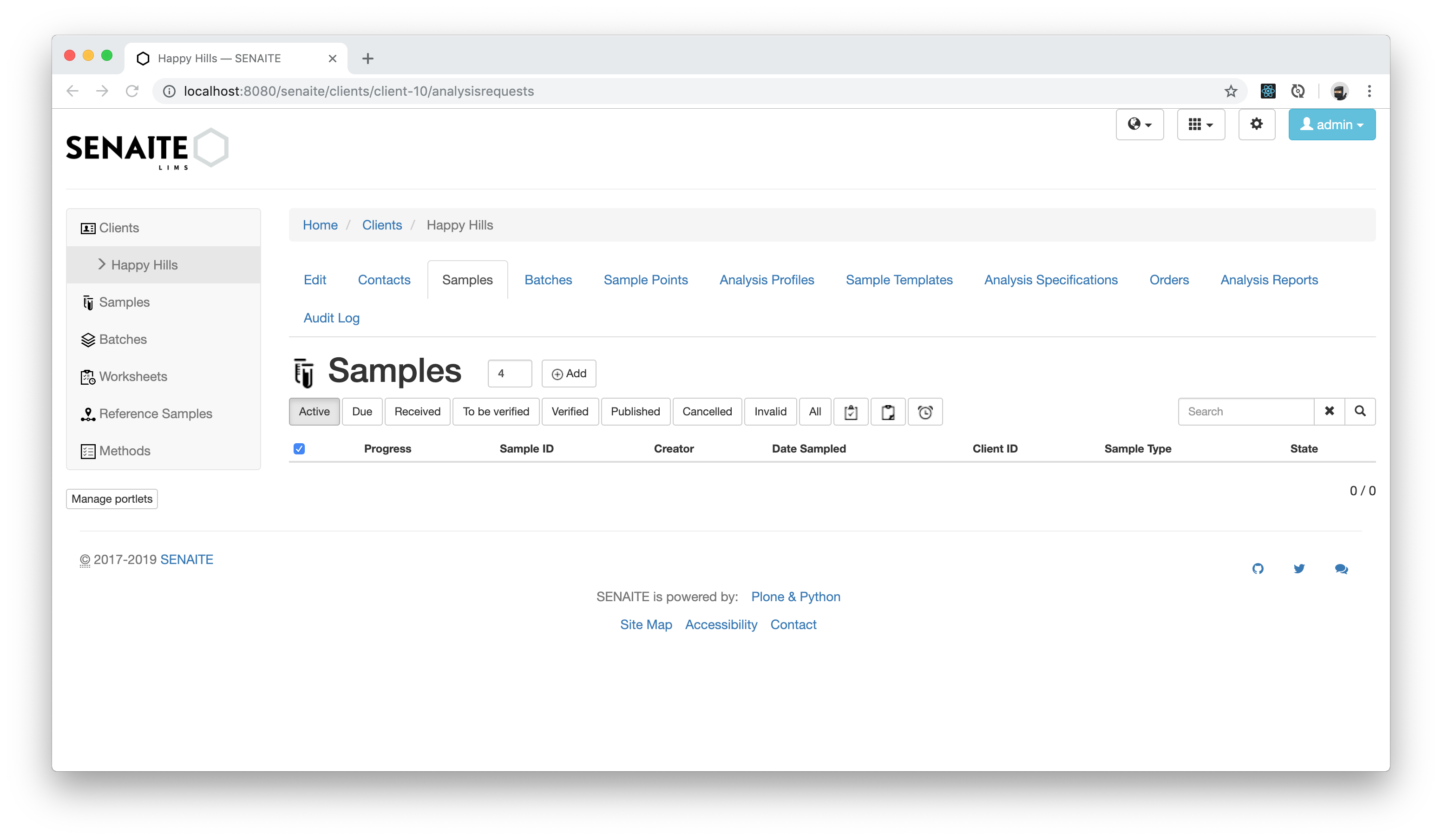
☝️Note: The number next to the Add button lets you choose the number of samples you want to register in the system at once. You need to select a value before you click the Add button, otherwise already entered values will get lost during reload.
Choose 2 and click Add.
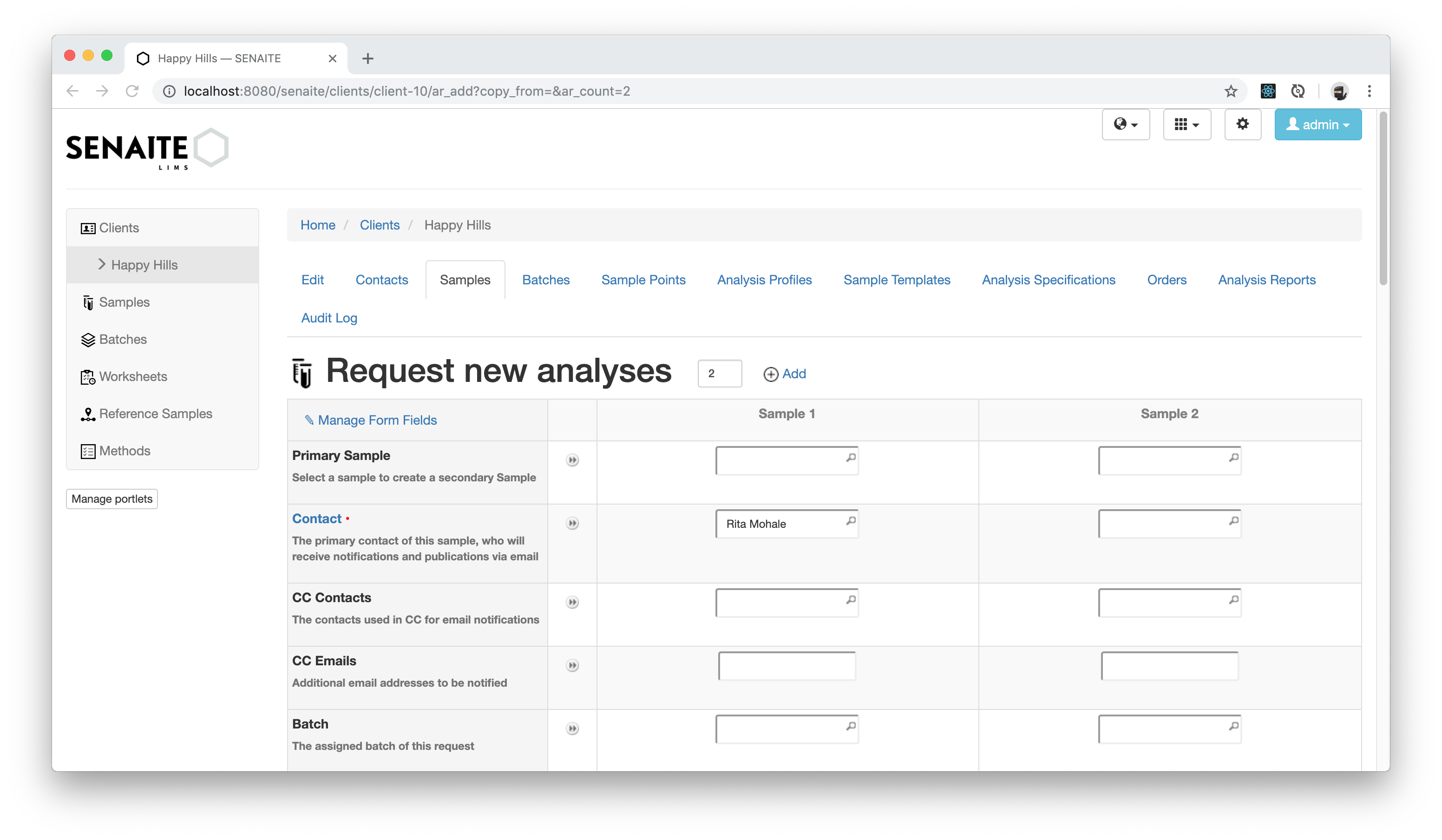
Each displayed column represents a sample.
🤓 Pro-Tip: The button in the second column lets you copy over the row values from the first column to the other Samples.
🤓 Pro-Tip: You can globally set the visibility and order of the fields by clicking on the Manage Form Fields link in the upper left corner of the form. Simply check only the fields you need and change the order by dragging and dropping the lines in that management view.
Enter the following values in the add form:
- Contact:
Rita Mohale - Date Sampled: Click the
nowbutton in the calendar popup to chose the current date and time - Sample Type:
Water - Lab Analyses: Select
Calcium,MagnesiumandTotal Hardness
Click on the Save button in the lower left corner to proceed.
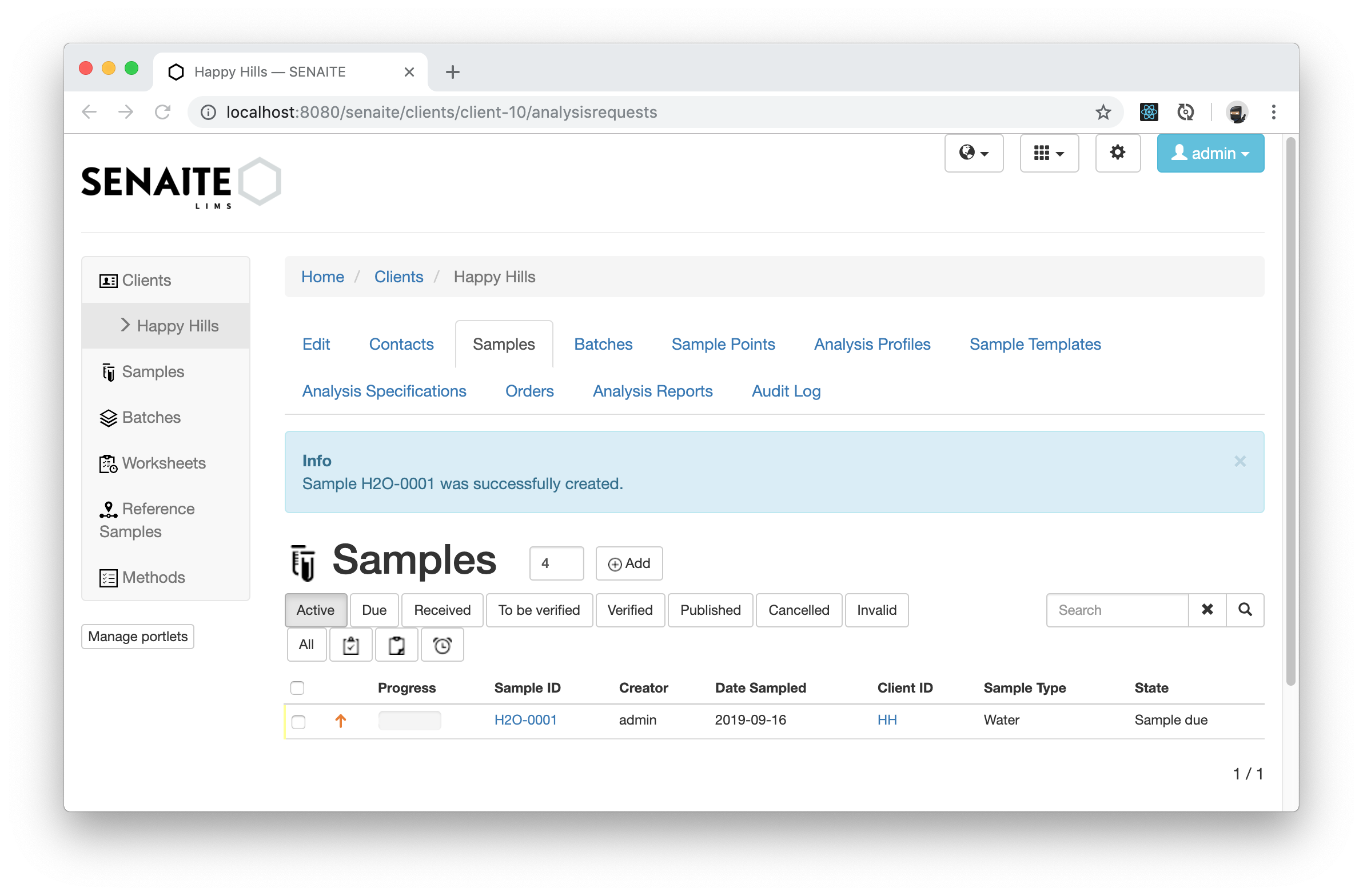
Congratulations, you successfully created your first Sample in SENAITE.
You can click now on the generated Sample ID link to inspect the created sample.
Also note how the generated ID contains our referenced Sample Type H2O and
is initially in the state Sample due, which means that the sample has
physically not yet arrived in the lab.
Continue then with the next section to learn the basic handling of samples in SENAITE.